

The song player
The waveform screen. Reached by tapping a song in the library, or the
JUMP BACK IN card on Home. Procedure is in looping; this page names the parts.
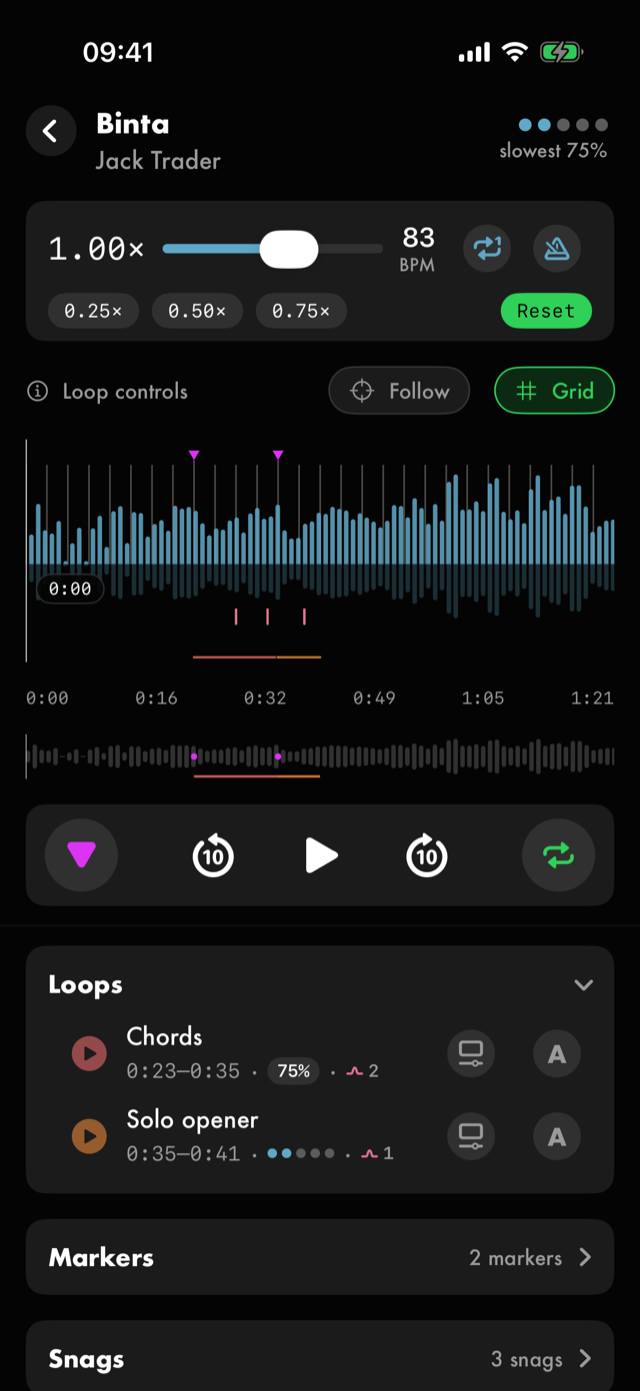
The title strip
Back to library on the left. Beside it the song's title, artist and mastery, with the slowest
loop's speed under the mastery — slowest 60%, or full speed. Hold the title to open
Song details — there is no button for it.
The speed bar
Playback speed— the slider that slows the song down without changing its pitch. Its accessibility label states the current value.Reset, and the shortcuts beside it, return it to full speed or jump to a fixed fraction.- The BPM readout shows the song's tempo, captioned
BPM. It reads Tempo not set until you give the song one. - Holding the BPM readout carries that tempo out of the song — to the metronome, or into a new exercise. It carries the number as shown, which is the song's tempo at the speed you have set.
- The metronome button turns a click on over the song. Holding it opens the tempo editor.
Repeat the songloops the whole track rather than a marked span.
The status line
The row beneath the speed bar, which changes with what you are doing.
Loop controls— tap for the gesture cheatsheet, a nine-row popover reproduced in full in gestures. Hold it for the player's own settings — the four in Settings ▸ Song player, surfaced where they apply. This hold has no visible hint, which is why it is written down here and there.Follow— a chip. Off, pinch-zoom holds the spot under your fingers; on, it tracks the playhead.Set the 1— marks where the bar starts, so a click can line up with the music.
While a span is being drawn the line is replaced by the A/B strip; while you are placing the 1 it is replaced by the downbeat bar. So those three states never overlap.
The waveform
The drawing of the song, with a time ruler beneath it and the playhead across it.
- Tap or drag to seek.
Song positionis the accessible handle for the same thing. - Pinch to zoom.
- Hold and drag across it to draw a loop directly.
Markerdrops a marker at the playhead (when no loop is running).- A minimap strip under the waveform shows the whole song; it can be turned off in Settings ▸ Song player.
The transport
Back 10 seconds · Play · Forward 10 seconds, with Loop and Marker either side
of them. Hold either skip button to change how far it jumps. Which side Loop sits on is a setting.
The three middle buttons are the same three with a loop running, and the skips then move within the loop rather than the song — they stop at its ends, and never turn it off. Moving between loops is a tap on a row in the Loops panel below.
With a loop running, Loop and Marker are replaced by a single Snag button, and the loop's
colour strip with its ✕ takes the other side.
Snags
Snag marks the spot you are playing as one that went wrong. One tap — there is nothing to name and
nothing to confirm, so you can keep playing. Each one shows as a short crimson tick under the
waveform, so several in the same place read as a cluster.
Marks inside the loop you are running are drawn at full strength and the rest fade back, so what stands out is what is in front of you. It goes by where a mark sits, not by which loop you made it in — so a mark another loop left behind still counts if it falls inside this one. With no loop running, all of them are drawn at full strength.
When your snags land close together, the status line offers to tighten the loop around them.
Taking it does not change the loop: it opens the shorter range as a live A / B span so you hear it
first, and Save changes is what commits it. If your snags are spread across the loop, nothing is
offered — that spread is telling you the trouble is not in one place.
Snags live in the Snags panel below, where you can jump to one, leave a line on it, or remove it. A
loop's row in the
Loops panel also shows how many marks fall inside it, so you can see which passage has been giving
trouble without opening anything.
Nothing scores them, and nothing charts them over time. A count says where the marks are, never
how you played. Snag is for you.
A loop's span history
Hold a loop's row to open its settings, and under Range there is How it got here — every time you changed that loop's range, newest first, with the speed you were playing at when you changed it. A row reads Narrowed · 0.85×, or Widened, or Moved when the range shifted along the song without getting shorter or longer.
Where an earlier range was wider than the one you are on now, the section offers to widen back to
it — one step back, to the range you were working at before, rather than all the way to where you
started. It does not change the loop: it opens that wider range as a live A / B span so you hear it
first, and Save changes is what commits it.
The section shows the three most recent changes, with Show all when there are more. It only
appears once a loop has a history.
The panels
Three collapsible lists under the transport, each headed with its name and, when collapsed, a count.
Loops
One row per loop: its name, its range as times, its mastery, and — when there are any — how many snags fall inside its range. Each row carries play, an adjust range control that takes you back to the waveform to drag the ends, and a ramp control that opens the loop automator.
Hold a row to open Edit loop — the sheet opens straight away, with no menu in between.
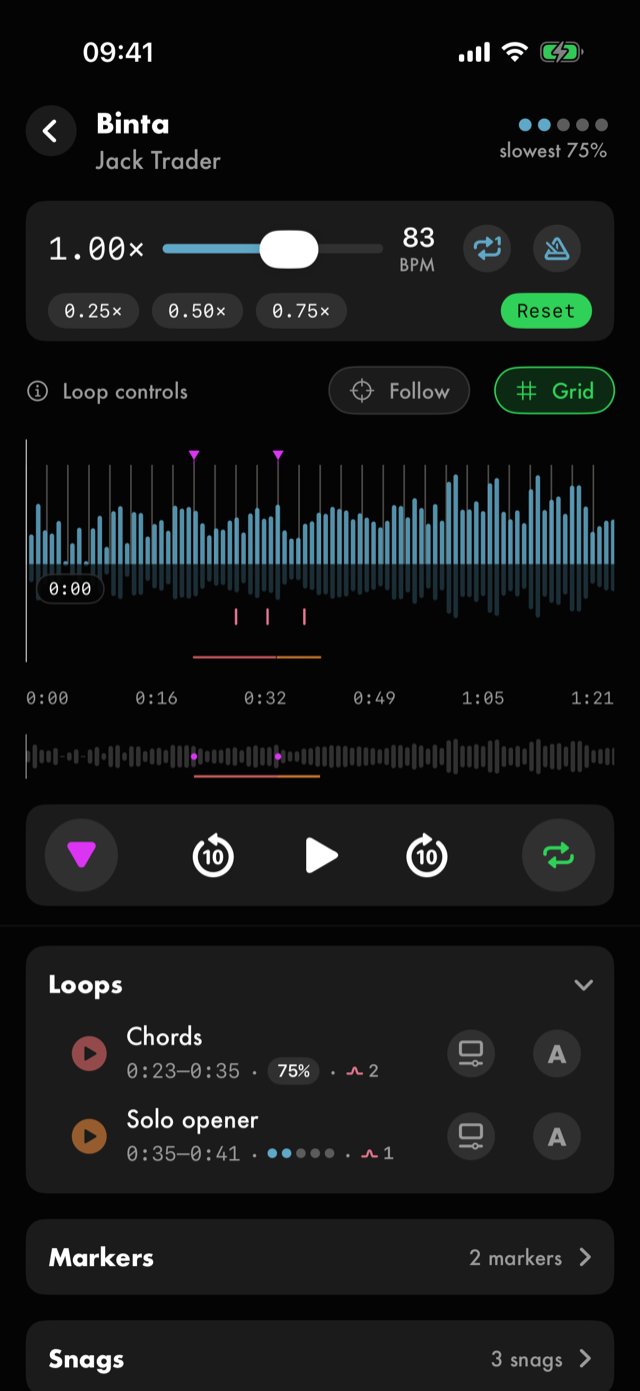
Hold the panel header to start selecting, then tap rows to act on several at once.
Markers
One row per marker: its name and its time. Tapping a row seeks there. Holding one opens its edit sheet. Marker names can also float over the timeline as you play up to them — a setting.
Snags
One row per snag, in the order they fall in the song: the time, the loop you were running when you marked it, and the speed you were playing at if it was not full tempo. Tapping a row goes there and plays. The ✕ removes it.
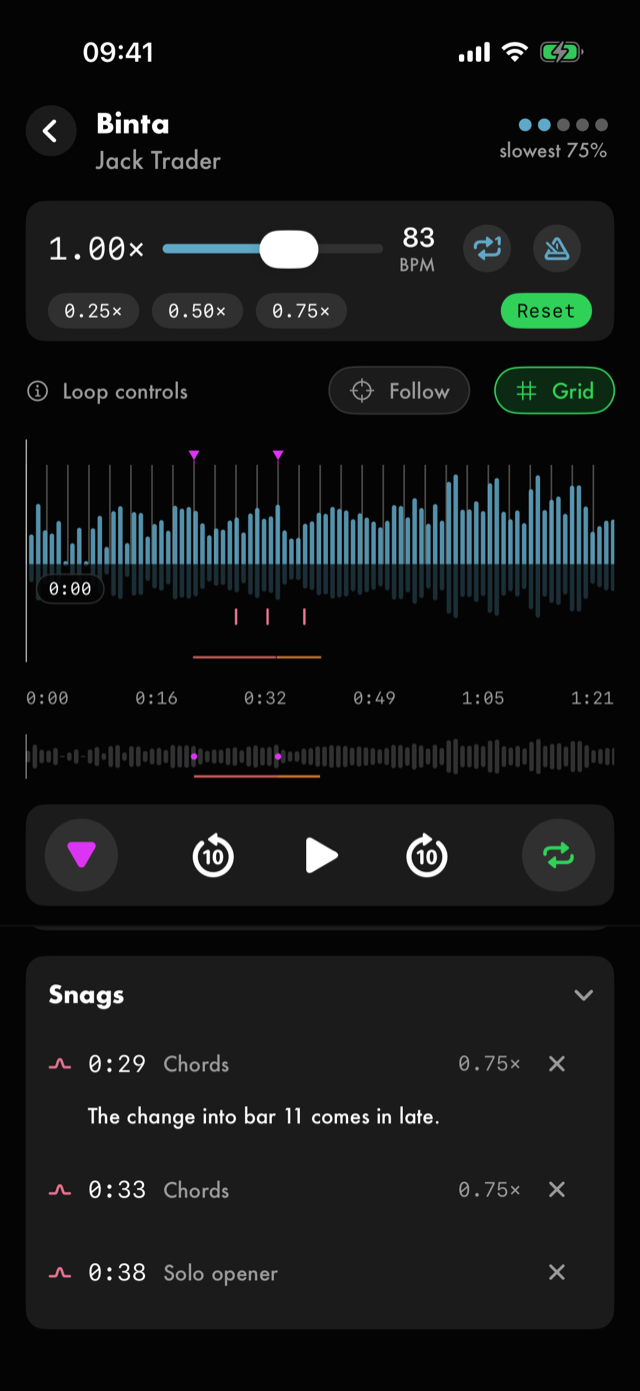
Hold a row to leave yourself a line about that snag, for when you come back: What’s stopping you here? It saves to the Journal of the loop the row names, or, if that loop is gone, of the loop the snag falls in now, and shows under the row from then on. Hold it again to change it, or clear it to take it out. Removing the snag doesn't remove the line: it stays in the Journal as a note on that loop.
It's the same line Name the notes shows under its strip, so one written in either place shows in both.
The rows stay in song order rather than being grouped by loop, so two marks a beat apart sit together even when you made them under different loops. A snag whose loop you have since deleted keeps its place and simply shows no loop name.
A note you snagged in Name the notes, somewhere you were stuck working a lick out, is listed here too,
in its place in the song.
There is nothing else to a snag — no name, no colour, no rating — so there is no selection mode. It starts collapsed.
The sheets
Edit loop
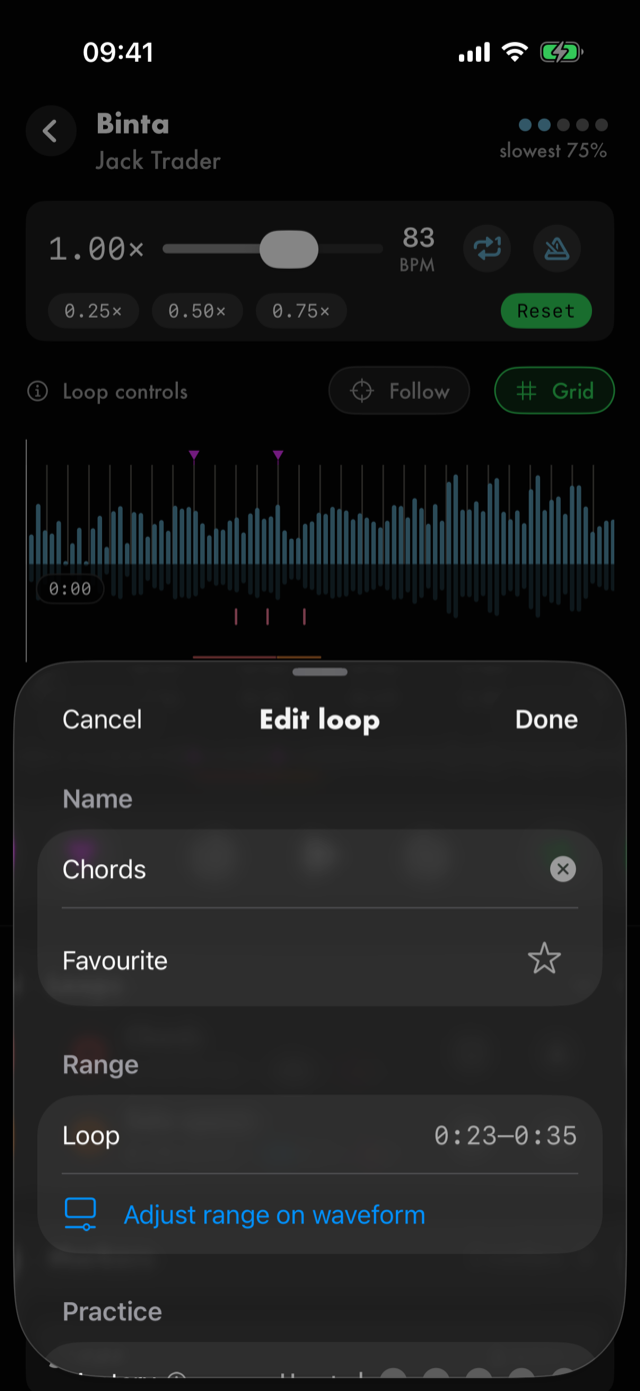
Cancel discards, Done keeps.
Name, and aFavouritestar.Range— the span as times, withAdjust range on waveformto go back and drag it.Practice—Mastery,Focus,TypeandCommand tempo, each with an ⓘ. These four are defined in the app's own words.Train your earandImprovise— the two alternative ways to run this loop.Watch it on the neck— once the loop's piece has a note on the neck: the lick on the neck, lit as the loop plays. See practice.Backing track— marks the span as something to solo over.Journal— notes written against this loop, showing a count orNone.Where you learned it— links out to whatever explains this passage, with anAdd a linkbutton. See where you learned it.Works on— the skills this loop serves, so the goals that can bring it into a session.Add skillsstates them, from the whole catalogue or your own. A tag that names a kind of drill adds that kind's skills too, each saying which tag it came from, and they go when the tag does.Tags— your own labels, plus a row of suggestions.Colour— how the span is drawn on the waveform, includingCustom colour.Delete loopat the bottom.
The loop automator
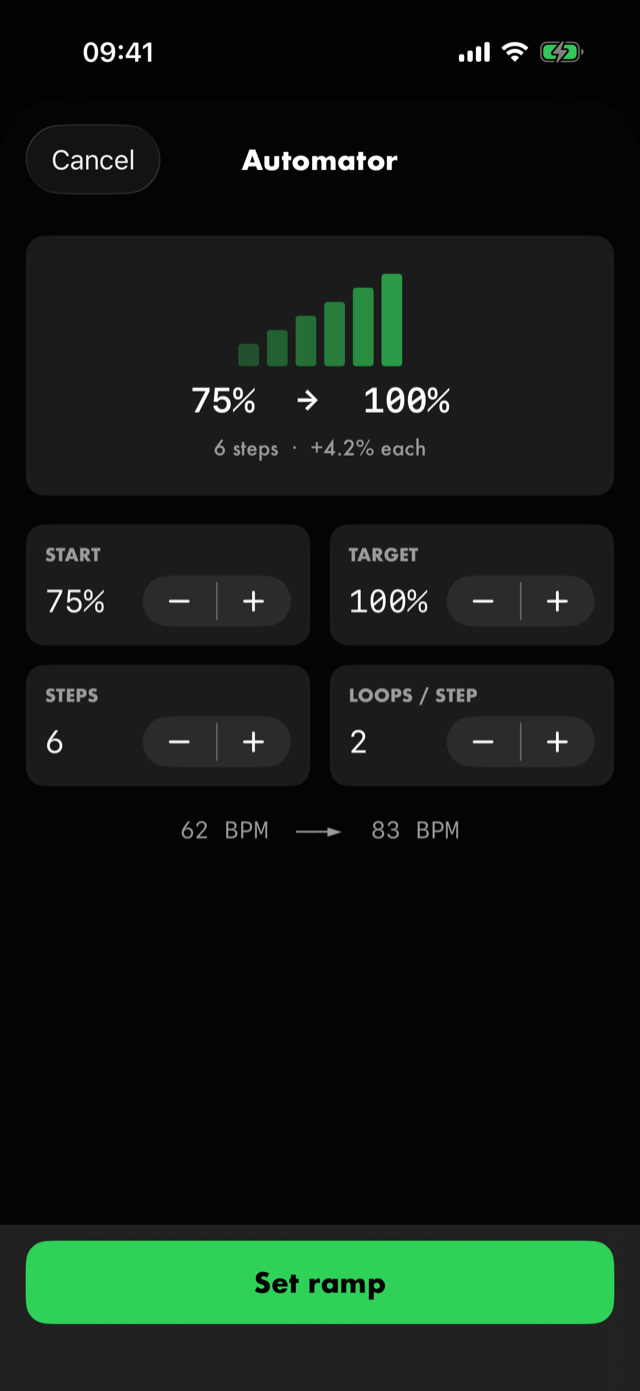
A ramp for one loop, expressed in percentages of the song's speed: Start, Target, Steps and
Loops / step, with a summary of the climb above them and the BPM it works out to below.
Set ramp arms it.
The tempo editor
One way in — hold the metronome button on the speed bar. (Holding the BPM readout beside it used to open this too; it now carries the tempo out instead.)
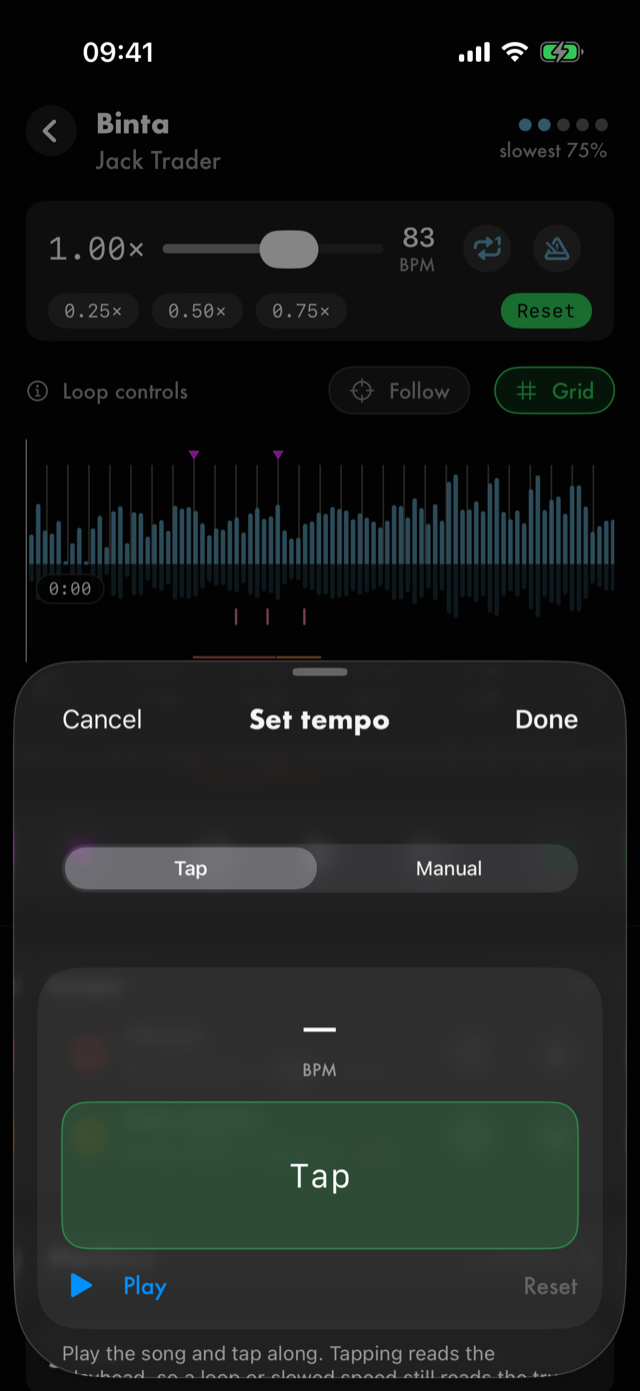
Tap—Tap to the beat. The app's own explanation: Play the song and tap along. Tapping reads the playhead, so a loop or slowed speed still reads the true tempo. The reading follows your last few taps, so on a song that drifts, keep tapping through the section you care about.Manual— type the number.Estimate from audioanalyses the track and proposes one.The 1 (downbeat)—Mark the 1 at the playhead, orSet the 1 on the waveform.
The player settings sheet
Titled Song player, and reached only by holding Loop controls. It carries the same
controls as Settings ▸ Song player: Loop control on left,
Show minimap, Show marker labels, Zoom follows playhead, Snap when seeking, and the hold
tips' Show hold tips and Show the tips again.
The others
- Marker edit — a marker's name and position.
- Bulk edit —
TypeandFocusacross every loop you have selected. - Journal — notes for this loop, from the
Journalrow of its edit sheet. - Ear training and Improvise — the two alternative run modes, opened from the same sheet.
- Watch it on the neck — the loop's piece lit on the neck as it plays, from the same sheet.
- The practice run takes over the whole screen; it is covered in practice.
Landscape
Turn the phone and the waveform takes the full width, with the panels moving into a drawer. The controls are the same ones.
All manual pages. Something not covered here? Get in touch — we read every message.