

Settings
The gear at the top left of Home. It pushes onto the same stack as everything else, so it backs out to where you were.
The hub
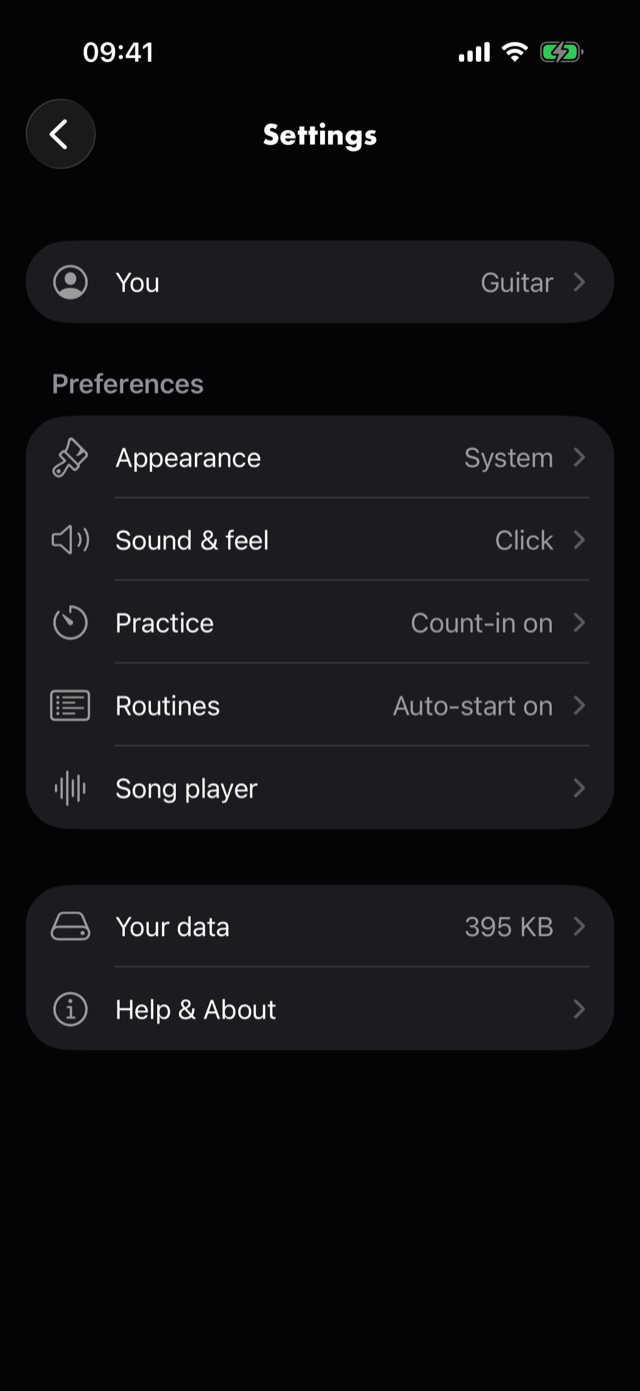
Eight destinations. Each row states its current value on the right, so most questions are answered without opening anything.
| Row | Holds |
|---|---|
You |
Your name, and what you play |
Appearance |
Theme, motion, and how notes are spelled |
Sound & feel |
Haptics, and which click the metronome plays |
Practice |
Count-in, screen, the strumming click, reminders, and what Home offers you |
Routines |
How a routine moves from block to block |
Song player |
How the waveform screen looks and behaves, and its hold tips |
Your data |
A copy of everything, and what it takes up |
Help & About |
Version, help, contact, diagnostics, and the legal links |
You sits above the rest because it is state — who you are — rather than a preference.
Most rows carry an ⓘ. The explanations below are those popovers, word for word: where this page and the app differ, the app is right.
You
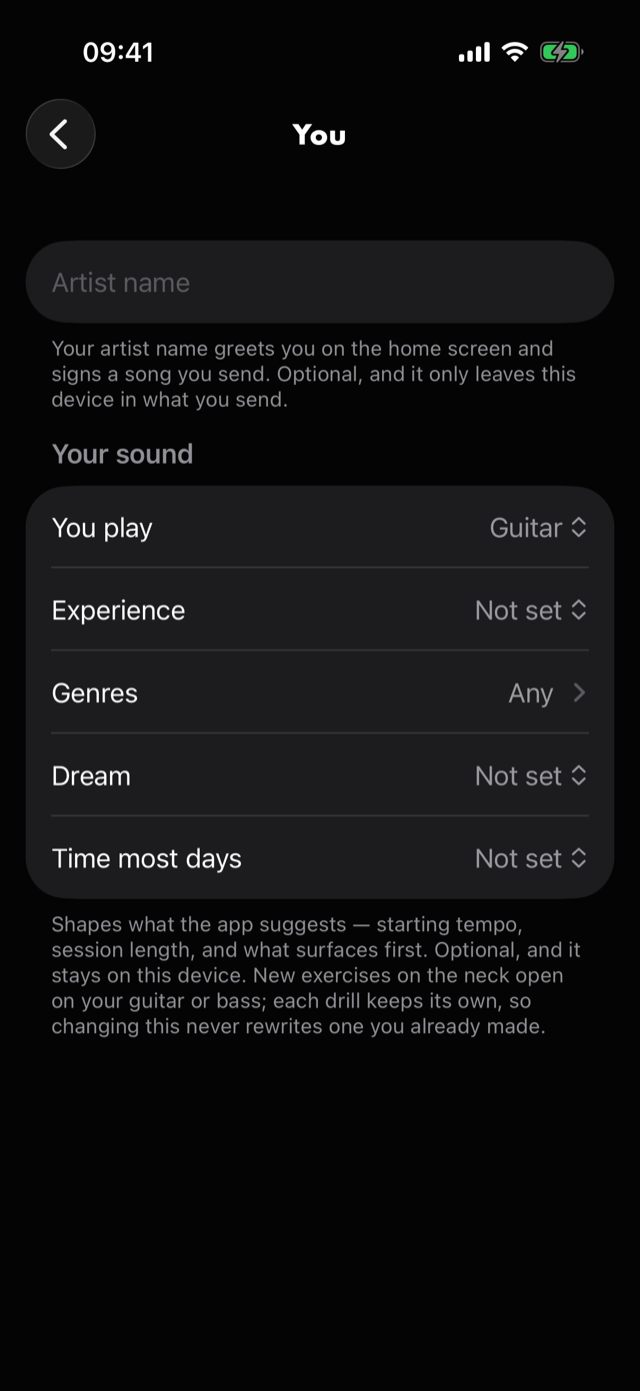
Artist name— Your artist name greets you on the home screen and signs a song you send. Optional, and it only leaves this device in what you send.Your sound—You play,Experience,Genres,DreamandTime most days.You playis the intake's first question: Guitar, Bass, Piano or keys, Singing, Producing, Drums, Ukulele, Violin or Something else. Changing it later adds and takes away nothing. Its footer: Shapes what the app suggests — starting tempo, session length, and what surfaces first. Optional, and it stays on this device. New exercises on the neck open on your guitar or bass; each drill keeps its own, so changing this never rewrites one you already made.
Every one of these is optional, and none of it leaves the device.
Appearance
- Theme —
System,LightorDark, footnoted System follows your device. Motion▸Animate exercises— A moving highlight walks the exercise in time — the notes on the fretboard, the strokes on the strum lane. Always off when your device has Reduce Motion on.Note names—Sharps (♯)orFlats (♭), used where the music does not settle it for itself. Where a key is known, the key wins.
Sound & feel
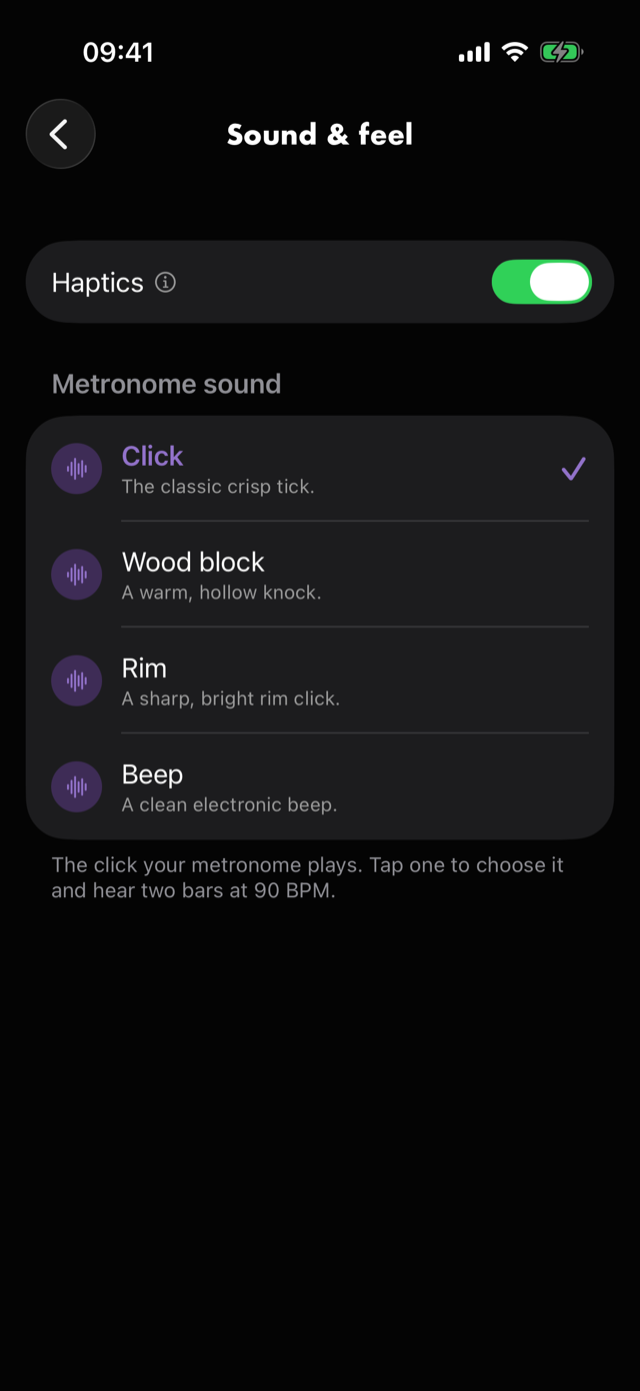
Haptics— Light taps that confirm gestures like setting a loop or tapping tempo.Metronome sound—Click,Wood block,RimorBeep, each with a one-line description. Tapping one chooses it and plays a sample.
Practice
Count-in— A count-in before a tempo climb begins, so you can settle in before playing.Count-in length— how many bars, once a count-in is on.Keep screen awake— Stops the screen locking while you play along hands-free.Strumming click follows the pattern— For a strumming drill, the metronome plays the pattern's rhythm (down/up/accent). Turned off, it's a plain click you strum the rhythm against.Tempo changes—OfforShow, for whether a climbing ramp announces the tempo it is moving to.Starting point for new reminders— the days and theTimea new routine reminder starts from. It sets a starting position and nothing else: nothing here sends anything, it never changes a reminder already set, and there is no switch that turns reminders on. A reminder is switched on from the routine itself — see Reminding yourself.Reminders you've set— every routine that currently has one, with its days and time, orNone yet. Tap one to change its days, its time, or to switch it off, without going to the routine. With notifications off for Red Moon each row readsNot being deliveredrather than naming a time it cannot keep.Home▸Jump back in— what Home's resume card carries:Most recent,Song,RoutineorExercise. Its footer: The card under today's session carries the last thing you practised. Pin it to a song, a routine or an exercise if that is what you always come back to. You can also hold the card itself to change this. Whichever you pick, the most recent of any kind shows until there is one of that kind to show.Beside Toolkit— what the tile beside Toolkit on Home opens:My tabs,My chords,My progressions,Tuner,GlossaryorHelp & FAQs. Its footer: The tile beside Toolkit on Home opens the tool you pick here. You can also hold the tile to change it.
Routines
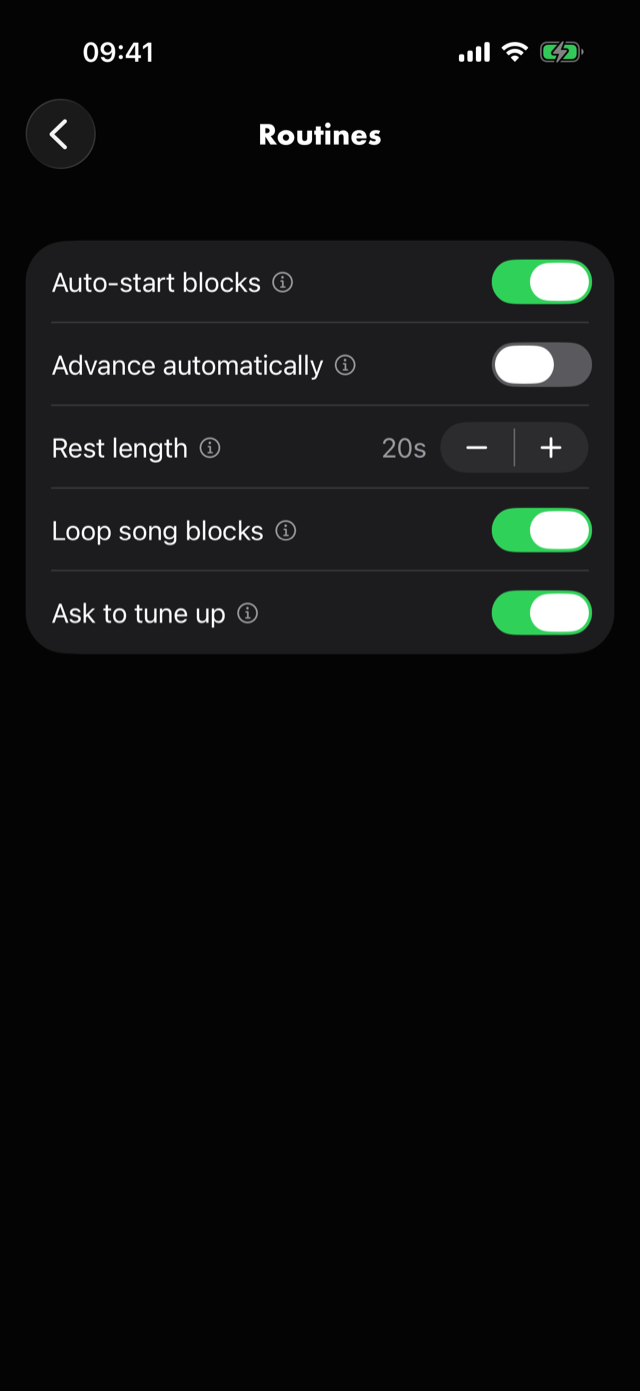
Auto-start blocks— In a routine, each block after the first starts on its own — the first always waits for you.Advance automatically— When a block finishes, a Done screen lets you rate how it felt and jot a note. Turn this on to skip it and go straight to the next block.Rest length— The breather between blocks.Loop song blocks— A song block loops as an open jam and moves on only when you skip. Off plays it through once, then auto-advances.Ask to tune up— Starting a routine asks whether you want to tune first. Answering it, or turning this off, takes one tap — it never keeps you from playing. On unless you turn it off, and the prompt's ownDon't ask againturns it off from there. See Tuning up.
Song player
The same controls the player carries behind a hold
on Loop controls — one setting, two doors.
Loop control on left— Big Loop and Marker buttons flank the transport bar while idle. Marker sits on the left and Loop on the right by default — turn this on to swap them.Show minimap— The full-song overview strip under the waveform. Off gives the waveform and loops a little more room.Show marker labels— Floats a marker's name over the timeline as you play up to it. Off keeps labels in the Markers panel only.Zoom follows playhead— Pinch-zoom normally keeps the spot under your fingers still. Turn this on to have the window re-center on the playhead as you zoom instead.Snap when seeking—Structure and beat,Structure onlyorOff. Its footer: Tapping the waveform lands on the nearest marker, loop edge or beat, so the playhead lines up with what you can see. Dragging already ignores the beats and keeps the markers. Structure only drops the beats from a tap too; Off puts the playhead exactly where you lifted your finger. Loop edges still line up either way.Show hold tips— Points out a hold on the song player you haven't used yet, with a ring round the control and a line saying what holding it does. One tip at a time, and only while the song is paused. Using the hold, or closing its tip, puts that tip away for good. On until you turn it off. See Tips for the holds.Show the tips again— brings back every tip you have used or closed, and lets one show the next time you open a song. Greyed out while the tips are off, or while none has been put away.
Your data
The hub row shows what Red Moon is holding on disk — your imported song files plus your recordings. That figure is measured when you open Settings, so it is what is there now, not what was there when you last looked.
Export
Prepare a copy writes everything you have built into a single zip and hands it to the share
sheet, so you can put it in Files, iCloud Drive, or anywhere else you keep things.
Inside are practice.json — your songs, loops, markers, exercises, chords, routines, goals, journal
and practice history — and a takes folder with the audio of your recordings.
Include recordingsis on to start with: Your takes are the one part of an archive nothing else can rebuild, and the largest part by far. Leave this on unless all you want is your notes and settings. Turned off, the file is small and your takes are still described in it — their notes, their moments, and the name of the missing audio — but the audio itself is not there.Sizeis an estimate, because how far a zip compresses is not knowable until it is written. The exact size appears on the share row once the copy is ready.
Preparing and sharing are two taps rather than one: the file has to exist before the share sheet can carry it, and on a large library that takes a moment.
If a recording's audio has gone missing from the device, the copy says how many and carries on.
Restore
Restore from a copy… opens the file picker for an archive you exported earlier. Red Moon reads
it, then shows you what is inside — a count per kind, and how many of those it already has — before
anything is written. Nothing you have is changed or replaced: only what is missing is added, so
restoring the same archive twice changes nothing the second time.
Songs come back with their loops, markers, tempo grid and notes, and without their audio: the files
themselves never travel in an archive, so you point each song at your own copy again. Recordings come
back with their audio when the archive was made with Include recordings on; when it wasn't, their
notes and moments still come back and the sheet says how many are without sound.
An archive is a plain zip, so it does not open by tapping it — you come here and choose it. A shared routine is a different thing and does open by tapping; see routines.
A take recorded next to a playing song may have picked that song up through the mic. That is worth knowing before you send an archive anywhere.
Nothing here uploads anything. The file is written on the device and handed to the share sheet; where it goes after that is entirely your choice. See your data.
Storage
What Red Moon is using on this device, measured when you open the screen, in three lines and a total:
| Line | What it is |
|---|---|
Songs |
The copies Red Moon keeps of the audio you imported |
Recordings |
Your takes |
Practice data |
Everything you have written — loops, exercises, routines, journal, history |
It is measured the same way Settings ▸ General ▸ iPhone Storage measures it, so the two figures are comparable.
Keep songs in backupis on to start with: Your imported song files ride along in your device backup, so a restored phone plays them straight away. Turning this off makes backups much smaller, and means a restored phone needs each song pointed at its file again. Your recordings are always backed up.Reclaim space: Deletes audio files left behind by songs and takes you have already removed. It never touches a song or a take you still have. It tells you how much it freed, or that there was nothing to reclaim — which is the answer you want.
Help & About
Version— the build you are running.Help & FAQs— the same screen the Toolkit opens, pushed onto this stack instead.Contact Support— an in-app form that posts over the internet, so it works with no Mail account set up.Diagnostics— what iOS has reported going wrong, and whether any of it travels with a support message. See below.Rate Red Moon— opens Red Moon's App Store page with a review started. Red Moon also asks once, by itself, after you have practised on several separate occasions; there is no way to ask it to ask again, and iOS decides whether that prompt appears at all.Privacy PolicyandTerms of Use— both open in the browser.
Diagnostics
iOS collects crashes and freezes in the background and hands them to Red Moon about once a day, so something that just happened will not be here yet. An empty screen the morning after a crash is normal. Nothing on it is sent anywhere on its own.
The last five are listed, newest first, each with its date, what iOS called it, the build it happened
on, and the iOS version. Anything older than roughly three months drops off. Clear forgets the list
on this device; it does not stop iOS collecting more.
Include in support messages— Adds one line to your next support message: how many crashes or freezes there were, when, and what iOS called them. It is the line shown on this screen and nothing more — never your songs, your recordings or your notes.
Off unless you turn it on. Turned on, the line appears under the toggle so you can read it, and it is shown again inside the contact form before you send — the form always shows everything it attaches.
Not in a shipping build
There is an eleventh row on the hub in development builds only. It is not present in the app you can install, and nothing in this manual describes it.
All manual pages. Something not covered here? Get in touch — we read every message.