

Where you learned it
Red Moon does not teach you the material. Somebody else does — a video, a tab page, a course, a teacher — and what this app is for is the stretch between watching that and being able to play it.
So exercises, songs, loops and routines each hold pointers back to wherever they came from. Either a
link you paste, or a file you keep here — a screenshot, a photo of the page, the PDF you
downloaded, an ASCII tab in a .txt, your own notes in a .md. Whichever it is, it sits with the
thing it explains until you delete it.
A song's section is also a good home for the artist's own pages: their Instagram, their YouTube channel, wherever they post. The note under the section says so.
Where the section is
Where you learned it appears on four things, always on the screen where you choose what to practise:
| On | How you get there |
|---|---|
| An exercise | Its ⓘ detail sheet — from the run screen's header, or Details on a library row |
| A song | Details, from the library row menu or by holding the title in the player |
| A loop | Edit loop, from holding a row in the Loops panel |
| A routine | Open it from the Routines library. Readable straight away; Edit is what lets you add or remove one, and Save keeps the change |
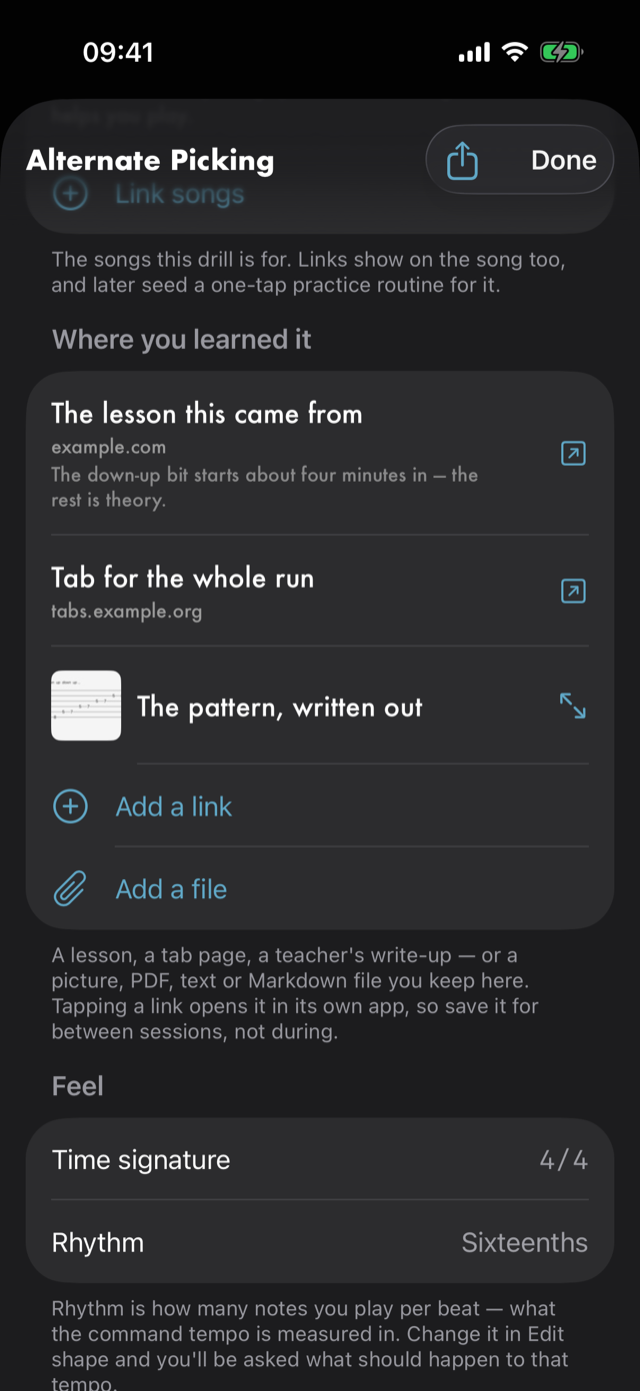
A routine having one is the point of the whole feature. A course belongs to a session, not to a single drill, and until now a routine built around week three of something had nowhere to say so.
Adding a link
Add a link opens three fields.
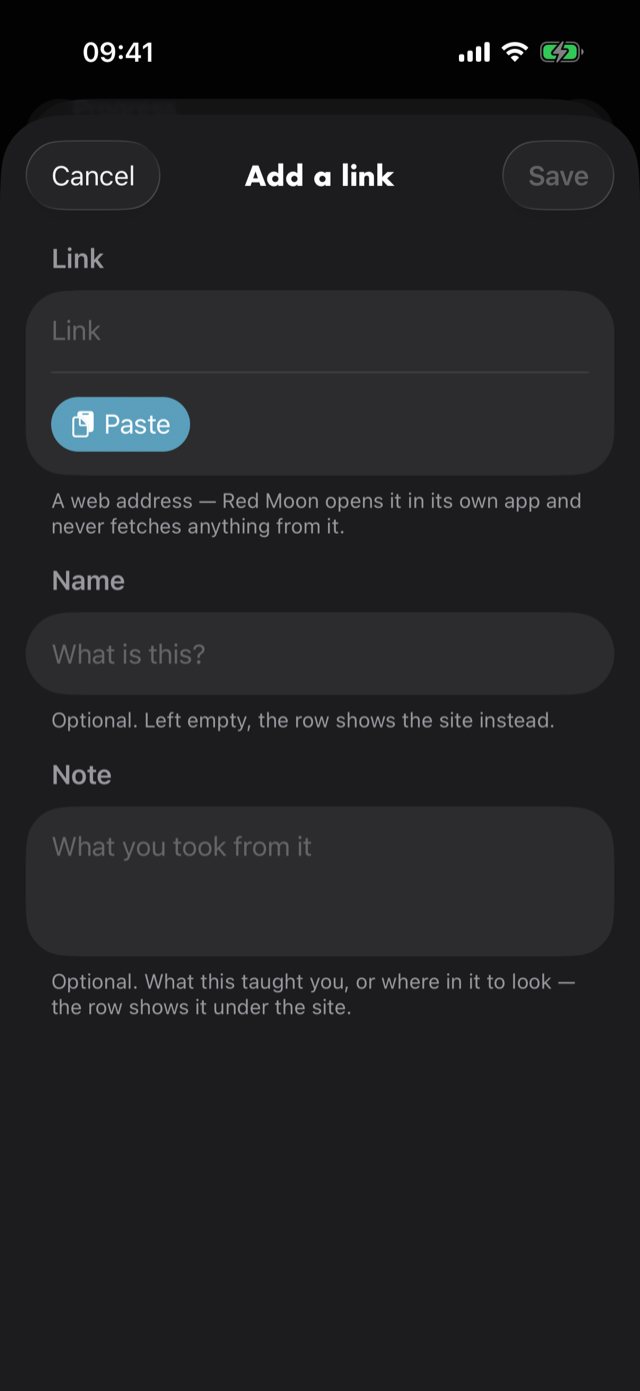
- Link — the address, with Paste underneath it so getting a video address in is one tap. Red Moon does not look at your clipboard until you tap that button; nothing here reads it in the background, and you will never be asked to allow it.
- Name — optional. Leave it empty and the row shows the site instead.
- Note — optional, and the one worth writing. The name says what the source is, which you can usually work out from the address a week later. The note says what you took from it — the down-up bit starts about four minutes in, only the chorus voicings are useful — which you cannot. It shows on the row itself, under the site, so it is there while you are deciding what to practise.
It has to be a web address — something beginning http:// or https://. Leave the scheme off and
Red Moon assumes https://, so pasting youtube.com/... works. Anything else is refused with a
message saying so, because a link that cannot be opened is worse than no link.
Adding a file
Add a file offers Choose a photo and Choose a file. The first opens your photo library, the second opens Files. There is no camera here: Red Moon never asks for camera access, and the shot you want is usually already in your library.
Four kinds go in, and each is shown the way it is meant to be read:
| What you attach | How it opens |
|---|---|
| A picture — screenshot, photo of a page | Full width, at a size a phone can show |
| A PDF — the tab you downloaded | All of it, pageable and zoomable. Nothing is flattened or dropped |
A .txt — ASCII tab |
Fixed-width and not wrapped, scrolling sideways, because that is the only way the strings line up |
A .md — your own written notes |
Wrapped like prose, with bold and italic shown as formatting rather than asterisks |
That last split is worth knowing when you save something: .txt is treated as a grid and .md as
prose. Paste ASCII tab into a .md and it will wrap and stop lining up — save it as .txt
instead.
Whatever you attach is copied into Red Moon, so it stays even if you later delete the original. Pictures are made smaller on the way in — a screenshot arrives at roughly the size it was, a full-resolution photo is cut down to what a phone screen can show. Documents are never rewritten: a PDF is stored exactly as it arrived. Anything over 25 MB is refused, and says so.
Five files per exercise, song, loop or routine. At five, Add a file stops offering and the footer says so; remove one and it comes back. Links are not capped — they cost almost nothing to keep, and a file does.
Once you have picked one, the same fields a link gets open over it, with the file itself at the top so you can see what you are naming. A file has no address, so there are two rather than three:
- Name — optional, and it is what VoiceOver reads. Leave it empty and the row just says what kind of file it is.
- Note — optional. What it shows you, or which bit of it matters.
The button out of that is Skip, not Cancel, and it means what it says: the file was copied in the moment you chose it, so skipping declines the describing and nothing else. If the right words turn up later, hold the row and choose Edit details.
Using them
Hold a row and you get Edit link — Edit details, on a file — and Delete, the same menu every other list in the app puts behind a hold. Editing opens it back up with everything you typed, so a name you'd change or a note you didn't write at the time is one gesture away. Swiping the row right opens the editor too; swiping left deletes.
Deleting is immediate — there is no undo toast here, unlike deleting a song or a routine. Deleting a file deletes the copy Red Moon kept, and the space comes back straight away. Nothing else goes with it: the exercise, song, loop or routine it was attached to is untouched.
Tap a link row and the source opens in its own app — YouTube in YouTube, a tab site in your browser. Red Moon does not show it inside itself, and it never fetches anything from the address: no titles, no previews, no thumbnails, no requests of any kind. What is stored is what you typed.
Tap a file row and it opens inside Red Moon, with your note beside it. A file is the one kind of reference that does not take you out of the app — which is the whole reason it is worth keeping one here rather than a link to it. See Privacy.
On a routine, where the list is already in edit mode, you can also drag a reference into a different order.
Three things it deliberately does not do
There are no links on a run screen. Not on a loop run, not on an exercise run, not mid-session. Tapping a lesson link while you are practising takes you out of the app, which is the one thing the run screen is built to prevent. Read the source before you start or after you stop.
There is no reading of your files. Red Moon shows you a tab; it does not try to turn one into an exercise. Nothing is scanned, no text is recognised, nothing is uploaded, and no file ever leaves the device except in an export you ask for.
Deleting the thing deletes its references. A reference belongs to what it explains, so removing an exercise, song, loop or routine removes the links and files hung off it. This is not how notes and takes behave — those outlive what they were written about, because they are records of you rather than of the material. See Journal and Practice log.
Next
All manual pages. Something not covered here? Get in touch — we read every message.