

Practice
Reached from the Practice card on Home.
The hub
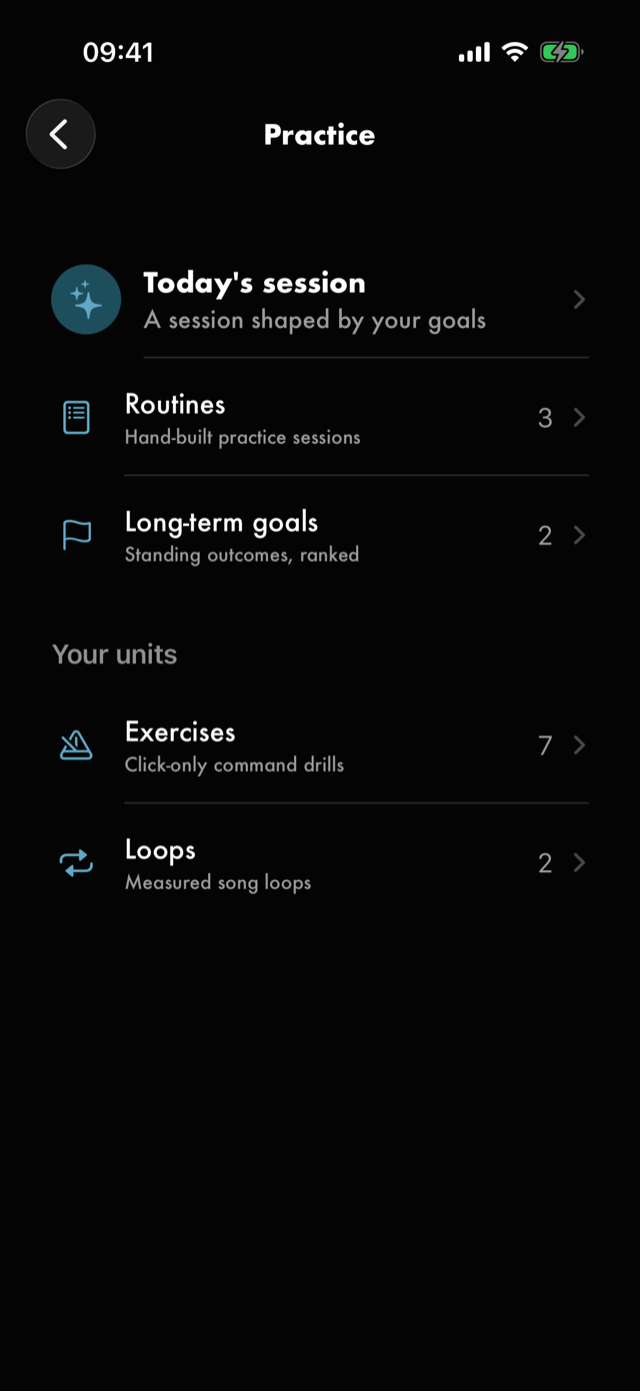
Five rows in two sections, each carrying a count.
| Row | Subtitle | Opens |
|---|---|---|
Today |
A session shaped by your goals |
The planner |
Routines |
Hand-built practice sessions |
The routines library |
Long-term goals |
Standing outcomes, ranked |
The long-term goals list |
Exercises |
Click-only command drills |
The exercises library |
Loops |
Measured song loops |
The loops library |
Today, Routines and Long-term goals sit together; Exercises and Loops group under
Your units. Routines are sessions; exercises and loops are the units a session is built from.
Today — the planner
How long do you have?—Quick,FocusedandFull, each captioned with roughly how long the whole sitting runs.Away from your instrument— a toggle. Its ⓘ explains it in the app's own words: Listening work built from your own loops, for a commute or a quiet room. Nothing to hold, nothing to plug in. It resets each time.Build from—Both,This session,Long-term. Only present once you have a long-term goal; before that there is nothing to choose between. Its ⓘ carries the rule: Goals for this session are dealt first; long-term goals follow in your ranking. A footer appears only when the selection has nothing to contribute — Nothing selected has anything to contribute yet, so Generate will build a quick, due-based session from your exercises.This session— what steers this sitting in particular, withAdd a goal for this session, and, once there is at least one,Clear this session's goals. Hidden entirely whenBuild fromisLong-term. With none, and no long-term goals either, it says No goals yet — Generate builds a quick, due-based session from your exercises. Add a goal to steer what you practise. With a long-term goal standing it says Nothing extra for today — Generate will follow your long-term goals. Add one here to steer this session in particular.Long-term goals— a read-only copy of the ranked list, present only when you have one and hidden entirely whenBuild fromisThis session. It carries no controls exceptEdit long-term goals, which opens the list in Practice, and no footer — theBuild fromⓘ already states the order.Generate today's sessionat the bottom.
The goal editor, the review screen and what happens when nothing resolves are all in Today's session.
Long-term goals
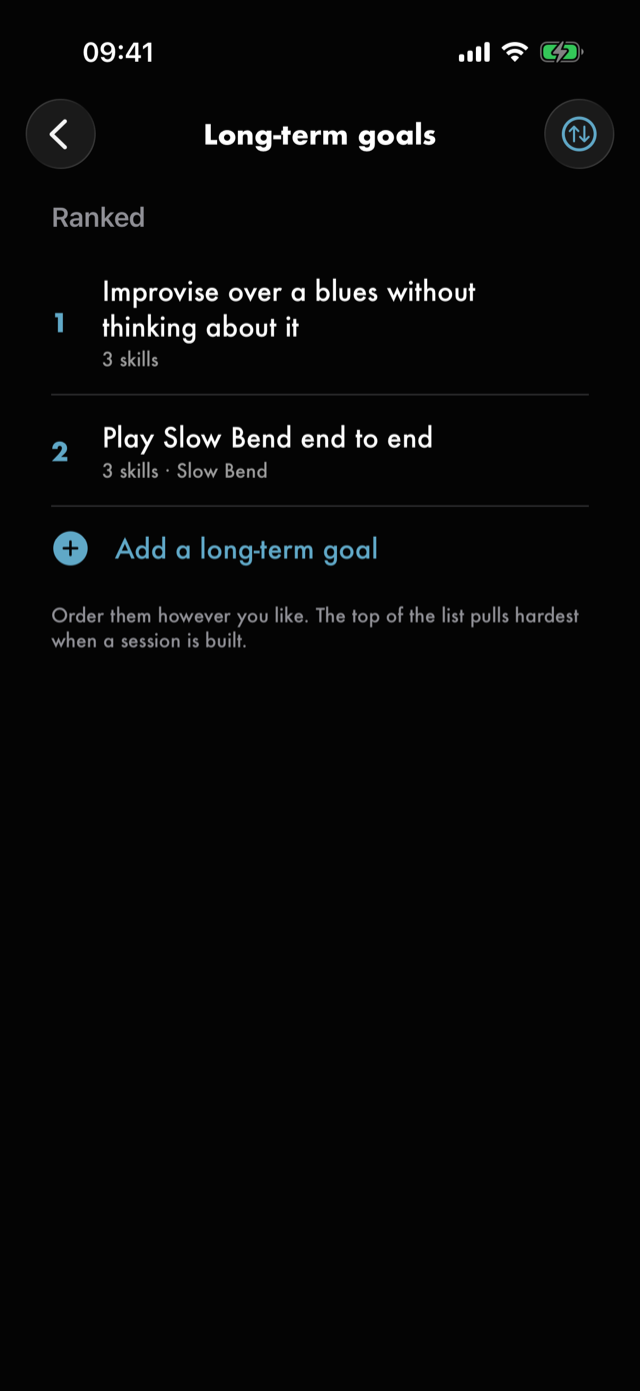
A numbered list under Ranked, each row carrying the goal's name and its skill count — plus its
target song when it has one. Below them, Add a long-term goal.
The toolbar carries one control, Reorder goals, which is off until there are two to reorder.
With none, the section reads Nothing here yet. A long-term goal is something you're working toward with no deadline attached — the higher it sits, the harder it pulls when you build a session. The footer below the list says Order them however you like. The top of the list pulls hardest when a session is built.
There is a ceiling of ten. On reaching it the Add a long-term goal row goes away and the footer
says That's 10 — the most a ranking stays meaningful at. Mark one met or delete one to add
another.
Goals you have marked met collect under Met, footed Kept here, and no longer shaping new
sessions. Procedure is in Today's session.
Routines
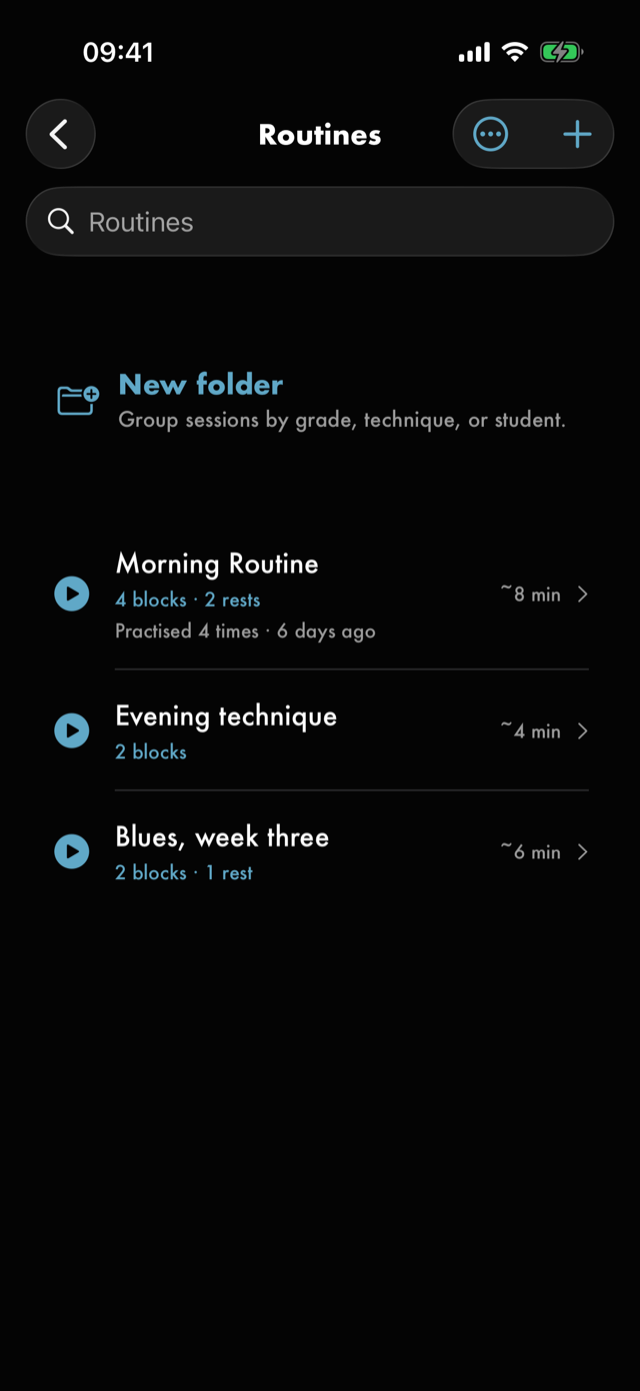
A list of routines, each row carrying its name and what it is made of — 4 blocks · 2 rests — with a
play control on the row itself and the routine's estimated length. A routine that estimates at
nothing carries no length. The toolbar carries List options then New routine, in that order.
Once a routine has been run, a second line underneath carries how many times it has been practised and when it last was.
The list holds the routines you have saved. A session from Today's session or a quick session that you started and did not save is not on it, and not in the count on Practice; it is on Home until the next one replaces it. See keeping one.
List options holds Sort by — Recently Added, Name, Last Practised, Length — with
Order, the Favourites only filter, and Generate a quick session, which skips the goals
entirely. A search field above the list matches a routine's name and its description.
Tapping a row opens the routine, where its blocks are listed and can be reordered, added to and
removed. Above the blocks it carries a Description — read-only, and drawn only when there is one
to draw, until Edit turns it into a field. Below the blocks, a saved routine states its
Estimated length, its Last practised date and how many times it has been practised. Below that it carries a Where you learned it section — read-only until you
tap Edit, which is what puts Add a link on it, the same gate the blocks are behind. See
where you learned it. A generated session that has not been saved yet does not
show the section at all. Procedure is in routines.
A saved routine's toolbar carries a share control beside Edit. On a routine whose blocks play a song
or a loop it is Send this routine, which opens Send this routine: Sent as, the
Include the songs switch, the Songs it would carry (one Red Moon keeps no copy of reads
Can’t go), Goes with it and Stays with you, with Cancel and Send… in the bar. On any other
routine it opens the share sheet directly.
Exercises
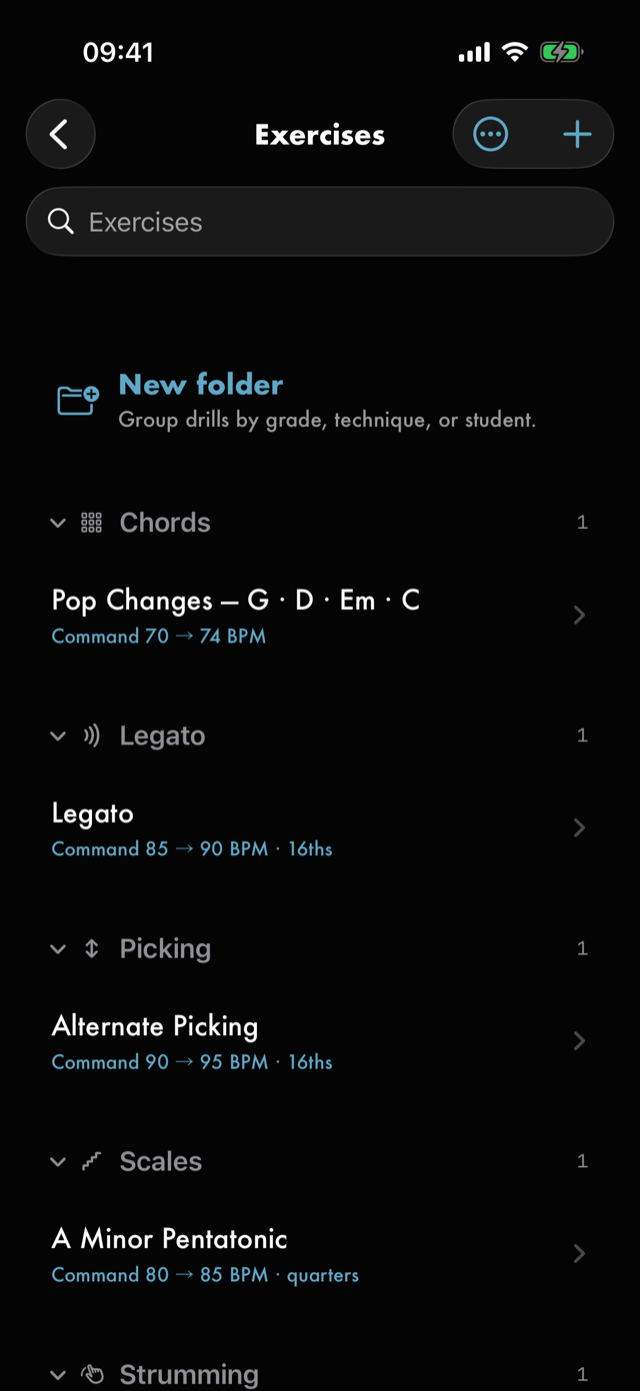
Drills grouped into collapsible sections by template — the kind of drill they are — with a count
on each header. A row shows the drill's name and its tempo line: Command 90 → 95 BPM · 16ths, which
is the command tempo, the reach above it, and the rhythm. With the reach switched off the reach
drops out: Command 90 BPM · 16ths.
The toolbar carries List options then New exercise. A search field above the list prompts by name.
More sections can exist than the create sheet offers. Grouping covers every template the app has ever had, so a drill made under one that has since been withdrawn still lists under its own heading, still opens and still runs. Withdrawing a template from the picker never reaches backwards into a library. The ten you can create today are listed in exercises.
The run screen
Opened by tapping a drill.
- The shape — a fretboard, a chord progression, a strum lane — is drawn at the top, if the drill carries one. Many do not.
Practice Settingsis a disclosure, collapsed by default, summarising itself when closed. Inside are four phase rows —Warm-up,Command,ReachandBack off— each with a one-line summary, and a switch on every row butCommand. Tapping a row opens it:Start at,StepsandEach stepin the warm-up;TempoandHoldin command;Tempo,StepsandEach stepin the reach;Settle at,StepsandEach stepin the back off. AReset to autobutton appears once you have overridden the reach or the back off.- The staircase shows the tempo plan as steps, lighting the open row's phase, with the run's length under it. While stopped, that line ends with the drill's meter — tap it to change the time signature.
- A
JournalandTakesbar holds what you have already written and recorded against this drill. Start trainingcommits and runs. Beside it, the record control arms a take.Exercise details— the ⓘ — opens the drill's reference sheet, which carries its description, progress, linked songs, aWhere you learned itsection with anAdd a linkbutton, the feel and the template chip.- The ✏️ writes a journal note without touching the run. It
shows while running and inside a routine; stopped, the
Journalbar writes notes.
While running, the screen shows the live BPM, a count-in if you have one turned on (Counting in),
and pause / resume. Stop and reset ends it. A run that finishes on its own lands on a completion
screen; one you stop by hand does not log.
Loops
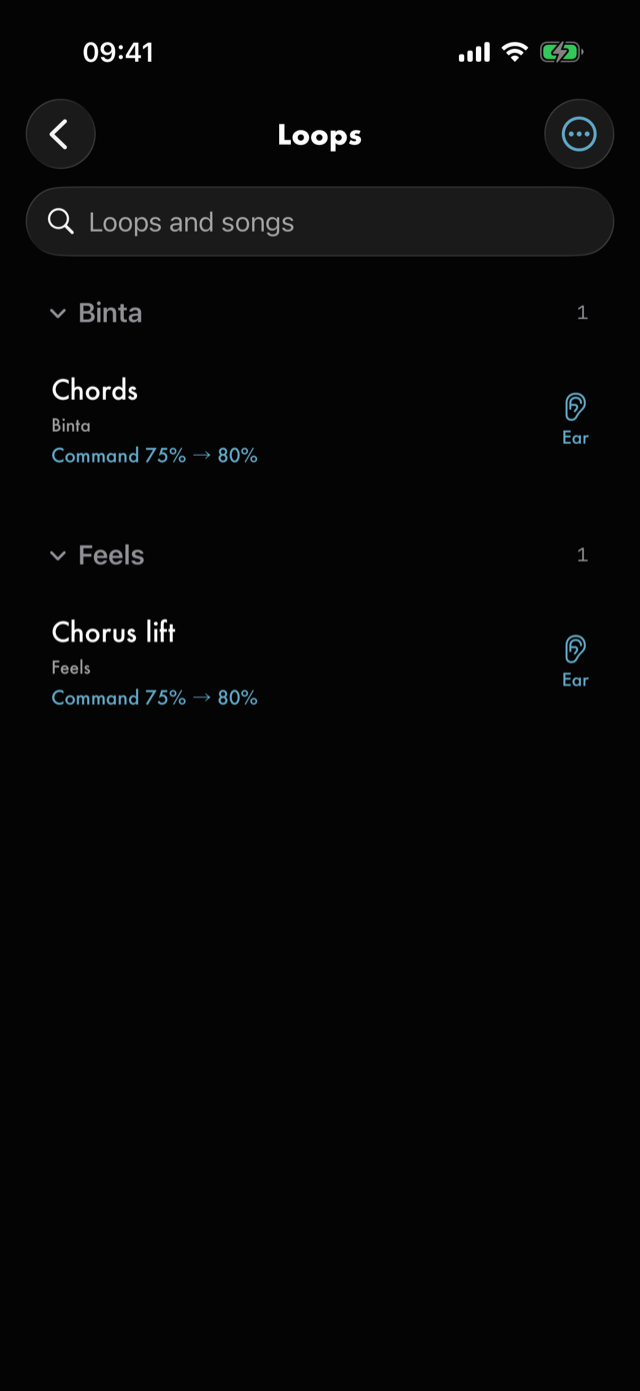
Every loop you have measured, across all your songs, in one list — the practice-side view of what the
song player creates. A loop is measured once it has a command tempo.
Show all loops, in the List options menu, adds the rest, for Train your ear, which needs no
tempo. A search field above the list prompts Loops and songs.
Hold a row for the ways it can run, Watch it on the neck once its piece has a note on the neck,
Add to routine… and Favourite. There is no delete here: a loop belongs to its song, and is
removed from the song player.
Empty, it explains that loops appear once you have set one on a song.
The other run modes
A loop can be run three ways, launched from its edit sheet in the song player or from its row in
Loops:
- The ordinary loop run — play it, slow it, ramp it. Its
Practice Settingsare the drill run screen's four phase rows, with every tempo a percentage of the song's speed and every hold a number of passes through the loop rather than bars. Train your ear— hear it and answer, rather than play along.Improvise— the loop as a bed to solo over.
Each has its own run screen, and each writes into the journal with its own tag.
Count the notes
Train your ear carries a Count the notes section under its play and tempo controls and its
Note what you hear box, for working a lick out by ear. The small play button beside Show beats starts
and stops the same loop as the big one, so you don't have to scroll back up. While the loop plays, tap the
pad once for every note you hear. Each pass through the loop gets its own row of dots, the one playing now on top, so you
can see when your passes agree. Tap a row to pick that pass. Show beats adds the song's beat lines and
a count for each beat. It stays off until you turn it on, and only appears once the song has a tempo and
its 1. A pass of more than 24 notes gets a suggestion under the rows once the loop stops: loops of around
16 notes are easier to transcribe, so a long lick goes easier as two or three loops.
Pick the pass you trust and Save it. It goes on the loop under Saved on this loop, and naming starts
from there: nothing is named on a pass, because Clear would throw the names away with it.
Name the notes lays the saved piece out as a strip of numbered notes. Tap one to hear it with the
notes just before it, ending on it, so you hear how the line got there; each is ringed as it plays.
Hear 3 notes at the top right of the strip sets how many, from Just the note to eight, and Red Moon
remembers it. To hear the notes as a line, the play button at the start of the strip plays the whole
loop at the speed you set, ringing each note as it goes by; on Fret & string, where you placed each
note also lights up on the neck as it plays, moving the way you played it: a bend glides up to where it
lands, vibrato shakes, a hammer-on or pull-off lights where it started and snaps across, and a slide
travels along the string. With Reduce Motion each only fades in. Tap a note to stop and hear it.
If you find a note you didn't count, or one you counted that isn't there, you don't have to count again.
Missed a note? under the strip plays from the note before the one you're on to the note after, with a
pad: tap it once where you hear the missing note, and it goes in where you tapped, unnamed. Take note
12 out removes the note you're on, and its name. Undo puts either back until you change something
else.
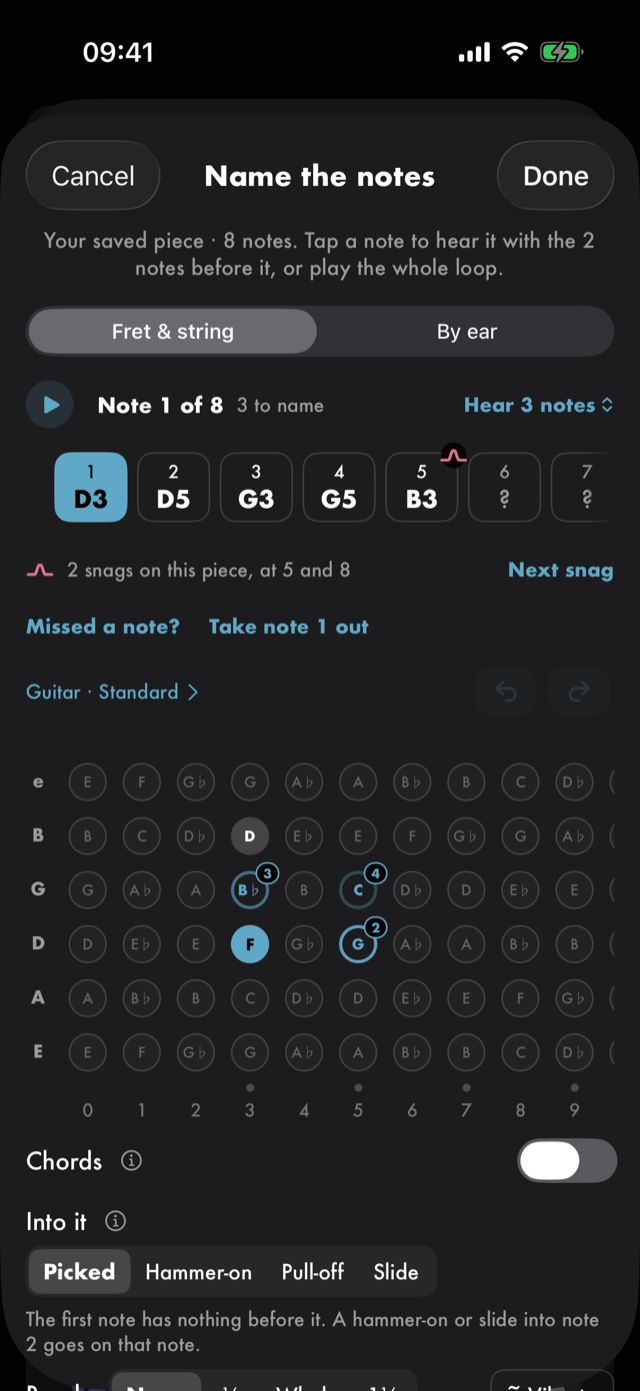
Then say what it was on one of two sheets (the ⓘ beside Chords and Into it explains each): Fret & string for where you played it, or By ear for what
you heard. Fret & string is the neck: tap where you played the note, and it moves straight on to the
next one without playing anything; only tapping a note in the strip plays. The marks below stay on the
note you just placed, and the line above them says which, until you place the next. With Chords on it
stays put, since a chord is several taps. Every spot carries its note name faintly. The three notes
before the one you're naming are filled and the three after it ringed, fading the further they are, each
with its number, so a lick reads in order even where it comes back to the same fret; the rest of the
pass sits faintly behind them. The row over the neck, Guitar · Standard until you change it, sets
guitar or bass and the tuning for this piece only; a new tuning keeps your frets, and a new instrument
clears them after asking. Under the neck, Into it says how you got to the note: Picked,
Hammer-on, Pull-off or Slide. A quick hammer-on or slide can sound like one note or two, so it
goes however you tapped it. If you heard two notes and tapped twice, the join comes from the note
before when it's on the same string, and the line under the choices names it. If you heard one note
and tapped once, pick how it started and tap the fret it started on (the frets it can't have come from
fade out); a slide can also come in from nowhere, From below or From above. In a chord, a hammer-on
or pull-off moves one note: tap the fret it started on, on that note's string, and the rest of the chord
is held, so a B string hammered from the barre writes 5h7 while the other strings ring. The start is
always the fret you tap, whether that's the barre or the middle finger of an m7. If the whole chord moved,
The whole chord moved? under it moves every note as many frets. A slide moves the whole chord: tap
where one of its notes started and the rest follow. Heard as one note? moves a join from the note
before into the note. Bend and ~ Vibrato mark the note itself. A bend
changes the note, so a bent note reads as the note it reaches, and so does a note with a quick start.
The marks go into the tab the usual way, the same however you tapped them: 7b9, 7~, 5h7, 8/10,
/10. Turn on
Chords to place more than one note: one per string, as in My chords, so a double-stop, a triad and a
full chord are the same taps. The neck names what you placed, a chord such as Am/C or, for two notes
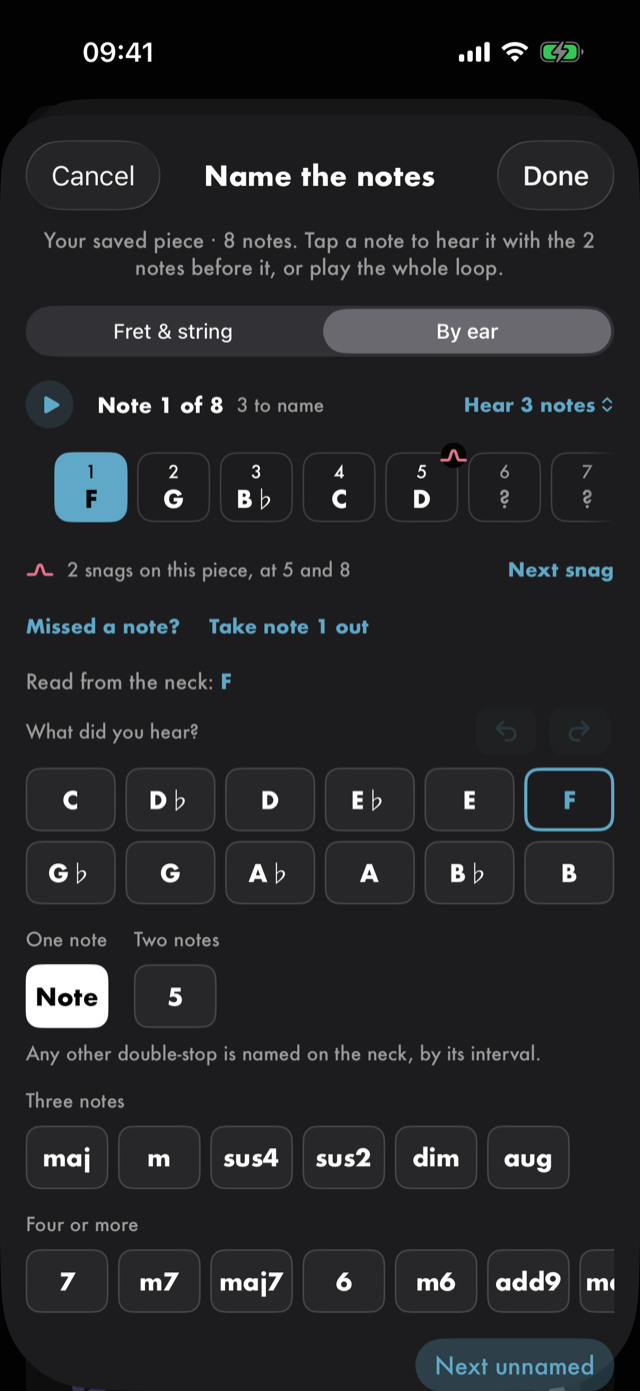
that aren't one, the interval between them. By ear has the twelve note names and, under them, the kinds
of chord grouped by how many notes they hold. The kind you pick stays picked, and tapping a name saves it
and moves on, so a solo named by ear is one tap a note. A note placed on the neck reads on By ear as the
note it sounds, and naming it something else there asks first. ↶ and ↷, at the right of the row over
the neck and in the same place beside What did you hear? on By ear, undo and redo any change made on
this visit: a fret, a mark, a name, a note taken out or tapped in, a new tuning. With a keyboard, ⌘Z,
⇧⌘Z and ⌘Y work too. Next unnamed, under the sheet, jumps to the next note without a name. Red Moon
never plays your answer: tap the note in the strip, play it on your own instrument, and you decide
whether they match.
Hold a note in the strip to snag it, somewhere you're stuck, and hold it again to take the snag off;
a hold never plays the note. It's the same crimson snag you make on the practice screen while you play,
so it shows on the waveform and in the Snags panel too, and a snag made while playing shows here on
the note it's nearest. Under the strip, Add a line leaves yourself a line about it for when you come
back. It saves to the loop's journal straight away, and it's the same line the Snags panel shows under
that snag, so one written in either place shows in both. Next snag goes to the next one.
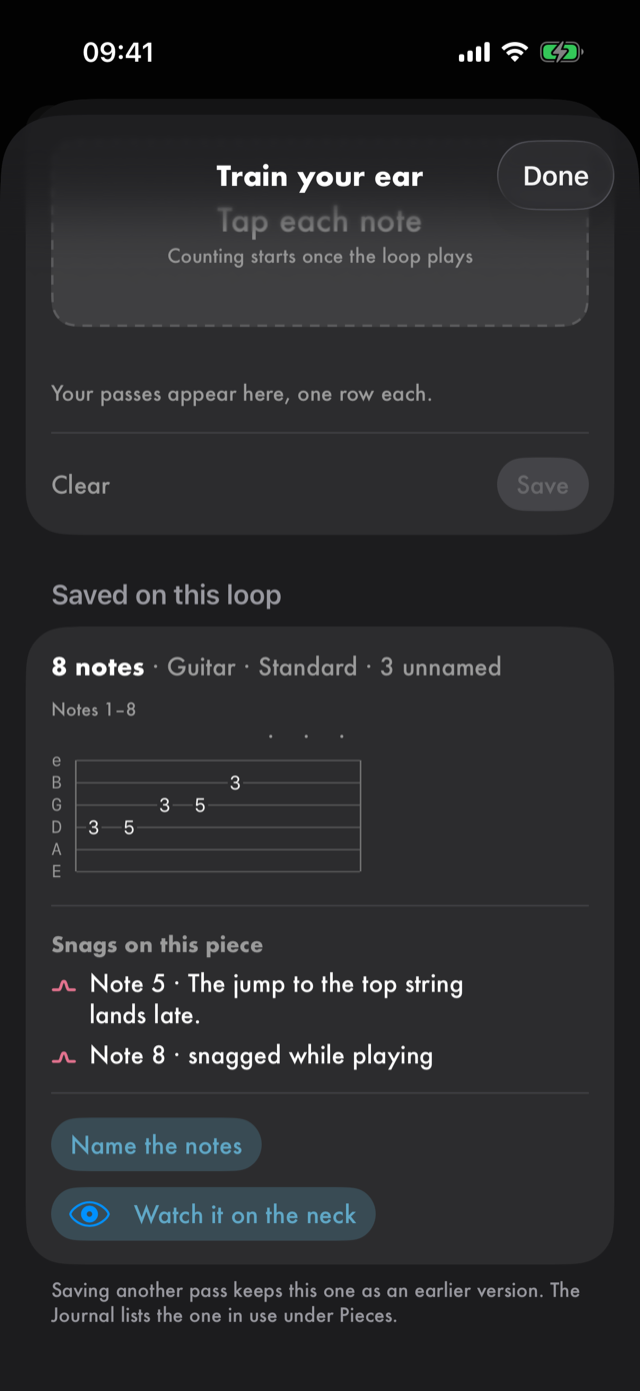
Done writes the names onto the saved piece. Under Saved on this loop it reads as one line (98 notes
· Guitar · Standard · 6 unnamed), then its tab in rows that fit the screen, each saying which notes it
holds. A name you gave by ear, or a chord, sits above the strings where it falls; an unnamed note is a
dot, and four or more unnamed in a row are counted. A piece named only by ear is its names, in fours.
Snags on this piece lists where you got stuck, with your lines, and tapping one opens Name the notes
on that note. The piece is listed in the journal under Pieces. Saving another pass keeps this one as
an earlier version.
Watch it on the neck
Once a piece has a note placed on the neck, Watch it on the neck plays the loop and shows you the lick
on the neck as it goes. It sits under Name the notes in Saved on this loop, in the loop's edit sheet
after Train your ear, in the loop's hold menu in Loops, on the song map's tab for the loop, and on the
piece in the journal. It doesn't show for a piece named only by ear, which has nothing to light, or for a
song whose audio can't play on this phone.
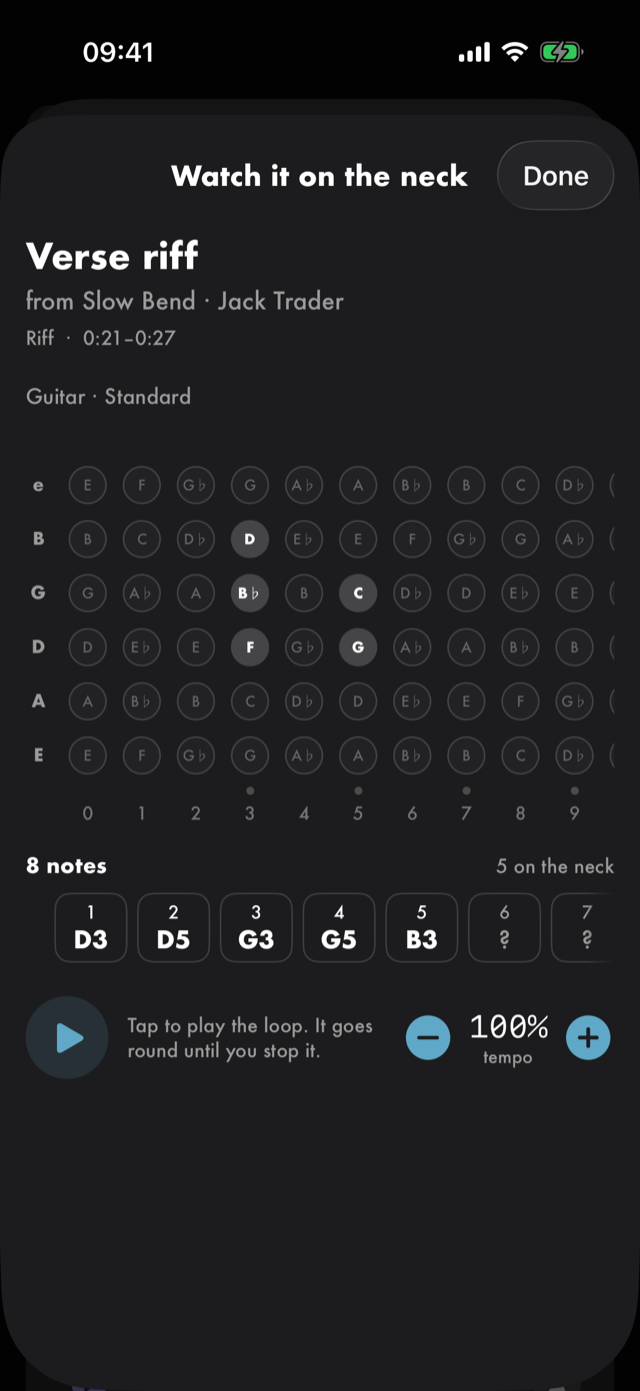
Every spot the lick uses is drawn on the neck, so you can see its shape before anything plays. Tap play, and the note being heard turns solid and glows the way you played it, with its marks: a bend's arrow, a hammer-on's curve, a slide's arrow. The notes in order sit under the neck, the one being heard ringed, and the line over them says which it is and how you played it: Note 3 of 11, G string, fret 5, hammered on from 3. A note you named by ear has nothing to light, so only its chip is ringed. The neck opens on the lick and moves only when the note being heard goes past the frets on screen. When the loop stops, the map stays.
The tempo starts at the loop's command tempo, and − and + move it in steps of 5%. The screen stays awake
while it's open, so you can play along without touching the phone. Only the recording sounds: Red Moon
never plays your answers back. Nothing is logged and nothing is recorded here. Done closes it.
All manual pages. Something not covered here? Get in touch — we read every message.