

Every hold, swipe and pinch
Red Moon puts a lot behind a hold — press and keep your finger down for about half a second. That keeps the screens uncluttered while you are playing, at the cost of being invisible until somebody tells you. This page is that somebody.
Nothing on this page is required to use the app. Every hold either opens something you can also reach another way, or changes a setting that has a sensible default.
Tips for the holds
The song player points out its own hidden holds, one at a time. A tip is a ring round the control and a line beside it saying what holding it does. It shows only while the song is paused, and only once your first-song guide is behind you: they start the next time you open the app.
There are six, for the holds nothing else on screen tells you about: a loop's row, the metronome, the BPM, a marker's row, a panel's name (once it has two rows to select), and the song's name. Holds that already say what they do where they are, such as a Snags row or a strum slot, get no tip.
Using the hold puts its tip away for good, and so does its ✕. A hold you find on your own is never pointed out. You will see at most one tip each time you open the app, and coming back to it after half an hour or more away counts as opening it.
To turn them off, or bring back every one you have closed, use Settings ▸ Song player ▸ Show hold tips and Show the tips again. See Settings.
The cheatsheet the app carries
The song player has its own summary built in. Tap Loop controls on the line under the speed bar and a popover lists the nine things you can do to a loop:
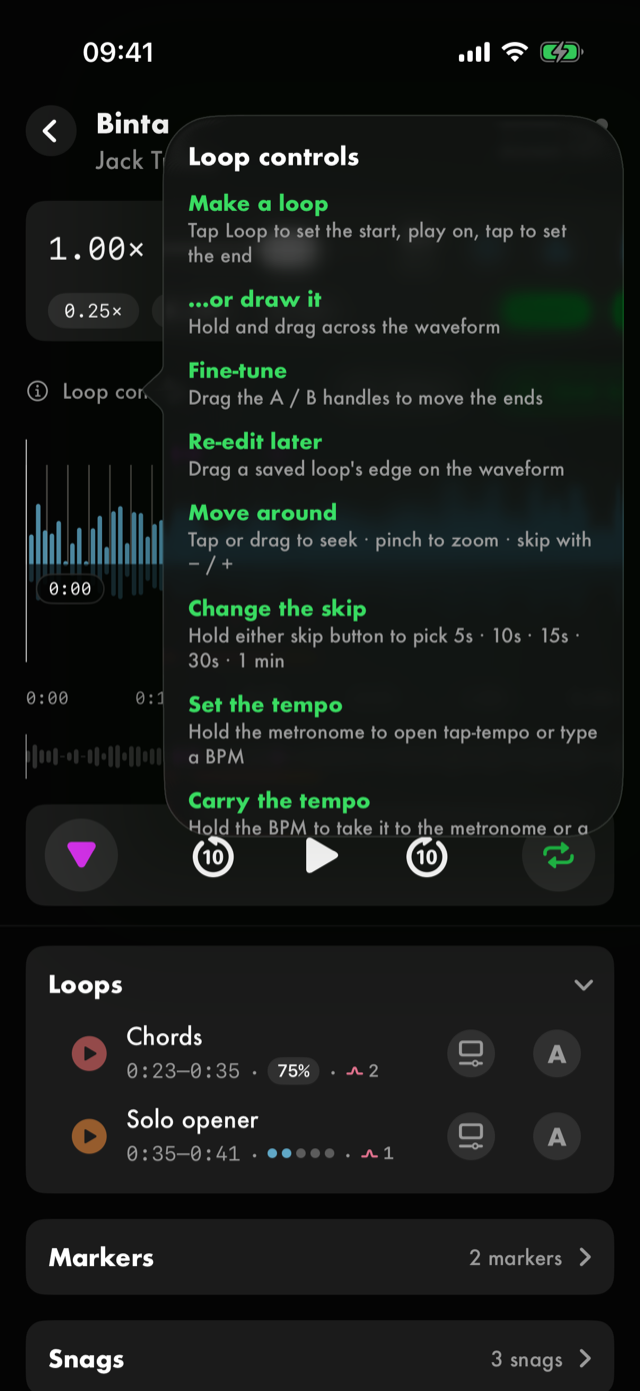
| Make a loop | Tap Loop to set the start, play on, tap to set the end |
| …or draw it | Hold and drag across the waveform |
| Fine-tune | Drag the A / B handles to move the ends |
| Re-edit later | Drag a saved loop's edge on the waveform |
| Move around | Tap or drag to seek · pinch to zoom · skip with − / + |
| Change the skip | Hold either skip button to pick 5s · 10s · 15s · 30s · 1 min |
| Set the tempo | Hold the metronome to open tap-tempo or type a BPM |
| Carry the tempo | Hold the BPM to take it to the metronome or a new exercise |
| Follow | Off: zoom holds the spot under your fingers · On: it tracks the playhead |
That popover covers the waveform. The rest of this page covers everything else.
Holds that open something
Eleven places in the app wire up a hold of their own , and all but two of them are in the song player.
| Hold this | And you get |
|---|---|
| The song's title and artist, at the top of the player | The song's details |
| The compact title bar, in landscape | The song's details |
| The BPM readout on the speed bar | Somewhere to take that tempo |
| The metronome button on the speed bar | The tempo editor |
| The Loop controls line | The song player's settings |
| A row in the Loops panel | That loop's edit sheet |
| A row in the Markers panel | That marker's edit sheet |
| A row in the Snags panel | A line on that snag, for when you come back |
| A panel header — Loops or Markers | Selection mode, for acting on several at once |
| Insert rest, while editing a routine | Rest-placing mode, to drop rests between blocks |
| A note in the strip, in Name the notes | A snag on that note, somewhere you're stuck, or the snag taken off |
Two of those are worth calling out because they are doors to somewhere you would otherwise go hunting for.
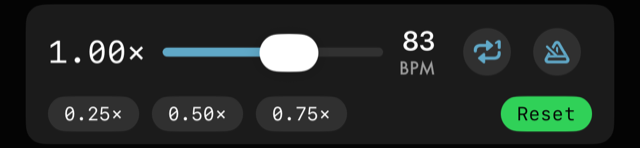
The two numbers on the speed bar do different jobs. The metronome button opens the tempo editor, which is where you go when the song's tempo is wrong or missing. The BPM readout beside it does the opposite — it hands the tempo out. Hold it and you can take that number to the metronome, which opens already set to it, or into a new exercise, which starts at it and arrives linked to the song you took it from.
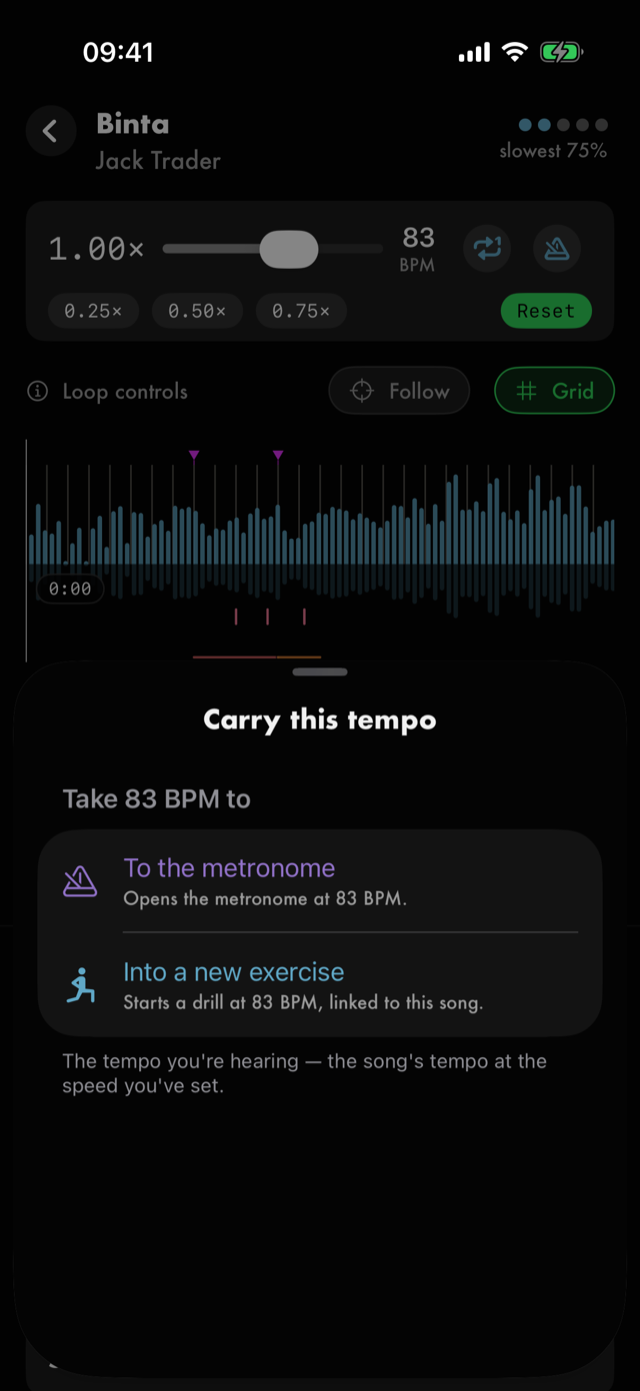
The number it carries is the one on screen. That is the song's tempo at the speed you have set, so a 200 BPM song at 0.25× carries 50 — the tempo you are actually playing at, which is usually the one you wanted.
Tapping and holding the Loop controls line do different things. A tap gives you the cheatsheet above; a hold opens the player's settings — the same controls as Settings ▸ Song player, put where you are actually using them.
Holds that open a menu
Lists behave the way lists do on iOS: hold a row and a menu appears with that row's own actions first, then Favourite and Delete where the list offers them. The song library, your routines, your saved loops and your exercises all work this way.
Not every list offers all of it, because not every item has all of it:
| Hold a row in | And the menu offers |
|---|---|
| The song library | Details, Edit, Delete — songs have no favourite |
| Your exercises | Its own actions, Favourite, Delete |
| Your routines | Its own actions, Favourite, Delete |
| Your saved loops | Its own actions and Favourite — no delete, because a loop belongs to its song and is removed on the waveform |
| Where you learned it links | Edit link and Delete — a link has no favourite, and this delete is immediate rather than undoable |
The transport's skip buttons use the same kind of menu for a different job: hold either one and pick how far it jumps — 5s, 10s, 15s, 30s or 1 min. Holding Home's Jump back in card picks what that card offers, and holding the tile beside Toolkit picks which Toolkit tool it opens — see Home. Journal entries, recorded takes and your tabs in My tabs have their own hold menus too.
Swipes
On any row that offers them:
- Swipe right to favourite it — on exercises, routines and saved loops. Songs have no favourite, so a song row has nothing on its right swipe.
- Swipe left to delete it.
Right is always the affirmative one, so it does the local job wherever a row has a different one. On a block inside a routine it is Record — marking that block to capture a take when you play it — and on a take it is naming. See Recording a block.
Deleting is not final straight away. A toast appears with an Undo, and the row only really goes when the toast does.
On the waveform
The waveform is the one place where dragging means several things depending on where you start.
- Tap or drag anywhere on it to move the playhead. A tap lands on the nearest marker, loop edge or beat; a drag ignores the beats and keeps the markers, so it lands where you lifted your finger. How much of that catching happens is the Snap when seeking setting in the player's settings.
- Pinch to zoom in and out. Whether the view stays put or follows the playhead is the Zoom follows playhead switch in the player's settings.
- Hold, then drag across it to draw a loop in one gesture, instead of tapping Loop twice.
- Drag the A or B handle of the live loop to move either end.
- Drag the edge of a saved loop to re-edit it later.
Because a hold-and-drag draws a loop, a plain hold on the waveform does nothing on its own — the gesture only commits once you move.
If a hold does not seem to work
Hold for about half a second, and keep still — a hold that drifts turns into a drag, which on the waveform means you have started drawing a loop instead. On a row, let go as soon as the menu appears.
See Help & FAQs: "How do I get help or report a bug?"
All manual pages. Something not covered here? Get in touch — we read every message.