

Home and the Song library
Home
The whole map. There is no tab bar: every screen opens from here and comes back here.
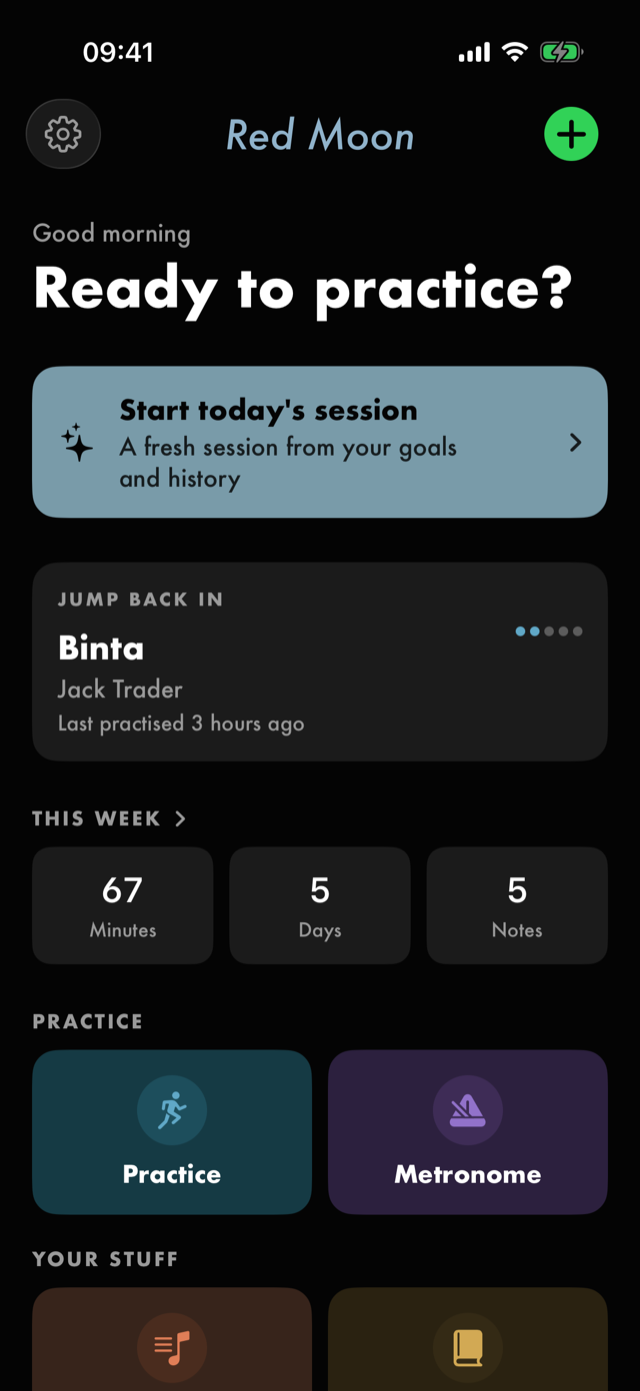
Top bar. A gear on the left opens Settings; the label is Settings. A green +
on the right is Add a song and opens the file picker.
The greeting changes with the time of day and, once you have given one, carries your artist name.
Under it, Ready to practice?.
Start today's session is the filled teal card, and the primary action. It builds a session from
your goals.
JUMP BACK IN appears once you have practised anything, and carries the last thing you
practised — a song with its artist and mastery, a routine with its block count, or an exercise with
its command tempos — along with when you last played it. Tapping it reopens that thing: a song in the
song player, a routine on its own screen, an exercise on its run screen.
Hold the card to pin what it offers: Most recent, Song, Routine or Exercise. The same
choice is in Settings ▸ Practice under Jump back in. A pin you have nothing
for yet — Routine, before you have run one — shows the most recent of any kind until you do.
This week is three numbers over the last seven days: Minutes, Days and Notes. All three
count the same week, and none of them is a target — nothing here sets you a number to reach or
measures this week against the last one. Tap it for the
Practice log, the counted-up version of the same history at
three scales. The strip is not there at all until you have practised something — and neither,
therefore, is the way in.
The destinations are tiles, two to a row, under three headings. Each is a glyph and a name in its own colour, and the colour is how you find it again. The one exception is on purpose: the tile beside Toolkit wears the Toolkit's indigo, because whatever it opens is a Toolkit tool.
Practiceopens the Practice hub;Metronomebeside it opens over the whole screen.Your stuffholdsSong libraryandJournal.LearnholdsToolkitand, beside it, a tile of your own.
The tile beside Toolkit opens one of the Toolkit's tools: My tabs until you change it. It
takes that tool's name and glyph, so it always says where it goes. Hold it and pick another
from the menu: My chords, My progressions, Tuner, Glossary or Help & FAQs. The same choice
is in Settings ▸ Practice under Beside Toolkit. Until you have changed it
once, it carries Hold to change under its name.
The tiles carry no description. VoiceOver still reads one — Practice, your exercises and training
runs — so nothing was lost from the spoken screen. Before you have added a song, the Song library
tile carries one line of its own, Add a song to get started, and loses it once you have.
Recent routines is a horizontal rail of routines you have played, each showing its block count.
It and JUMP BACK IN both include a session from Today's session you started and have not saved,
which stays until you start the next one; its screen offers Save where a saved routine has
Edit. See keeping one.
The first run
A fresh install asks a short set of optional questions before anything else — your name and how you
play. They are covered in getting started.
The library starts empty; Home shows no JUMP BACK IN card, no This week strip and no rail until
there is something to put in them, and the Song library tile reads Add a song to get started.
The Song library
Reached from Song library on Home.
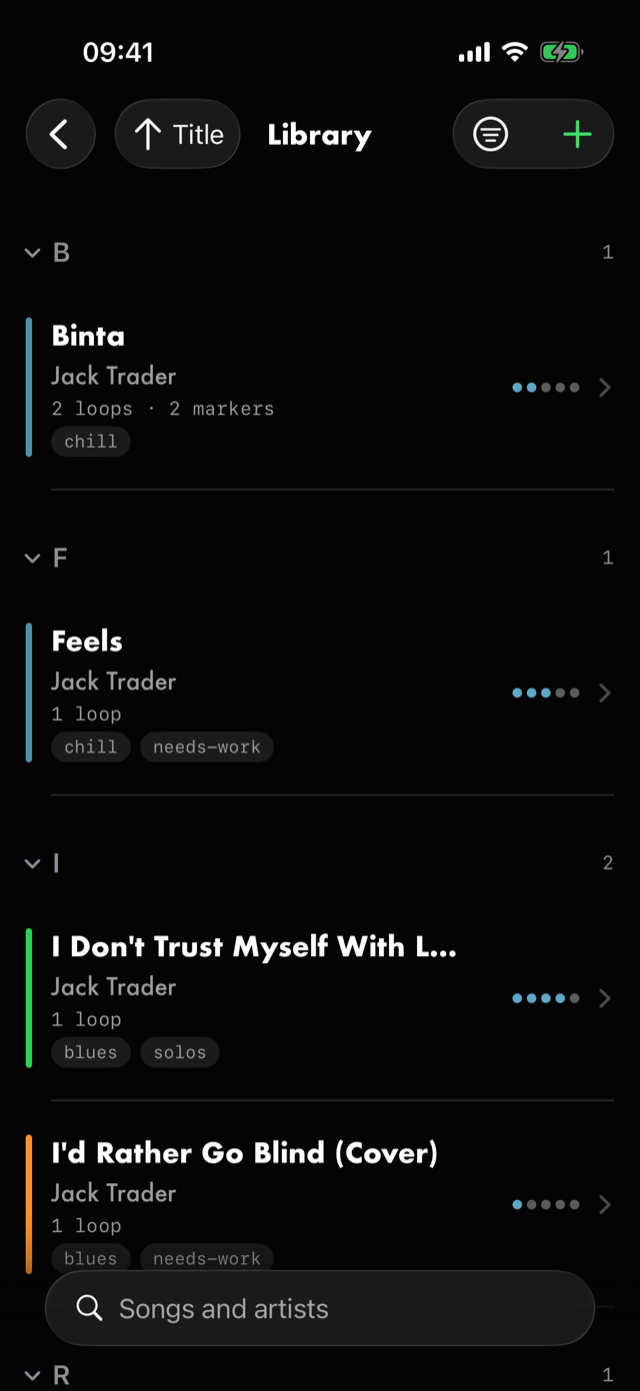
Top bar. The sort control on the left is Sort by, and its glyph states the current order.
Beside it, Filter by collection. On the right, Import songs.
Underneath, a search field prompting Songs and artists.
A row carries the title, the artist, its loop and marker counts, any collections it belongs to, and its mastery out of five. Tap it to open the song player.
Sections group the list under whatever you are sorting by — initial letters under Title,
bands under Mastery — and each header carries a count. Sections collapse.
Sort
The sort control opens a menu of Title, Artist, Album, Genre, Mastery and
Recently Added, plus Ascending / Descending. The chosen key is what the sections are built
from, so changing it re-groups the list as well as re-ordering it.
Filter
Filter by collection opens the facets you have actually used — collections, and the other
descriptive fields a song can carry. Within one facet the choices widen the result; across facets
they narrow it.
The row's hold menu
Hold a row for Details, Edit and Delete. There is no delete swipe here, and no favourite.
Song details
A read-only summary, with Edit in its toolbar.
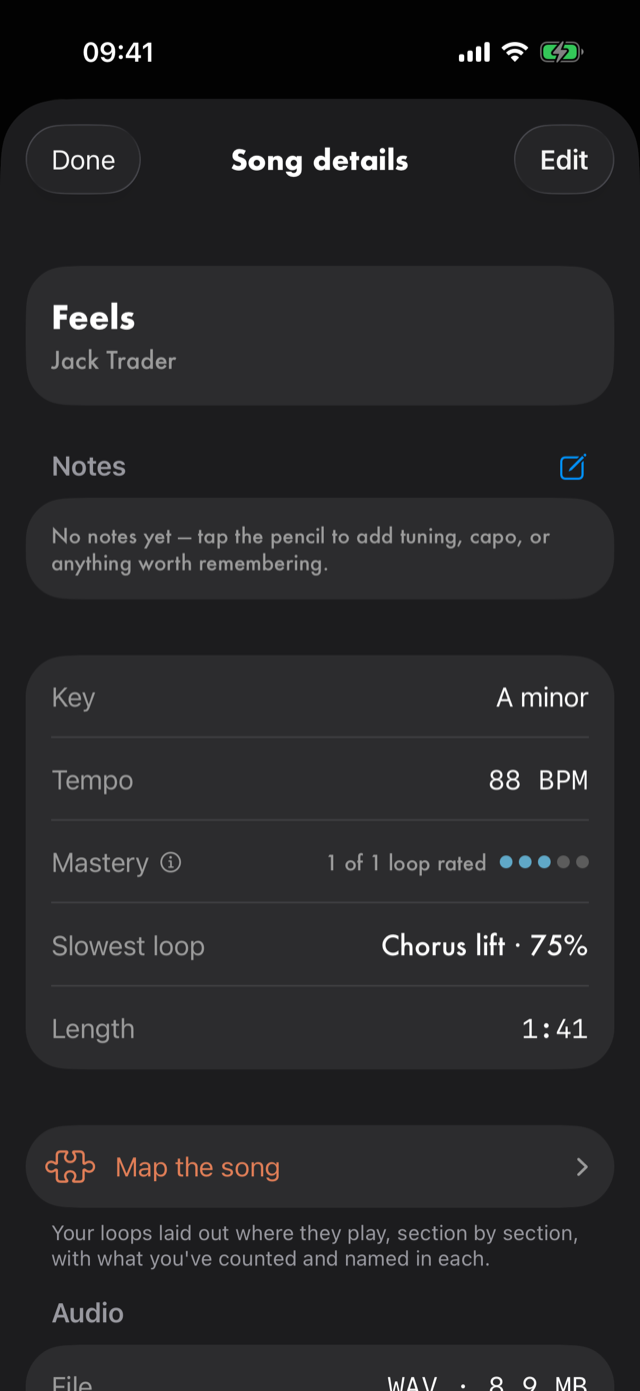
- The title, artist, and album with its year.
Notes— free text about the song, withEdit notes.Key,Tempo,Mastery(with its ⓘ, and how many loops are rated),Slowest loop(when a loop has a command tempo) andLength.Map the song— your loops laid out where they play, section by section. See mapping the song.Audio— theFilerow, which reads Missing when the audio no longer resolves, andReplace audio file…beneath it. The app's own words for what that does: Points this song at a different file — for a song whose audio is missing, or one linked to the wrong track. Your loops, markers, takes and practice history all stay with the song. Under it,Send this song…opensSend this song(Sent as,Goes with it,Stays with you, withCancelandSend…in the bar), andExport audio file only…opens the share sheet on the file itself, as you imported it — for a DAW or another device. Neither is offered until Red Moon holds its own copy of the song, which an older linked song gets the first time it plays. A song someone sends you opens onAdd this song?, withCancelandAdd.Collections.Where you learned it— links out to the transcription or breakdown you worked from, with anAdd a linkbutton. See where you learned it.Exercises for this song— drills linked to it, each opening its run screen when tapped and unlinking on a swipe, withLink exercisesandBuild a routine for this song. Empty, it reads No drills linked yet — link the exercises that help you play this song.Practice stats— counts ofLoops,MarkersandAnnotations.
Edit song
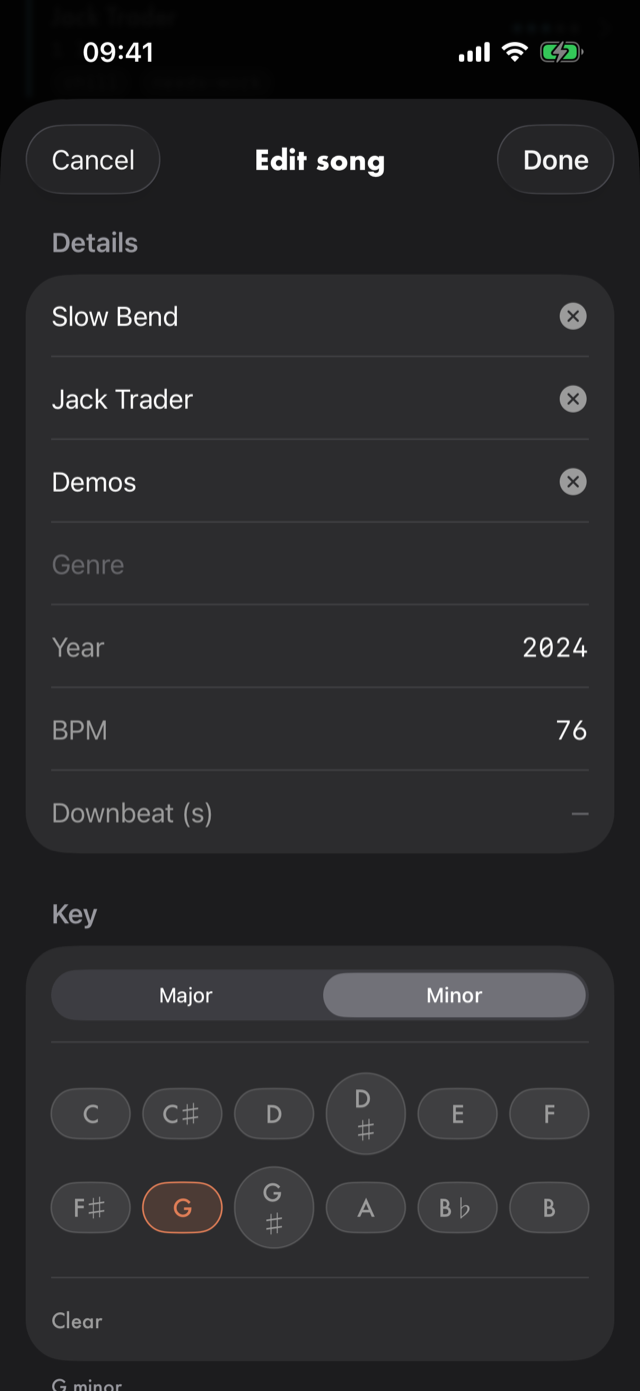
Cancel discards, Done keeps. It carries:
Details—Title,Artist,Album,Genre,Year,BPMandDownbeat (s).Key— aMajor/Minorswitch and the twelve roots, withClearto unset it.Collections—Add a collection.Notes.Practice stats, read-only, as above.
Importing
Import songs opens the system file picker; you can choose several at once, and a progress
indicator runs while they are read. Files are copied into the app, so the original can move without
breaking the song. The empty library offers Import a song and Try the demo instead.
Procedure for all of this is in songs.
All manual pages. Something not covered here? Get in touch — we read every message.