

Today's session
Everything else in Red Moon asks you to decide what to practise. This is the part that decides for you: tell it how long you have, tell it what you are working towards, and it builds a session out of what is already in your library.
What it produces is an ordinary routine — the same blocks, the same player. The one thing that differs is whether it stays: a session you start is yours for today, and joins your routines only if you save it (below).
Reach it from Start today's session on Home, or from Today's session at the top of Practice.
The three questions
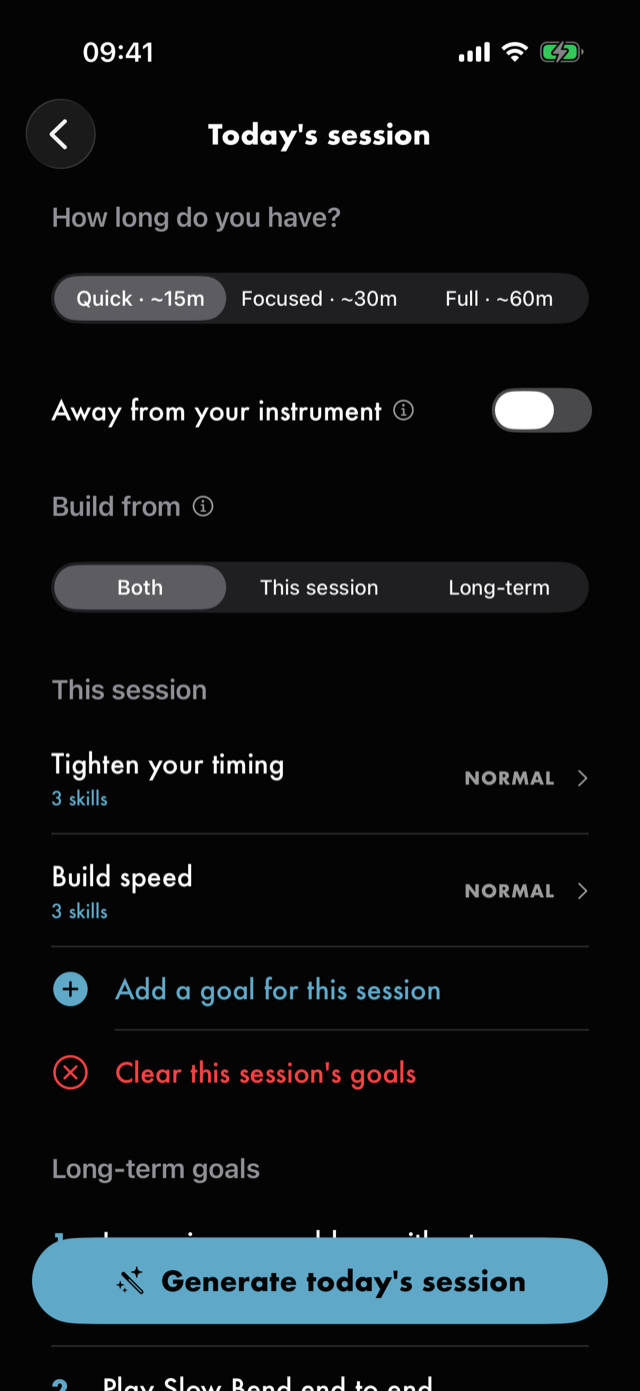
How long do you have?
Quick, Focused or Full, each showing roughly how long the whole sitting runs. The estimate covers the lot — the drills, the rests and the play-through at the end — rather than just the focused minutes, so it is a number you can hold against the clock.
If you told the app how long you usually practise when you first opened it, this starts on the matching option. Change it freely; it is a starting point, not a preference.
A Quick sitting is the one preset that schedules no play-through. Ten minutes of playing a song through would be most of it again, and the preset chosen because time is short would end up reading as the longest.
See Help & FAQs: "How long is a practice session?"
Where are you?
Away from your instrument builds the session for a commute or a quiet room instead — listening work, drawn from your own loops, with nothing to hold and nothing to plug in.
It is a fact about this afternoon rather than a setting, so it is off again next time you come here.
Because that session is built from loops, it needs loops: if you have not marked any yet, the app says so rather than building something empty. A Your own practice exercise ticked as needing no instrument can turn up in one too — see Exercises.
What are you working towards?
Goals are what steer the session, and there are two kinds. A goal for this session is what you want out of this sitting; a long-term goal is a standing outcome you are working toward, and it keeps steering sessions until you say otherwise. They differ in what they are about, not in how long they last.
Without either, Generate still works — you get a quick session built from whichever of your drills are most due — but it has nothing to aim at.
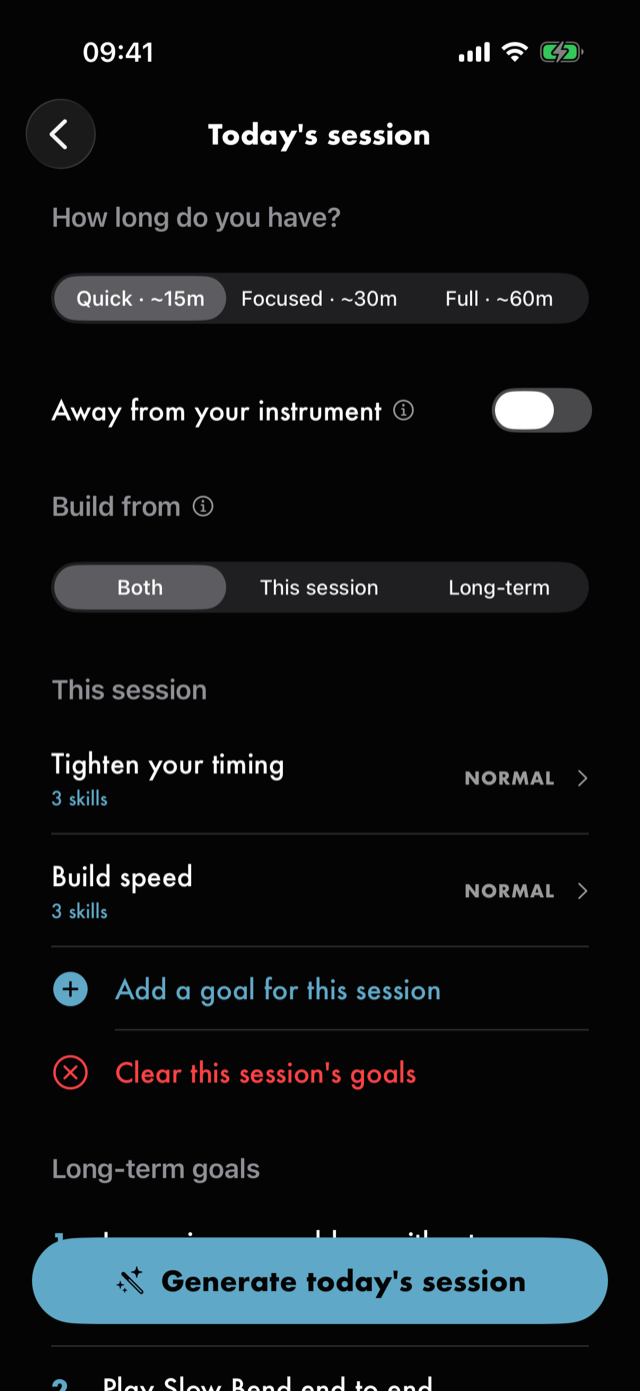
Each goal under This session shows how many skills it covers, its target song when it has one, and its priority. Tap one to edit it; swipe it to delete it.
Goals for this session
Add a goal for this session opens the editor, which asks two things in turn.
Start from a goal
Ten starting points, each pre-loaded with a sensible set of skills:
| Starting point | What it does |
|---|---|
| Play a specific song | Learn a song from your library end-to-end. |
| Build speed | Push picking and legato technique faster, cleanly. |
| Improvise in a style | Grow soloing vocabulary over scales you know. |
| Tighten your timing | Sit in the pocket — steady time, syncopation, cleaner strumming. |
| Clean up your chord changes | Move between shapes without the gap you can hear. |
| Train your ear | Hear intervals, lift parts off records, listen with intent. |
| Learn the fretboard | Know what note you are on, and what it is doing. |
| Strengthen your fretting hand | Reach, independence and stamina — the hand, not the speed. |
| Write your own music | Turn the chords and lines you know into something of yours. |
| General progress | A balanced mix of timing, scales, and clean changes. |
Below them, Something else skips the starting points and takes you straight to the full skill catalogue, so you can name the goal yourself. What you cannot make is a goal with no skills — Save stays unavailable until you have kept at least one, because a goal's skills are what it actually schedules and an empty one schedules nothing.
If the skill you mean isn't in the catalogue, make it. New skill, at the top of the list under Your own, takes a name and, if you like, a line saying what it is — that line is what its ⓘ shows. Search for a name nothing matches and the same row offers to create it. A skill of your own brings whatever drill or loop you mark with it, and nothing else. Swipe it in the list to edit or delete it; deleting says how many goals, drills and loops it's on, and takes it off all of them.
Then trim it
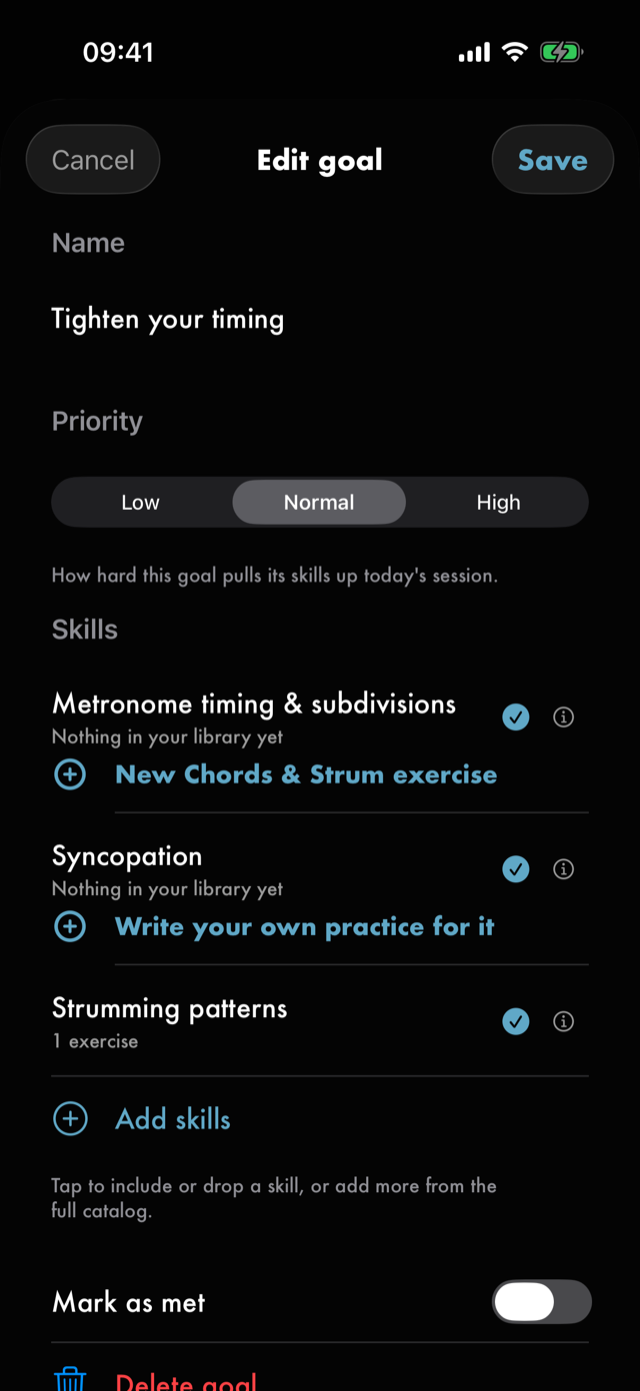
- Name — what you would call it out loud.
- Priority — Low, Normal or High. This is how hard the goal pulls its skills into today's session, not a deadline. Long-term goals have no priority control; their rank does the same job.
- Skills — tap to include or drop one, or Add skills to pick more from the full catalogue. Save stays unavailable until at least one is kept. Under each skill is what it would actually bring from your library — 2 exercises · 1 loop, say — worked out exactly the way the session will be. A kept skill that brings nothing says Nothing in your library yet, and below it either a button that makes the kind of exercise that works on it — Write your own practice for it, for a skill no kind of drill works on, or one of your own — or a line saying what would. The ⓘ beside any skill says what it is, which kinds of drill and loop work on it, and what comes before it.
- Target song — this row appears only when you have kept a skill that needs a song to mean anything. Pick one and the goal schedules that song's loops and a play-through of it, which is what turns "learn this song" into actual blocks.
Reopening a goal you have already made goes straight to this form.
Mark as met retires a goal without deleting it: it stays in your history and stops shaping new sessions. Met goals collect in their own section, and you can bring one back the same way.
Starting over
Once you have set at least one, Clear this session's goals appears below the add button and removes them in one go, after asking. It clears only the goals you set for this session — your long-term goals are untouched, so are any you have marked met, and so is everything you have practised. Swiping a single goal away is still there when you only want to drop one.
Long-term goals
A long-term goal is something you are working toward over months — playing a particular song end to end, getting your picking faster, building a vocabulary to improvise with. Unlike the goals on Today's session, it stays put: you set it once and it keeps steering sessions until you mark it met.
The ones you pick on the first run start this list. They live in their own list, in Practice ▸ Long-term goals, and they are authored exactly like the goals above — same four starting points, same skill trimming, same target song, same Mark as met. What they do not have is a priority control, and what they do not have is a deadline.
There is no deadline, and there is nothing to be late for. Nothing here counts down, nothing turns red, and nothing tells you a goal is overdue. That is deliberate: a goal you set for yourself should not become something the app can hold over you.
Choosing which goals build a session
Once you have at least one long-term goal, Today's session grows a Build from control and shows your ranked list underneath, read-only.
| Build from | What Generate uses |
|---|---|
| Both | Goals for this session first, then your long-term goals in your ranking. The default. |
| This session | Only the goals you added on Today's session. |
| Long-term | Only your ranked standing list. |
Whichever you pick, the other list disappears from the screen — the control above already says which one you are using, so leaving a greyed-out copy on screen would only be something to scroll past. Editing the long-term list still happens in Practice ▸ Long-term goals; the copy on Today's session is there to be read, not changed.
Like Away from your instrument, this resets each time. It is a decision about this afternoon, not a setting.
If whatever you pick has nothing in it, Generate still works — you get a quick, due-based session rather than a refusal.
Ranking is how you say what matters
The list is numbered, and the order is yours. Tap Reorder goals in the toolbar, then drag.
The rank does real work. The higher a goal sits, the harder it pulls when a session is built — and because a short session only has room for a few things, the ones near the top are the ones that actually get scheduled. Moving a goal up is how you change what you are handed tomorrow.
Goals for this session come first when a session is built, then your long-term goals in your order. So naming something for today does not throw away the ranking; it takes priority for that sitting.
You can keep ten. That is enough to hold what you are actually working on and few enough that ranking them still means something.
Generating and reviewing
Generate today's session does the work and hands you the result to look at before anything is committed.
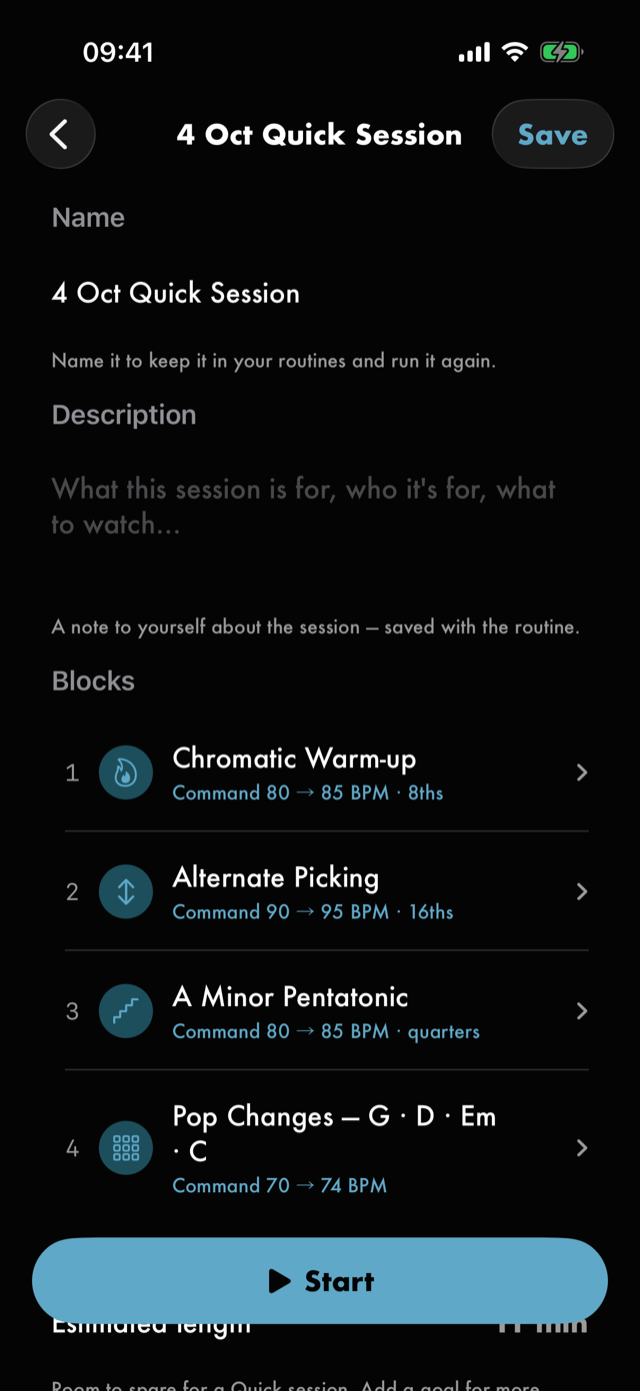
What you get is a provisional routine: a dated name you can change on the spot, the blocks it picked, and the estimated length against the time you asked for. Nothing is in your library yet.
- Start plays it for today. It does not join your routines, so using the planner every day doesn't fill them with a dated session a day.
- Save keeps it without playing it, and it becomes a routine like any other.
- Backing out keeps nothing.
Everything a session leaves behind is kept whether you save it or not: its minutes in the practice log, what you played, your note about it and any takes. Saving keeps the plan.
Keeping one
A session you started stays on Home — in Recent routines, and in Jump back in while it is the last thing you played — until you start the next one, which takes its place. You can run it again from there as often as you like. To keep it for good, save it at either of two moments:
- Save as a routine, on Session complete, just above Done.
- Save, in the toolbar of the session's own screen — where a saved routine has Edit — any time before you start another session.
It keeps its name, its history and your note's link to it. Until it is saved its screen is read-only: no Edit, no reminder, no links and no sharing, because the next session would take them with it.
The review screen is the routine editor, because what you are looking at is a routine. Edit and the blocks are yours to change before you start: reorder them, drop the one you are not in the mood for, add something the planner did not think of.
Block length
A generated session sizes each block to fit the time you asked for, which can be shorter or longer than the drill's own saved setup. Open a block from the review screen and it carries a Keep my length switch — turn it on to run the block as you set it up rather than as the session sized it. Where the two lengths actually differ, the app says so and gives you both numbers, so the choice is an informed one; where they agree it stays quiet.
When it comes back empty
If nothing resolves, the app says Nothing to schedule yet instead of pushing an empty session, and tells you which thing is missing — an exercise to draw from, a target song on a "learn a song" goal, or, for an away-from-your-instrument session, a loop.
A quick session, without the questions
If you just want something to play, the Routines library's options control carries Generate a quick session. It skips the goals entirely and builds from whichever of your exercises are most due, landing on the same review screen, where Start and Save work just as they do above.
What it does not do
Nothing here judges your playing, and nothing about the session is decided by listening to you. The ranking is built from what you have told the app — your goals, your command tempos, your mastery ratings — and from what you have actually practised recently.
See Help & FAQs: "Does Red Moon score my playing?"
Next
All manual pages. Something not covered here? Get in touch — we read every message.