

Exercises
An exercise is a drill you run against a click rather than against a song. No audio file, no waveform — a name, a tempo, and something to play. Where a loop is a piece of music you are trying to own, an exercise is a piece of technique you are trying to own, and the app treats the two as different things all the way down.
Exercises live in Practice ▸ Exercises, reached from Practice on Home.
A fresh install arrives with seven of them — Spider Walk, Chromatic Warm-up, Alternate Picking, A Minor Pentatonic, Pop Changes, Legato and Strumming — Down-Up Eighths — so there is something to run before you have built anything. They are ordinary drills: rename them, retune them, duplicate them, delete them.
The library
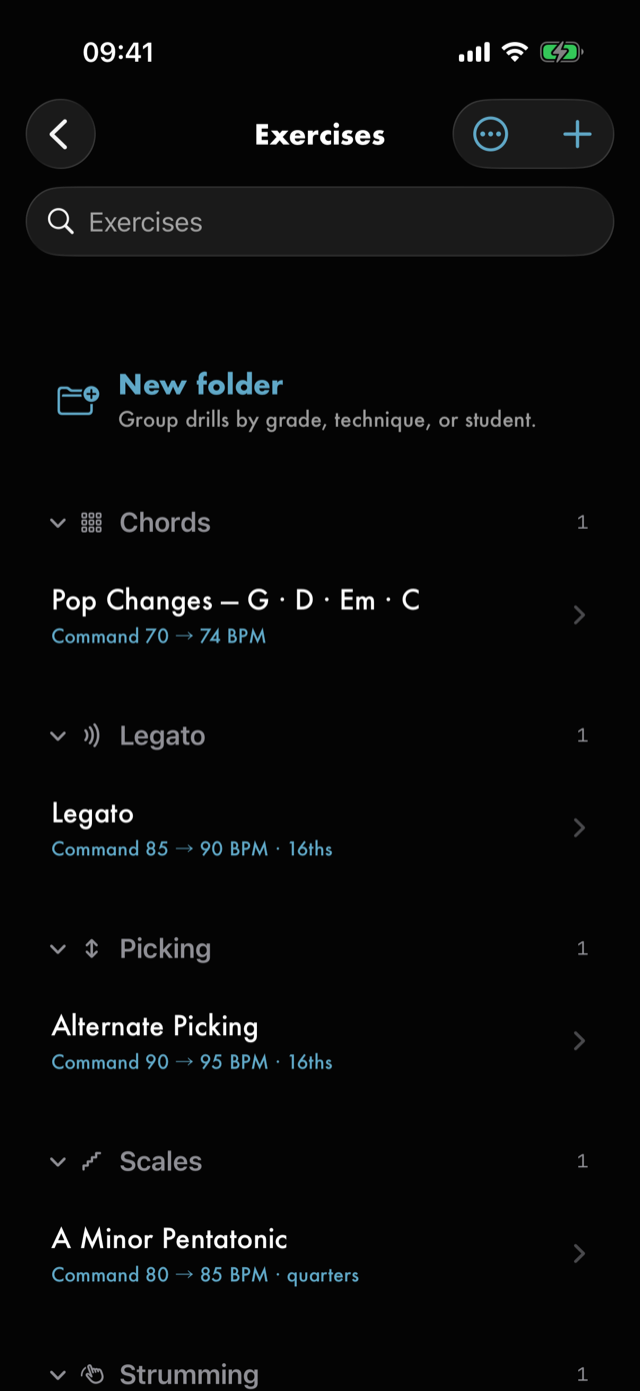
Drills are grouped by template — the kind of drill they are — and each section collapses with a tap on its header. What you collapse stays collapsed next time; a template you first use tomorrow arrives open.
Each row carries the drill's name, the climb it is set up for — Command → Reach, in BPM, with its rhythm — and a star when you have favourited it. Tap one to open its run screen.
- Search narrows by name.
- The ⋯ control in the toolbar holds Favourites only, Sort by, Order, New folder… and Receive an exercise….
- + starts a new drill.
If your library holds drills for more than one instrument, a row of chips appears across the top — All, then one per instrument you have. It is not there until it has something to do, and it goes away again if it stops having something to do.
Hold any row for Details, Add to folder…, Add to routine…, Duplicate, Favourite and Delete. Add to routine… lists your routines: tap one and the drill goes in as its last block, tap it again to take it back out — see Routines. Duplicate is the quickest way to make a variant of something you have already tuned. Delete goes behind an undo toast — the drill is only really gone once the toast has passed.
Folders
Folders group your drills however you want to group them — by grade, by technique, by student. They are shared with your routines: a folder called Beginner is one folder, and each library shows you its own half of it.
You start with none. Red Moon does not make any for you. Until you make one, the library shows a single New folder row above your drills and is otherwise exactly as it was.
Making one. New folder… in the ⋯ menu makes a folder where you are currently standing.
Make one at the top of the library and it sits at the top; open a folder first and the new one goes
inside it. That is the only way to nest, and it is why a name with a / in it makes one folder with
a slash-shaped gap in the name rather than two levels you did not ask for.
Filing something. Hold a drill and tap Add to folder…, or open its ⓘ sheet and use the Folders section. Either way you get the folders you already have, offered so you reuse them instead of retyping them.
A drill can be in more than one folder. That is why the verb is add and never move. A warm-up that belongs in both Grade 2 and Picking simply sits in both, and taking it out of one leaves it in the other.
Walking around. Your folders live in a Folders section above your drills. Each carries a count; tap one to go in, and a trail appears across the top that takes you back from any part of it. The section folds away like any other — tap its header — and stays how you leave it. A folder shows everything at or below it, so opening Beginner shows the drills filed in Beginner/Warm-ups too, and the top of the library still shows everything you own.
Because a drill can be in two folders, the counts do not add up to your library's total. That is the arithmetic of a drill being in two places rather than a mistake.
Search, sort and the favourites filter all work inside the folder you are standing in. If a search finds nothing there, Search all folders is offered underneath — it keeps what you typed and takes you back to the top.
Renaming and deleting. Hold a folder row for Rename… and Delete folder. Renaming carries everything inside it along. Deleting a folder never deletes a drill — the folder goes, and the drills in it stay in your library, in whatever other folders they were in. The confirmation counts them for you before you decide.
Running a drill
A run has two states, and the screen is different in each.
Setting up
Stopped, the screen is the run you are about to do. If the drill carries a shape — a strum lane, a fretboard, a chord progression — it is drawn at the top. Under that sit the tempo settings, the staircase, and a Journal and Takes bar for what you have already written and recorded against this drill.
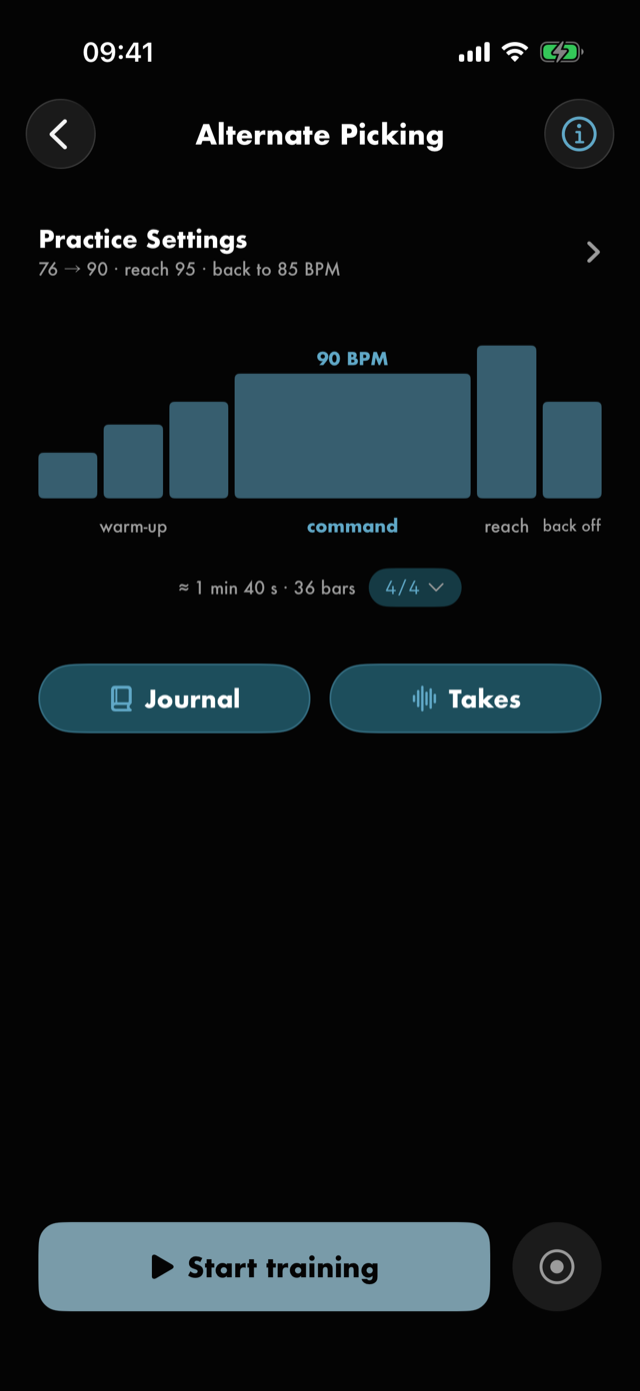
Practice Settings is collapsed to a one-line summary of the phases the run will play, and opens onto one row per phase, in the order they play. Each row says what its phase will do; tap it to open its controls, one row at a time.
- Warm-up — the climb up to command. Start at is the floor it climbs from.
- Command — the fastest you own it. This is the anchor everything else derives from, and it is defined in the app's own words. Its Hold is how long the run stays there, which is where the reps count.
- Reach — a brief touch above command. Worked out from your command tempo unless you set your own, in which case a Reset to auto appears to hand it back.
- Back off — easing down after the top, so you finish on control rather than at the edge. Settle at is where it ends, worked out or pinned the same way as the reach.
Every phase but Command has a switch on its row. Turn all three off and the run is command alone, one tempo held for its Hold. A phase you switch off keeps its tempo for when you switch it back.
Inside a row, Steps is how many rungs that phase climbs or descends in, and the number is the number of bars the staircase draws for it. Each step is how long every rung holds, in bars.
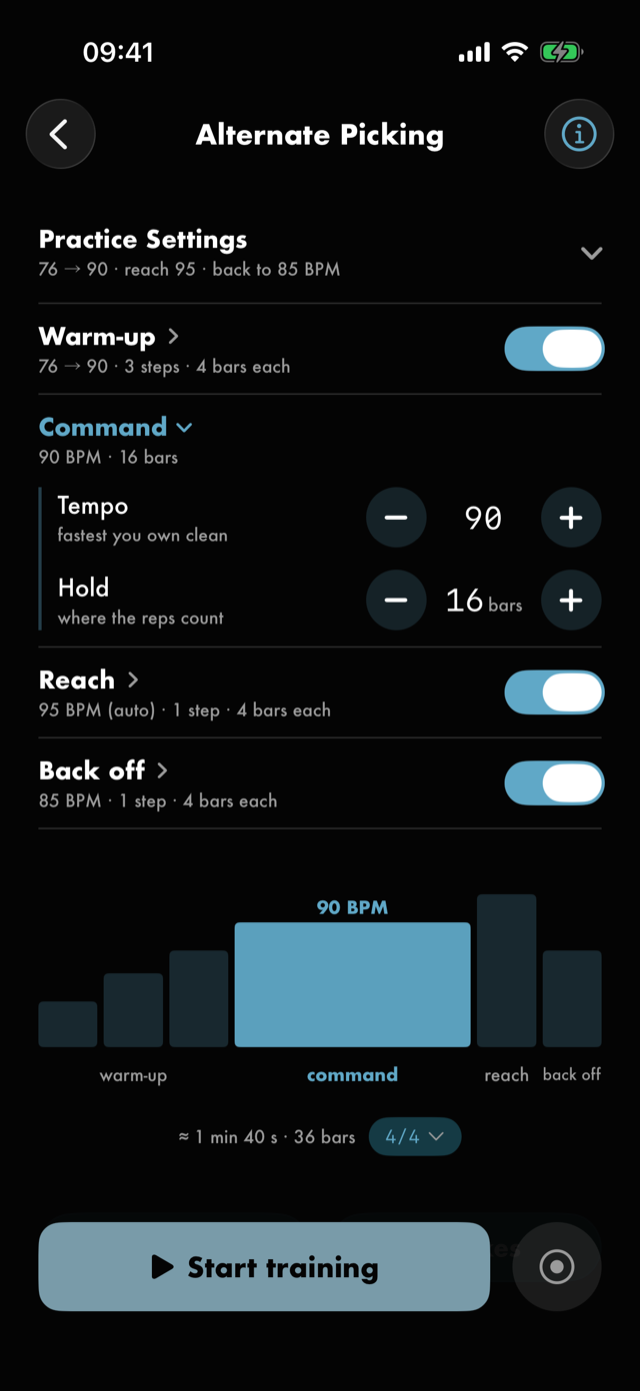
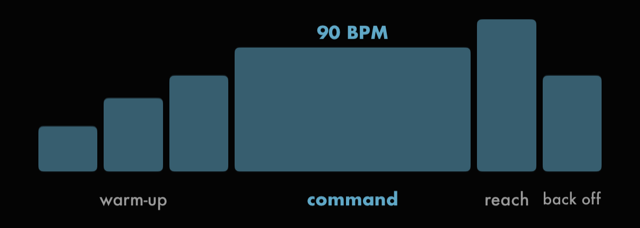
The staircase draws what those settings add up to — the warm-up climb, the wide command plateau with its BPM over it, the reach, and the back off — so you can see the shape of the run before you play a note of it. While a row is open, that phase's bars are lit and the rest dim. Under it, a line says how long the run is, roughly in time and exactly in bars.
The line under the staircase ends with the drill's meter — 4/4 unless you have changed it — and tapping it sets the accents and the length of the count-in.
Edits here are held until you commit them. Start training commits and plays; a Save changes button appears when the setup differs from what is stored, if you want to keep the tuning without running it now. Leaving without either discards the edits.
Running
Start training counts you in, then the screen becomes the live BPM, a caption saying where you are in the staircase, and the drill's own surface animating along with the click.
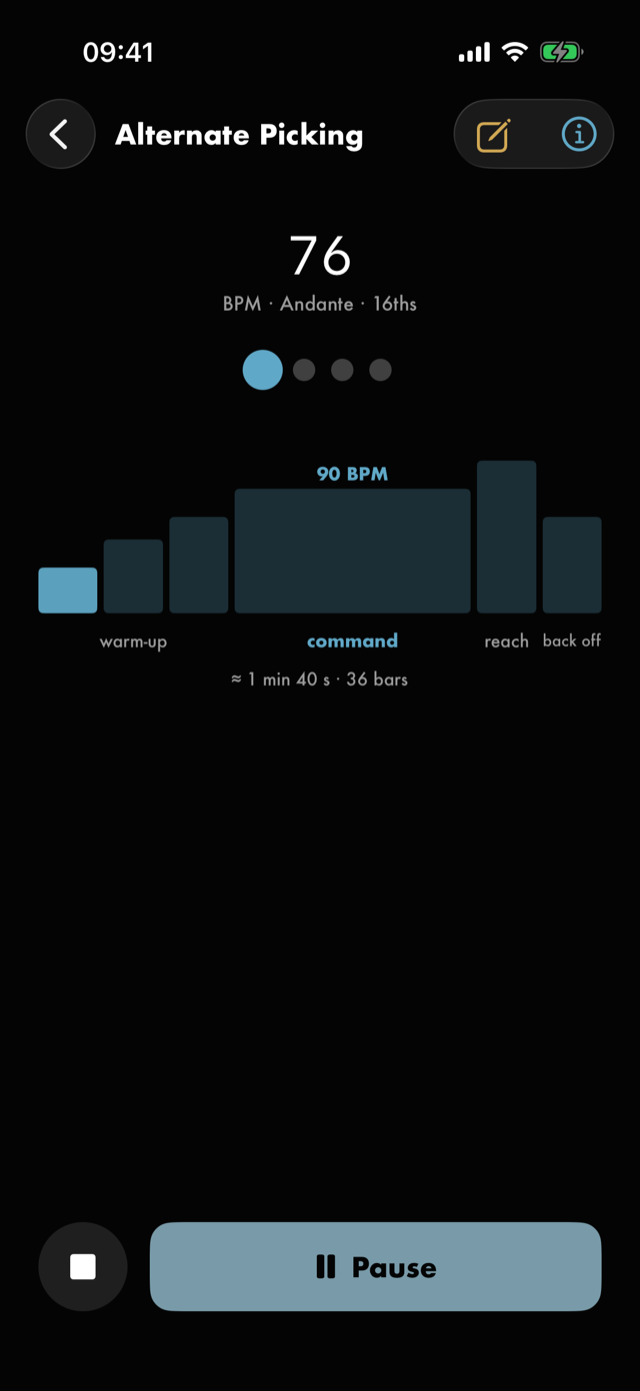
The transport gives you Pause / Resume and a stop that ends the run and clears the ramp. The screen stays awake while you play, unless you have turned that off in Settings.
While the run plays, the quick note button in the toolbar keeps a thought before it goes. It is not there when you are stopped, because the Journal bar under the staircase writes notes too. The ⓘ is reachable at any point, including mid-run, and opens the drill's reference sheet — its template, description, linked songs, meter and rhythm, and under Works on the skills it works on, so the goals that can bring it into a session. Each skill has its own ⓘ.
Its template sets where Works on starts. Change skills narrows that to what this drill is really for, or adds skills its template doesn't name — any skill in the catalogue, or one of your own — and the section then says Set by you. Use its type’s skills puts it back. A drill whose template has skills always keeps at least one, since that button is the way back to none of your own. A Basic or Your own practice exercise starts with nothing here, and Add skills is how it says what it's for. A Warm-up works on no skill, and has no Works on.
You can also arm a recording before you start, which captures your playing through the mic as a take. That is covered with the rest of the journal.
Finishing
A run that reaches the end of its staircase on its own lands on a completion screen: Nice work, then an optional mastery rating, an optional note, and the offer to move your command tempo up to the reach you just played. A run with Reach off never went above command, so it offers no move up. Moving your command tempo starts the rating again at the new tempo, and the drill's Progress section shows the old one as Last rated 5 at 70 BPM.
A run you stop by hand does not land there and does not log. The practice log records runs that finished, because a run cut short has no honest length to claim.
See Help & FAQs: "Does Red Moon score my playing?"
Making your own
+ in the Exercises toolbar opens the two-step create sheet.
Step one — the kind of drill
First Guitar or bass, which sets the neck for the scale, arpeggio and fretboard drills; the rest ignore it. Then the template itself. This is the one choice you cannot change afterwards — it fixes how the drill is built, how it runs, and which section it lives in — so the sheet says so plainly.
Templates carrying their own editor are badged Editor. Bass is offered a shorter list: a lane of down and up strum arrows describes something bassists do not do, so Strumming and Chords & Strum are not offered there. Chords stays — bass chords are real.
| Template | What it is for |
|---|---|
| Basic | A plain tempo drill on the click. |
| Warm-up | Loosen up before the real work. |
| Strumming | Down / up / rest arrow lane over the click. |
| Picking | Alternate-picking accuracy and speed. |
| Scales | Run scales in time — push the tempo clean. |
| Chords | Change chords cleanly on the beat. |
| Chords & Strum | Strum a groove while the chords change under it. |
| Arpeggios | Run chord tones across the neck, in position. |
| Legato | Hammer-ons and pull-offs, even and smooth. |
| Your own practice | Write your own — anything Red Moon doesn't cover. |
Those one-liners are the app's, taken from the picker itself.
Step two — the details
The second step is titled for what you picked — New warm-up, New scales, and so on.
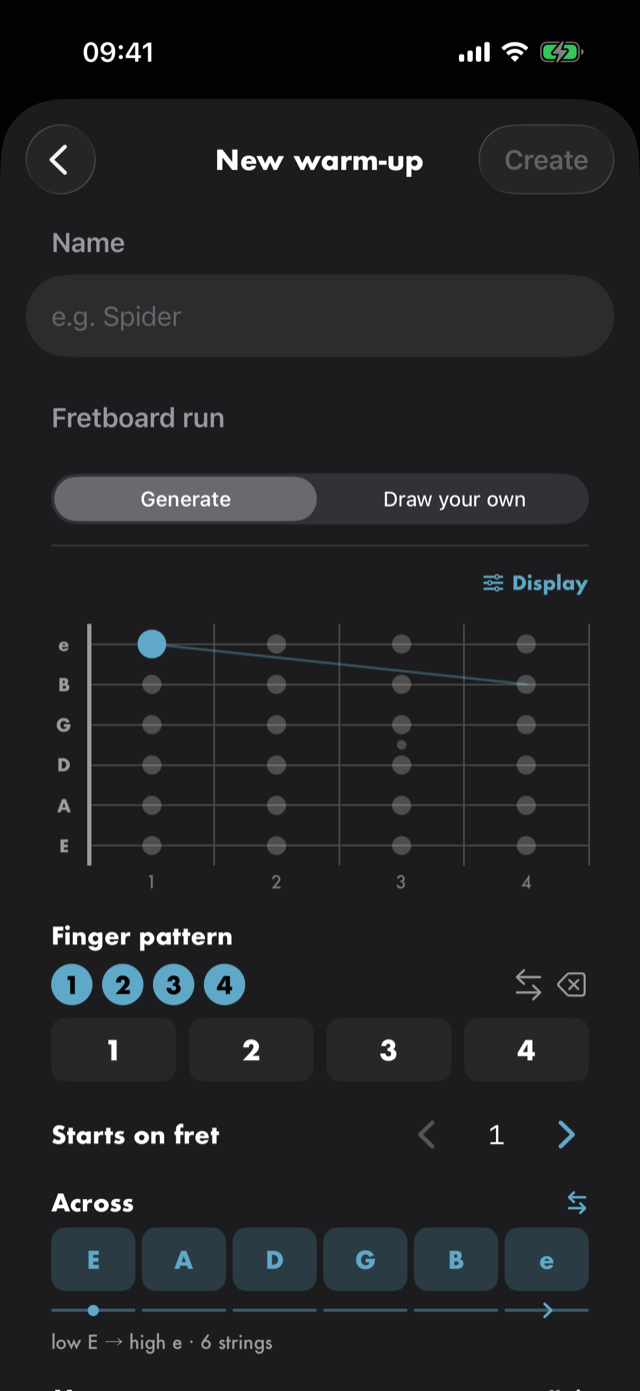
- Name — required, and Create stays unavailable until you give it one. The field suggests something appropriate to the template.
- The shape — if your template has an editor, it opens here, seeded so there is always something to run. Scales, Arpeggios and the warm-up family offer Generate or Draw your own: generate and you set a finger pattern, where on the neck it starts, how far across it travels and whether it moves; draw and you place the notes yourself. Either way the board above walks it through, or, with Animate exercises off, Watch walks it once. A Legato drill works out its own hammer-ons and pull-offs: the first note on each string is picked, and every note after it on that string is hammered on going up or pulled off coming down. As the board walks, each one is drawn as a curve under the string marked h or p.
- Your command tempo — the fastest you can play it cleanly right now. Everything else in the staircase derives from it, which is why it is the number the form asks for.
- Time signature — sets the run's accents and count-in length. Defaults to 4/4.
- Songs — link the songs this drill is for. The link shows on the song too.
A chord progression is built a chord at a time, and each chord carries its own controls: the name opens the picker to swap it, the stepper sets how many beats it is held for, and the up and down arrows move it along the progression. So an order you got wrong is a couple of taps to fix rather than a chord to delete and rebuild. The arrows appear once there are two chords to order.
Use a progression, under Add chord, fills the drill for you instead. Nothing is added until you ask — a chord drill still starts empty.
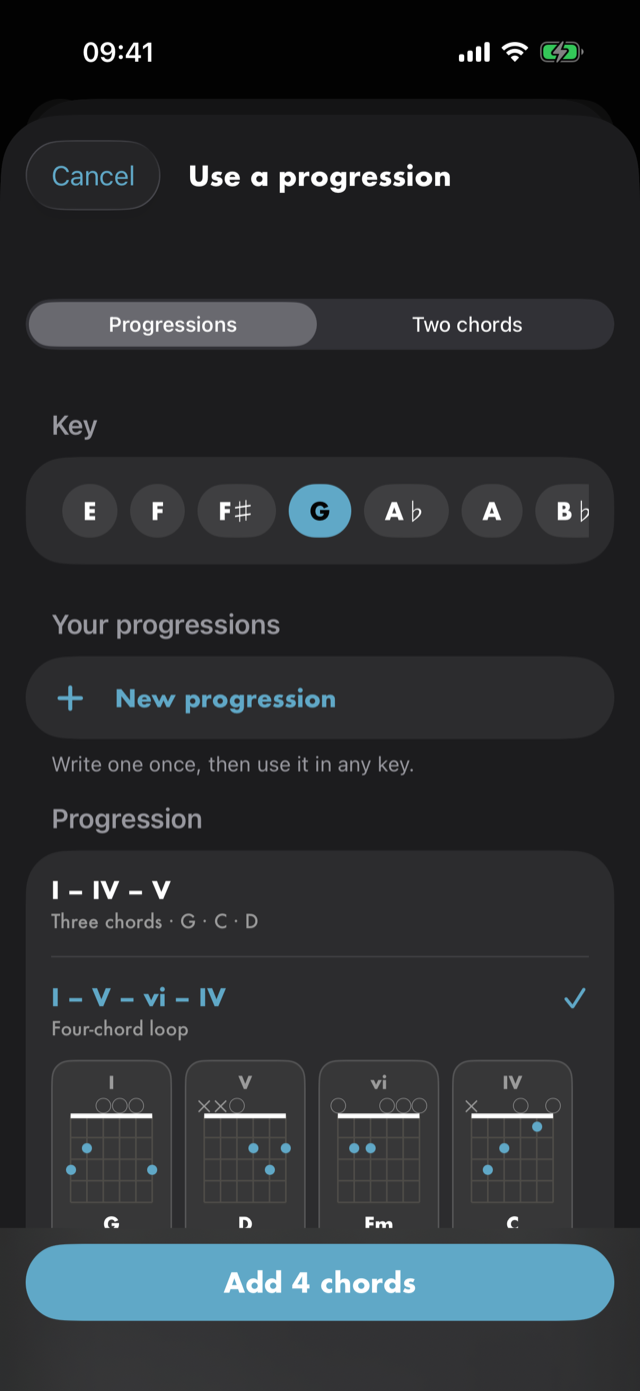
- Progressions lists standard ones — I – IV – V, the four-chord loop, the 12-bar blues and more — under a row of keys. Pick a key and the selected progression shows the chords it would add, drawn as the shapes a hand reaches for: an open shape where there is one, a barre where there isn't. The numerals over each chord say where it sits in the key. Tap any chord to swap it before adding.
- Your progressions, above them, are the ones you have written. New progression writes one without leaving the drill: give it a name, say what key it is Written in, and tap chords in — the key's own chords are laid out for you and Any chord reaches the rest. Chord names come first and numerals underneath, so you never need to read a numeral to write one, and because it is saved as numerals it plays in whatever key you pick later. Manage them in the Toolkit.
- Two chords is for drilling a single change. Pick your own two takes any pair, your saved chords included, and the common changes — Am ↔ E, C ↔ G, a first barre — stay as the exact shapes shown, because the change is in the grip.
- Hold each chord sets how long every chord lasts: 1 bar of the drill's time signature, 2 beats or 1 beat. A shorter hold is faster changes at the same tempo. The blues keeps its own lengths.
- Use my chords where they fit lets a chord you've saved stand in for the standard shape wherever it is the same chord, marked yours.
The button reads how many chords it will add — Add 4 chords — and they arrive as ordinary chords you can swap, re-time or move like any other. If the drill already has chords, it asks whether to Replace them or Add after them. Nothing counts or scores the changes.
Create saves it and drops you straight onto its run screen, so making a drill and playing it are one move.
Changing it later
The shape is editable after the fact: open the drill, and Edit shape sits in the header of its preview card. The name, description and song links live on the ⓘ detail sheet. Only the template is fixed.
That sheet also holds Where you learned it — links out to the lesson or tab page the drill came from, so a drill you built in February still says who taught it to you in June. See Where you learned it.
Its Songs section is a way through, not just a label: tapping a linked song opens that song in the player. It is there while you are setting a drill up, and stands down — the songs still listed, just not tappable — once the drill is running, or when the drill is a block inside a routine. Opening a song from either would strand the thing you were in the middle of.
Changing how many notes per beat a drill plays asks you what should happen to its command tempo, because the two mean nothing apart.
Handing one to somebody else
A drill can go to another player on its own, without the routine around it. Open its ⓘ detail sheet and tap the share control in the toolbar: Red Moon writes the drill into one small file and hands it to the share sheet, so you send it however you send anything else.
The shape is what crosses — the drill, its meter and subdivision, its tempo plan and ramp, its tags, and the description you wrote. If you have just typed into that description and not yet tapped Done, the words on screen are the ones that travel.
Where you keep it does not cross. Your folders are your filing, and a drill arrives in the other player's library unfiled, for them to put wherever they put things.
What you have done with the drill does not go with it. Not your mastery rating, not the tempo you worked up to, not when you last practised it, not your star. A tempo you reached is a fact about your playing rather than about the drill, and it would arrive as somebody else's number on their screen. Your song links and your Where you learned it links stay with you too — those point at files and pages on your device.
Nothing is uploaded: the file is written on your device and handed to the share sheet, and where it goes after that is your choice alone.
Receiving one
The same file opens on the other side, and there are two ways in — the same two a shared routine uses.
Tap it wherever it arrived — in Messages, in Mail, in Files, in an AirDrop — and Red Moon opens. If another app offers to open it, choose Red Moon from the list.
Or fetch it yourself. Exercises ▸ the options control ▸ Receive an exercise… opens a file picker showing the practice files it can read and nothing else, which is the way in when the file has been sitting in Files or iCloud Drive for a week.
Either way, Red Moon shows you what is in the file before it lands: the drill's name, its kind, its meter and its tempo plan, the sender's version and the day they wrote it. Nothing is written until you tap Add, and what lands is your own copy — nothing already in your library is changed or replaced. Adding the same file twice gives you two drills, which is the honest answer when the app cannot know whether you meant to.
The two pickers are not fussy about which is which: a shared exercise picked from the Routines screen still lands in your exercises, and Red Moon says where it went.
Your own practice
The last template is the one for practice the app does not model — sight-reading, transcribing, singing while you play, something a teacher set. Instead of a shape and a tempo it takes your own written instructions, and it runs as a timer with those instructions on screen.
It has no tempo and no meter on purpose: most of what belongs in one has no BPM at all, and a setting the run screen never reads is a question with no honest answer.
There is a tick box for I can do this without my instrument. That is what lets the block turn up in an away-from-your-instrument session — see Today's session. The app cannot tell from what you wrote, so it asks.
Nothing reads your instructions but you.
Next
All manual pages. Something not covered here? Get in touch — we read every message.