

Routines
A routine is an ordered run of things you already have — exercises, loops, whole songs — with rests where you want them, played through in one sitting. You build it once and start it whenever, and the app moves you through it so you are not deciding what comes next while you are meant to be playing.
Find them at Practice ▸ Routines.
The library
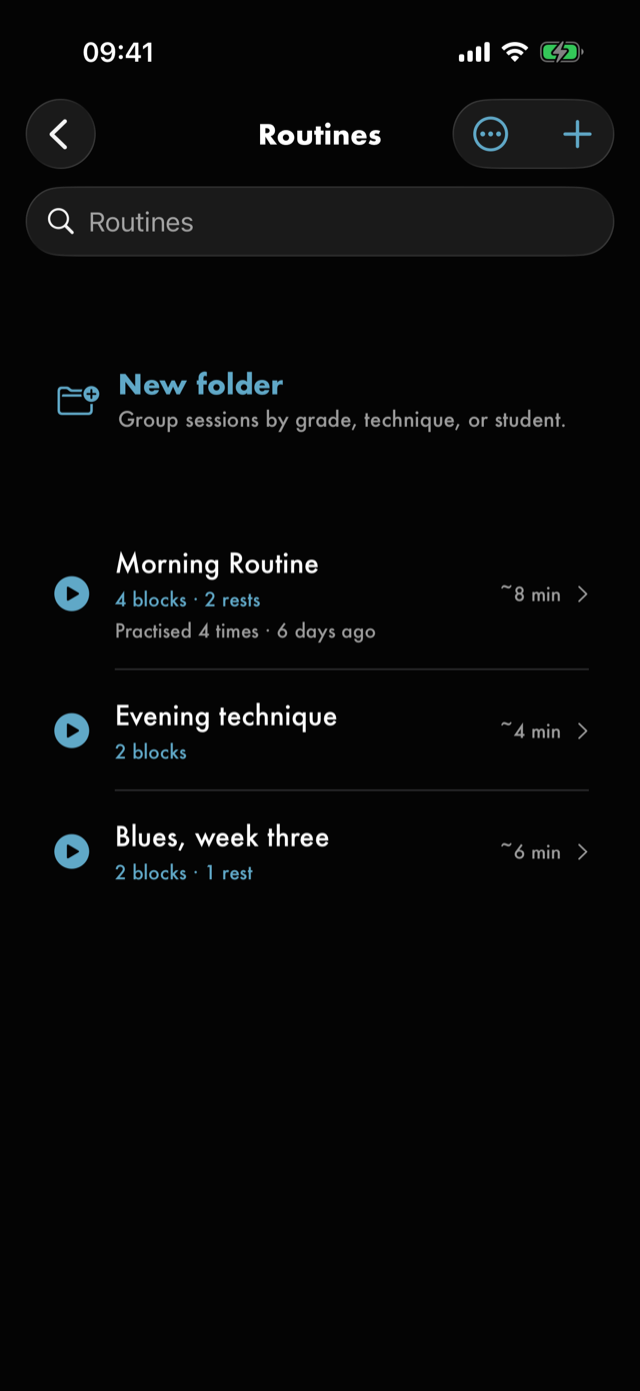
A fresh install arrives with one, Morning Routine — two warm-ups, a rest, alternate picking, a rest and a scale — so there is a whole session to look at before you build your own. It is an ordinary routine, and you can take it apart.
Each row is one routine, newest first until you choose otherwise, under a count of what is in it — 4 blocks · 2 rests. Once you have run one, a second line underneath says how many times and when: Practised 11 times · yesterday. A routine you have not run yet simply doesn't carry that line, rather than saying so. The row also says roughly how long the routine runs — the same estimate you see when you open it.
The row has two halves and they do different things: ▶ starts the session, and tapping the name opens the routine to read or edit.
Hold a row for Play, Edit, Add to folder…, Duplicate, Favourite and Delete. As everywhere else, delete waits behind an undo toast.
The toolbar's options control holds the favourites filter, the sort keys, Generate a quick session, which is covered in Today's session, New folder…, and Receive a routine…, for a session somebody sent you — see Receiving one.
Routines can be filed into folders, the same folders your exercises use — hold a row and tap Add to folder…, or make one with New folder…. You start with none, and a library that has none offers a New folder row above your routines. Folders work the same way here as they do in the Exercises library, and they are the same folders: a folder called Beginner holds whichever of your drills and whichever of your sessions you put in it, and each library shows you its own side. So a folder with six drills in it and no sessions reads 0 here — there is nothing of this library in it yet. The whole of how they work is written up once, under Folders.
Sort by offers four: Recently Added, which is where the list starts and where it stays until you change it; Name; Last Practised, most recent first, with routines you have never run at the end rather than the beginning; and Length, shortest first, using the same estimate the routine states about itself. Order flips any of them.
Search narrows the list by name and by description, so a word you only ever wrote in the prose — the week of a course, who a session is for — still finds the routine. Clearing the field puts the whole list back.
Building one
+ opens a new routine straight into its editor. Nothing lands in your library until you save, so a routine you start and abandon leaves nothing behind.
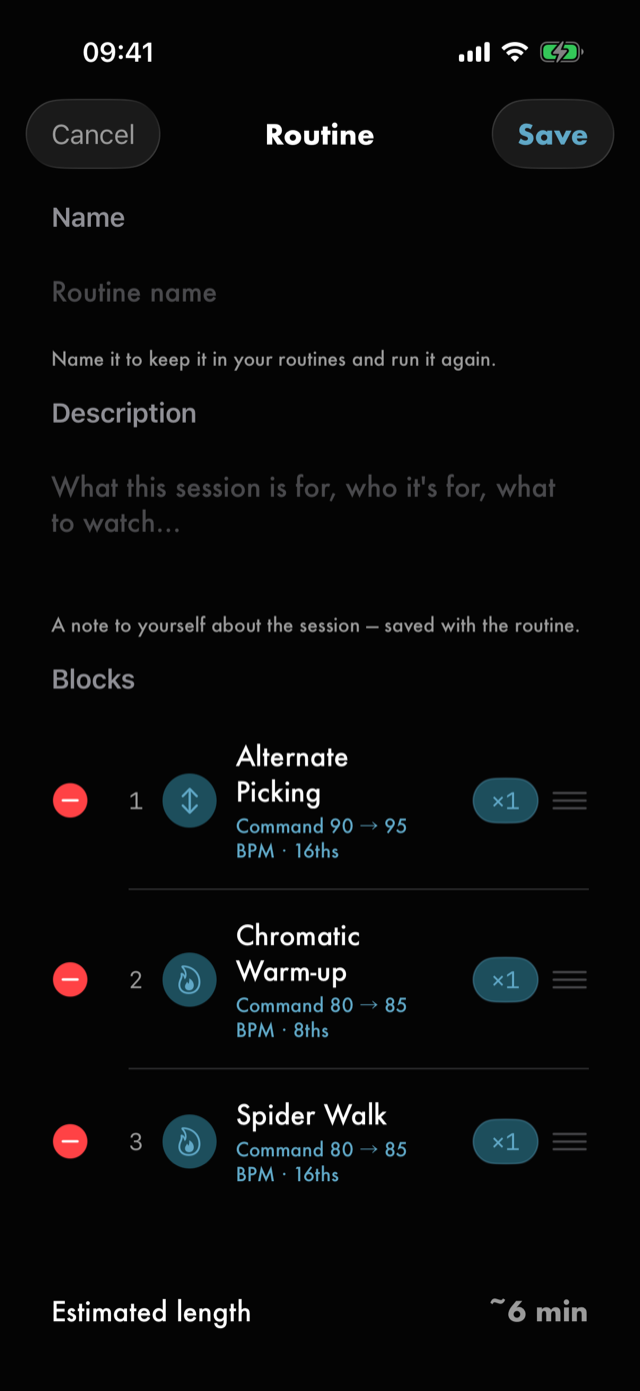
- Name it — the field at the top. Naming is what keeps it in your routines to run again.
- Add exercise, loop or song opens a picker grouped by kind. It stays open as you tap, so you can add several in one go, and a second tap on something takes it back out again.
- Drag a block by its handle to reorder. Handles only appear while you are editing — a routine you are reading cannot be rearranged, by a drag or anything else.
- Swipe left on a block to remove it.
- Swipe right on a block for Record, which works while reading too.
- Tap a block to set how many times it repeats — up to nine back-to-back runs before the routine moves on.
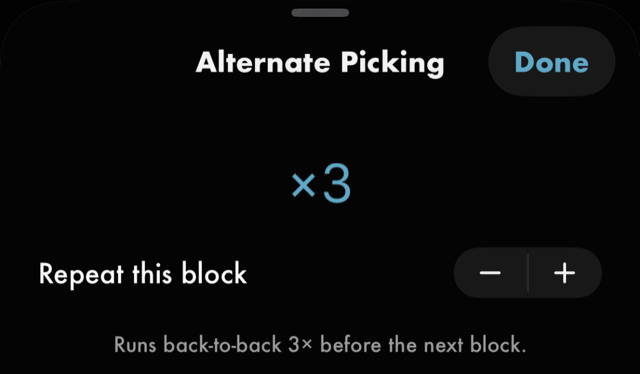
An Estimated length reads under the block list and re-reckons as you add and remove things, so you can see whether what you are building fits the time you actually have. It stays on the routine once you save it, where it sits with the routine's history — see Reading a routine without playing it.
Save commits; Cancel discards everything since you tapped Edit.
Or add from the drill's side. Hold a row in Exercises or Loops and tap Add to routine…. Tap a routine and the drill or loop goes in as its last block, saved on the spot — no Edit, no Save. Tap the same routine again to take it back out, or tap another to add it there too; a routine that already has it says already in it. A loop asks whether it goes in as Practice, Ear or Improv when it can be more than one. New routine… makes one with it as the first block. To put it anywhere but the end, open the routine and drag it.
Or from a song's map. On Map the song, hold a piece and choose Put it together… to make a routine of it and its neighbours, or of a line and the chords under it. See Mapping the song.
Rests
Insert rest does two different things. Tap it and a rest goes on the end, which is what you want while you are still adding blocks in order. Hold it and the block list turns into the gaps between your blocks, each one tappable — which is what you want once the order is settled and you are breaking a finished routine up.
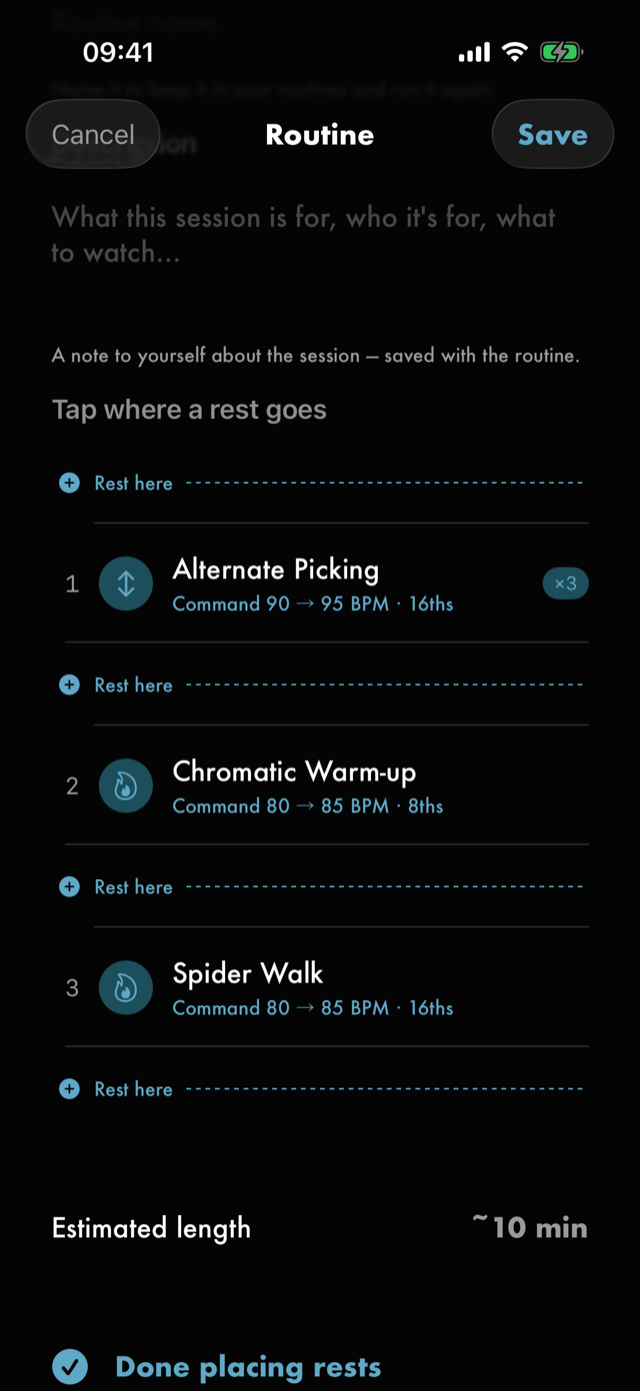
Tap a gap and a rest goes there. You can keep going down the list. Done placing rests returns to the ordinary list.
The hold is the sort of thing you would never find on your own, so the row says Hold to place once there is anything to place between.
You cannot put two rests next to each other. Try it and the app says so rather than silently refusing: two rests in a row is one longer break, and the rest that is already there is the one to lengthen. Rest length is a single setting, under Settings ▸ Routines.
Playing one
Start at the bottom of a routine — or ▶ on its library row — takes over the whole screen.
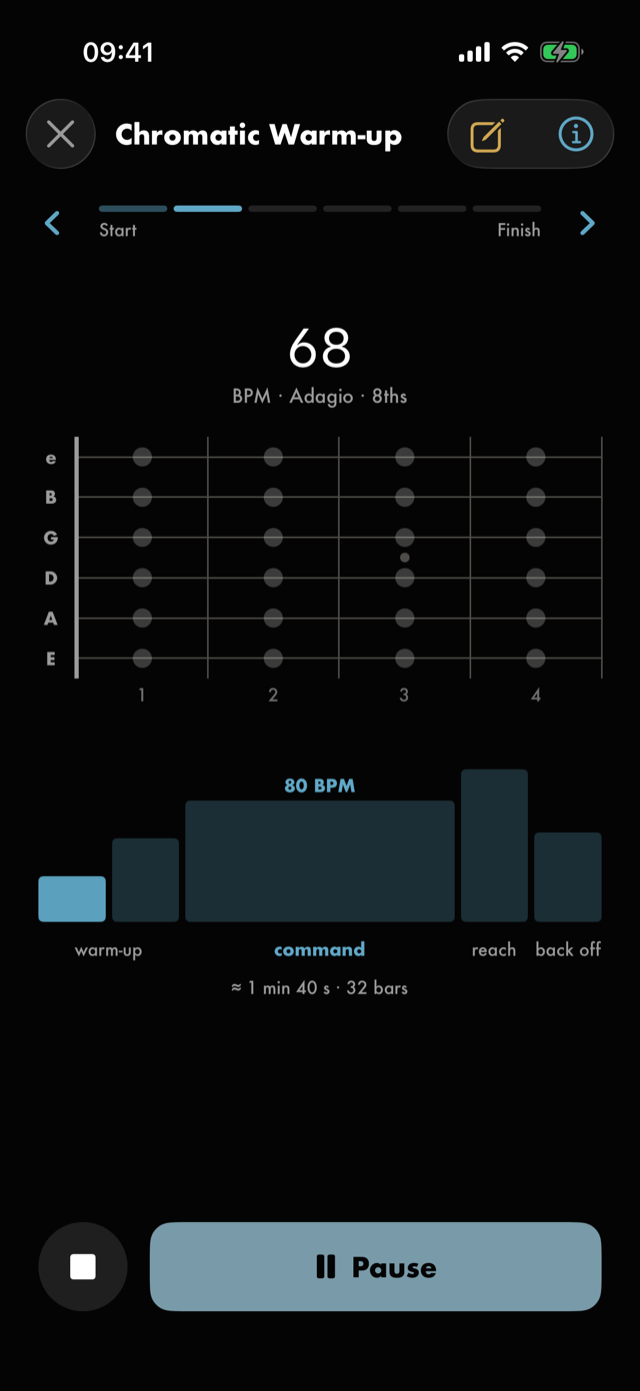
Across the top is the progress strip: one segment per block, marked Start and Finish, with ‹ to step back and › to skip ahead. A multi-run block shows which repeat you are on. ✕ leaves the session.
Underneath, the block is just its own run screen. An exercise block is the exercise run screen with its settings and its staircase; a loop block is the loop; a song block plays the song through. What drops out is authoring and review: you cannot edit a block's shape or change its meter here, and the takes and journal bar is not on this screen either. A routine is where you play the thing. The quick note button stays, because a routine block is exactly where a note tends to be owed — and a block you set to record shows its recording timer here, which is a readout, not a button.
Every block gets a 3 · 2 · 1 count-in, so an auto-started block never begins mid-stride.
Tuning up
Starting a routine asks first: Tune up first?, over three answers.
- Tune up opens the whole tuner — the same one in the Toolkit — with Start practising pinned to the bottom. Tune, then tap that and the routine begins.
- Not now starts the routine straight away.
- Don't ask again starts it and never asks again. That is the same switch as Settings ▸ Routines ▸ Ask to tune up, so you can put it back from there.
It is asked once at the start of a session and never again during it, and nothing about it tells you whether you are in tune with anything.
Between blocks the tuner is always one tap away, whether or not you left that question switched on: the tuning fork in the corner of a rest countdown, and of a block's completion screen, opens it over the session. Done puts you back where you were.
There is no tuner during a block. A block is playing audio and the tuner needs the microphone, which are two things the phone cannot do at once here — so tuning happens in the gaps, or you leave the block with › or ✕ first.
Between blocks
Finish a block and you land on its own completion screen: Nice work, an optional mastery rating, an optional tagged note, and — for an exercise or a loop — the offer to move its command tempo up to what you just played, or settle it down to something you own. Up next names what follows. Continue moves on; the last block says Finish instead.
If the block was set to record, the completion screen says Take saved with its length, and Listen plays it back before you rate anything. With Advance automatically on there is no completion screen to carry it — the take is still saved, and you will find it in the Journal and on the drill's own takes bar.
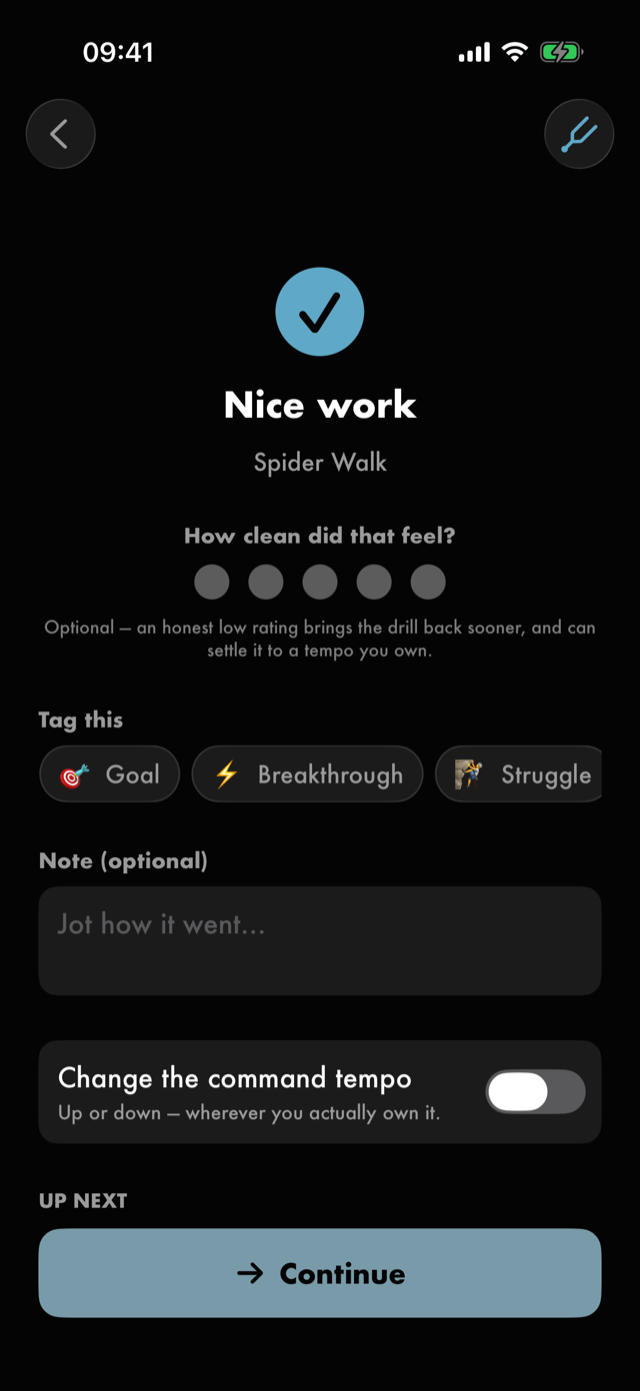
A rest block is a countdown with the next block named under it, and it moves on by itself.
None of that is compulsory. An unchanged rating, an empty note and an untouched tempo offer all commit nothing.
Accept a move and the rating starts again at the new tempo, so next time the dots open blank. Your last rating stays with the drill as Last rated 5 at 70 BPM, under its Mastery row.
See Help & FAQs: "What's the difference between mastery and command tempo?"
At the end
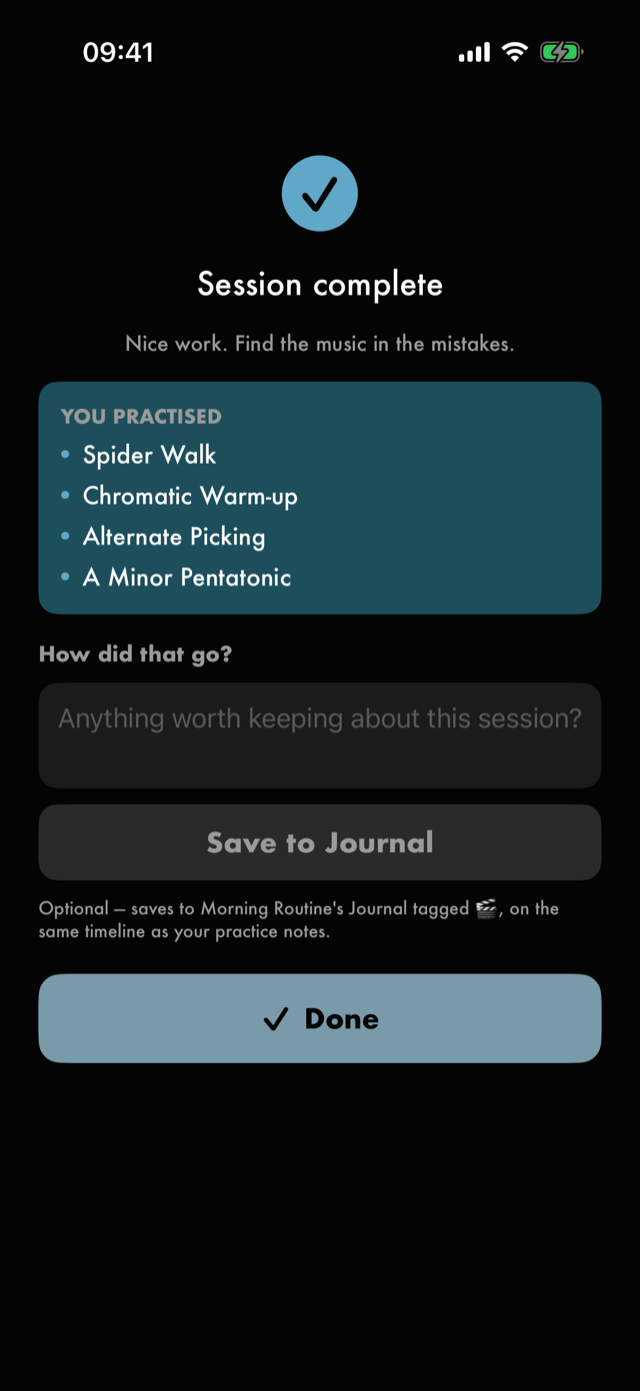
Session complete recaps what you worked through — what, never how well — and offers one note about the sitting as a whole. That is the note for the things that belong to the hour rather than to any one block: how the hands felt, what the room was like, what you would do differently. It files under the session rather than under whichever drill happened to be last.
After a session from Today's session or a quick session, the screen also offers Save as a routine, just above Done. Those sessions don't join your routines unless you save them — see keeping one. One tap keeps it under its name, and the button gives way to Saved to your routines.
How it moves — the settings
Settings ▸ Routines holds five:
- Auto-start blocks — whether each block begins on its own. The first block always waits for a deliberate start.
- Advance automatically — whether to skip the between-blocks screen entirely.
- Rest length — how long a rest lasts.
- Loop song blocks — whether a song block repeats as an open jam rather than ending.
- Ask to tune up — whether starting a routine asks. See Tuning up.
Settings ▸ Practice holds two more that touch routines: Starting point for new reminders, and Reminders you've set — the list of live ones, each editable from there. See Reminding yourself.
Reading a routine without playing it
Opening a routine gives you the read-only view. Tapping a block there pushes a preview of it — its content, its tempo anchors, its staircase, and an audition — so you can check what is in a session without starting it. Edit is what unlocks the changes, so a routine cannot be rearranged by accident.
Recording a block
Swipe a block right in the routine's list and it offers Record. That is the whole gesture: the block now captures a take while it runs. Swipe right again for Don't record. It works whether or not you are editing, because this is a decision about the next run rather than a change to the routine's shape.
Opening the block gives you the same switch, Record this block, with the explanation beside it — what the take covers and where it is saved. The switch and the swipe are the same setting.
Either way: the recording starts when the block does and ends with it, and there is nothing to tap during the block itself — the decision was made in advance, so your hands stay on the guitar. A red dot and a running timer sit above the transport while it records, so you always know the microphone is live.
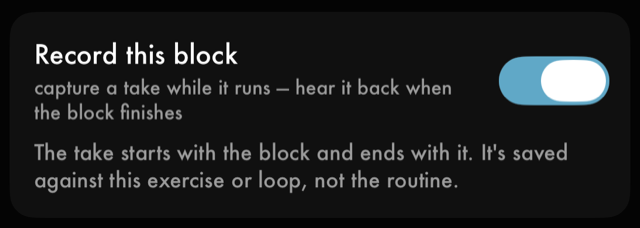
It is per block on purpose. One drill in a session is usually the one worth hearing again; the warm-up before it is not, and a whole session recorded is a folder nobody opens. Blocks set to record carry a small waveform badge in the routine's block list, so you can see which ones do without opening each.
The take is saved against the exercise or loop you played, not the routine — so it turns up wherever that drill's takes turn up, and it survives if the routine is ever deleted.
The first time you turn this on, the app asks for the microphone. That happens here, while you are building, and never mid-session: a routine cannot wait on a permission prompt. If microphone access is off, the switch says so and points at Settings.
Ear training and improvise blocks take the mark too, and it means something slightly different on them. Those blocks have always been able to record from their own screens, because they never start on their own — but only if you remembered to reach for the button mid-session. Marked, the take starts with the backing track instead, and the block's own record ring is still there, already armed, if you want to stop it or change your mind for this one run. A block with no time limit records until you tap Done.
There is no completion screen after one of those — an ear or improvise block has nothing to rate and no tempo to move, so the routine goes straight on. The take comes back to you on the block itself: stop the backing track and Take saved appears with its length, beside the way into that loop's takes.
Your own practice blocks are the one kind that does not carry the switch. A freeform block has no start — it simply appears, and you play — so there is no moment for a take to begin with. It keeps its own start and stop button, in a routine exactly as outside one.
A saved routine tells you three things about itself. Estimated length is roughly how long running it end to end would take. Last practised is when you last ran it, or Not yet if you never have. Under those, how many times you have practised it.
A run counts as one practice however many blocks it holds — a routine of six exercises done in one sitting is one, not six. Two runs inside the same half hour also count as one; a morning and an evening count as two.
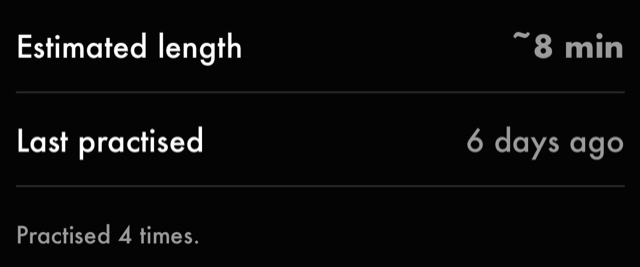
It counts and it dates, and that is all it does. There is no target to hit, nothing that goes up or down against last week, and nothing anywhere that remarks on a gap.
Reminding yourself
A saved routine can carry a Reminder: switch on Remind me, pick the days, pick the Time. Red Moon then says, on those days at that time, what is waiting — the routine's name and how many blocks it holds. Tapping it opens that routine.
The footer tells you when the next one is due. Nothing else is ever said about it. If you miss one, nothing happens — no second reminder, no note of it, no number on the app icon, and nothing anywhere that mentions the days you didn't play. Red Moon does not watch for your absence, so there is nothing for it to react to. A reminder is an appointment you made, and the only thing that changes it is you.
Deleting a routine takes its reminder with it.
Settings ▸ Practice holds two things about reminders, and neither of them sends anything. Starting point for new reminders is the days and time a new reminder begins from, so you set your week once instead of on every routine; it changes nothing you have already set, and there is no switch there that turns reminders on for everything at once — a reminder is always something you asked for on a particular routine. Under it, Reminders you've set lists every routine that has one, with its days and time, so there is one place that answers "what is actually set" — and tapping a row opens that reminder, so you can change its days, its time, or switch it off from there.
If you have turned notifications off for Red Moon, the reminder stays exactly where you set it — but the app stops claiming it will arrive. A note at the top of the Reminder section says so and offers a way through to iOS Settings, the footer reads Not being delivered instead of naming a next time, and the days and time fade. The switch itself stays live, because turning a reminder off is the one thing you must always be able to do. Everything else works exactly as it did.
A routine also carries a Description — what the session is for, in as many words as you like. It is the thing that will not fit in a name: who it is for, which week of the course it covers, why the blocks are in the order they are. It sits behind the same Edit gate as the blocks, so you read it at any time and change it with Edit, and Save keeps it. A routine you have not described shows no Description at all until you add one. The starter Morning Routine arrives with one.
A saved routine also carries Where you learned it, and this is the one that matters most: a course, a teacher's assignment, a book chapter belongs to a whole session rather than to any single drill in it. It sits behind the same Edit gate as the blocks — you can read the links at any time, and adding or removing one is a change you keep with Save. A block's preview shows the drill's own links too, read-only. See Where you learned it.
Handing one to somebody else
A saved routine carries a share control in its toolbar, beside Edit. Tapping it writes the whole session into a file and hands it to the share sheet, so you send it however you send anything else.
Every exercise the routine uses travels inside that file. The person you send it to gets the session complete — the blocks in order, the rests, the reps, the name, the description — on a phone that has never seen your library.
A routine that plays your songs
When a block plays one of your own loops or songs, the share control opens Send this routine first, so you can choose whether the songs go too:
- Sent as shows your artist name from Settings ▸ You, which goes with the routine. With no name set, none is sent.
- Include the songs is on to start with. Each song a block plays goes with it, with all its loops, markers and tempo grid, as Send this song… sends one, and the blocks play it at the other end. Under the switch it says how much the songs add, and the Songs list shows each one with its size.
- Turn it off and the file stays small: those blocks arrive named — the loop and the song it came from, in words — and the person at the other end fills them in with their own material.
- A song Red Moon keeps no copy of, such as one that's missing its audio, reads Can’t go, and its blocks arrive named the same way.
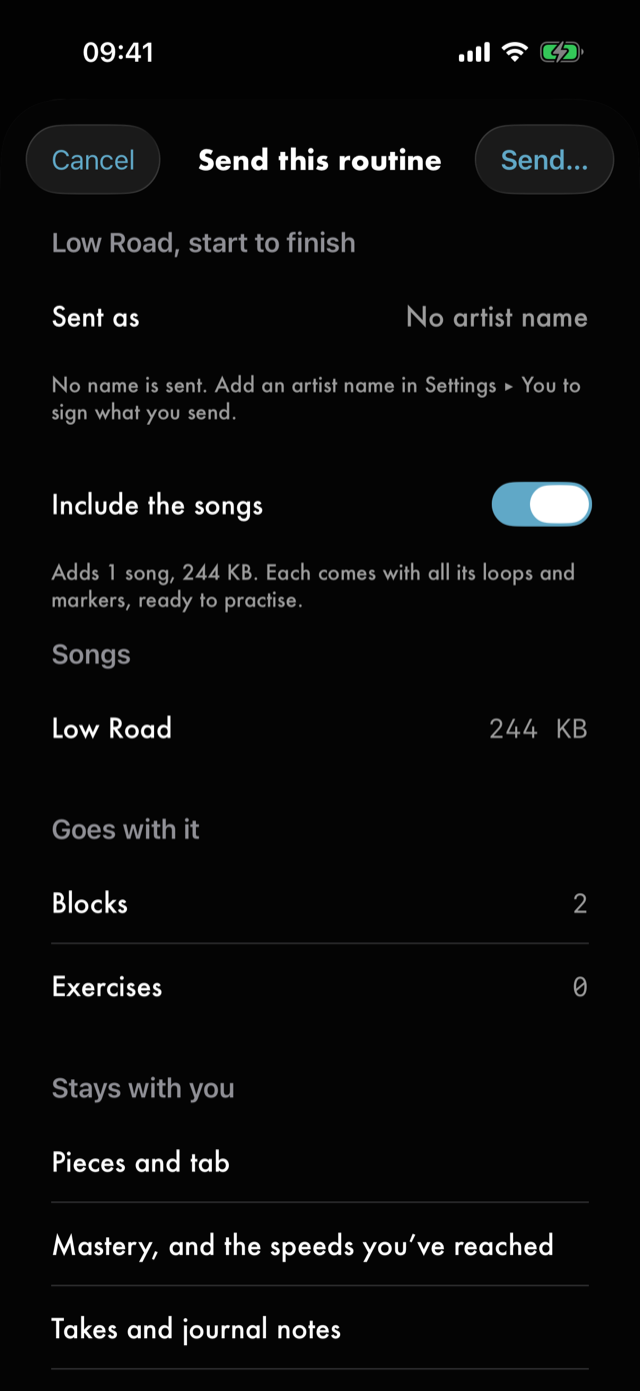
Send… in the top corner opens the share sheet. Either way, the routine they receive is the same length as the one you sent. A routine with no song or loop blocks has nothing to choose, so its share control goes straight to the share sheet.
A song sent in a routine carries the same things as one sent on its own, and leaves the same things behind: your pieces and the song's tab, mastery, takes and notes stay with you.
What you have done with the routine does not go with it. Not when you last practised it, not your star, and nothing you have measured — no mastery ratings, no command tempos. A tempo you worked up to is a fact about your playing, not about the drill, and it would be somebody else's number sitting on their screen. Recordings never cross in a routine, whether or not its songs go.
Nothing is uploaded. The file is written on your device and handed to the share sheet, and where it goes after that is your choice alone.
Receiving one
The same file opens on the other side, and there are two ways in.
Tap it wherever it arrived — in Messages, in Mail, in Files, in an AirDrop — and Red Moon opens. If another app offers to open it, choose Red Moon from the list. Nothing has to be set up first.
Or fetch it yourself. Routines ▸ the options control ▸ Receive a routine… opens a file picker showing the practice files it can read and nothing else, which is the way in when the file has been sitting in Files or iCloud Drive for a week.
A single exercise can be shared the same way, and the picker does not mind which it is handed: a shared drill picked here lands in your exercises rather than your routines, and a song sent with its loops lands in your library, and Red Moon says so. See Handing one to somebody else.
Either way, the same thing happens next: Red Moon shows you what is in the file before it lands — its name, how many blocks and how many exercises, who sent it (when they have an artist name), the sender's version and the day they wrote it, a Songs list when songs came with it, and a Won't come across list if any block plays a song that wasn't sent. Add puts it in your library; Cancel leaves nothing behind.
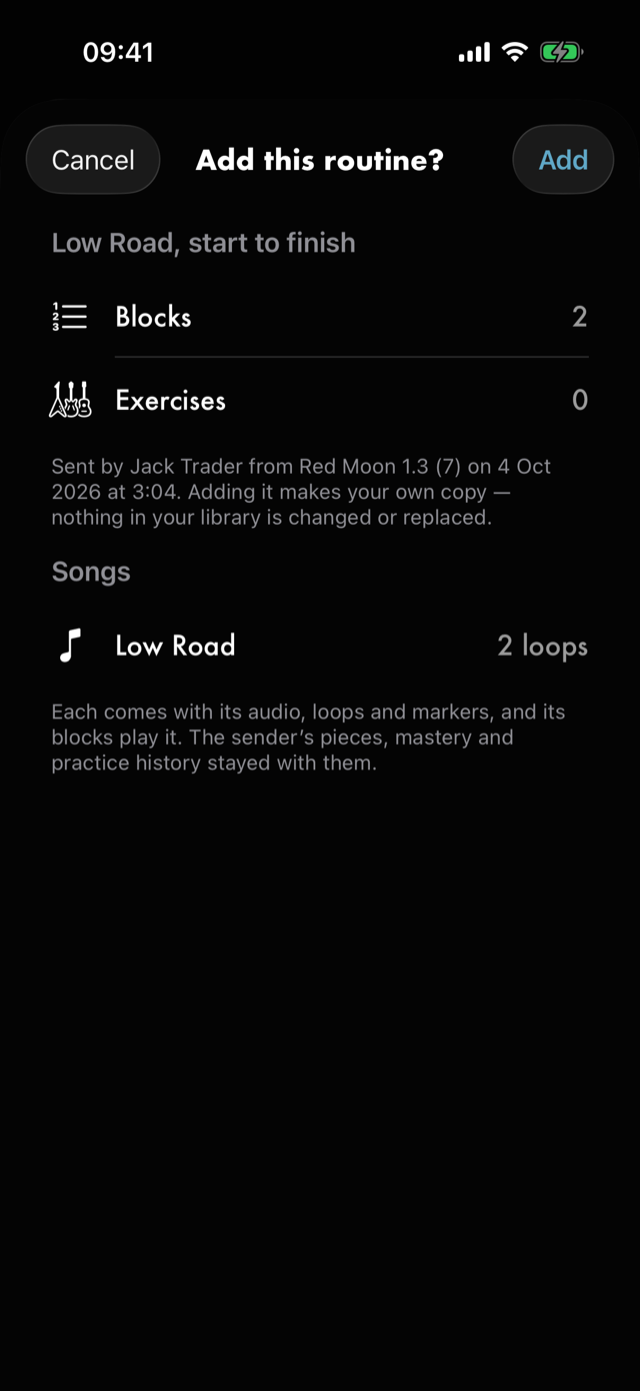
Songs that came with it land in your library too, and the blocks play them. Each is a new song of your own, named as a song sent on its own is: if you already have one with that title, the new one is named after the sender, like Low Road - Tomisin copy, and the Songs list says so before you add.
It is your copy from the moment you add it. The routine and its exercises are new rows with your own ids, so renaming or reworking them touches nothing the sender has, and nothing already in your library is changed, merged over or replaced. Add the same file twice and you get two routines — the app never guesses that two things with the same name are the same thing.
Blocks whose songs weren't sent arrive as skipped blocks that still say what they were — Chorus — Slow Bend, in the sender's words, under Skipped — not on this device. The routine keeps its shape and its length, and you know what to put there when you get to it. A block skipped because you deleted its unit still reads Unit removed: those are different facts and the rows say so.
A file written by a newer version of Red Moon is refused rather than half-read, and says so: update the app and open it again.
Next
All manual pages. Something not covered here? Get in touch — we read every message.