

Songs
Your library is the material you practise against. This page covers getting audio in, describing it well enough to find later, and repairing a song whose audio has gone missing.
What you can import
Any DRM-free audio file you can reach from the Files app — downloads you own, rips of your own discs, backing tracks, bounces of your own recordings, anything in iCloud Drive. Streaming services are the exception, and the reason is the audio itself rather than a policy choice.
See Help & FAQs: "What audio can I practise with?"
Importing
Tap + on Home, or open Song library and use Import a song. You can select more than one file at once; a progress indicator appears while they are read.
Each import does three things: it copies the file into Red Moon's own storage, reads the whole file
once to draw the waveform, and takes the title from the file name. So a file called
take-3-final.m4a arrives as a song called take-3-final, which is worth renaming while you know
what it is.
Because the app keeps its own copy, moving, renaming or deleting the original file afterwards does not affect the song in your library.
The empty library
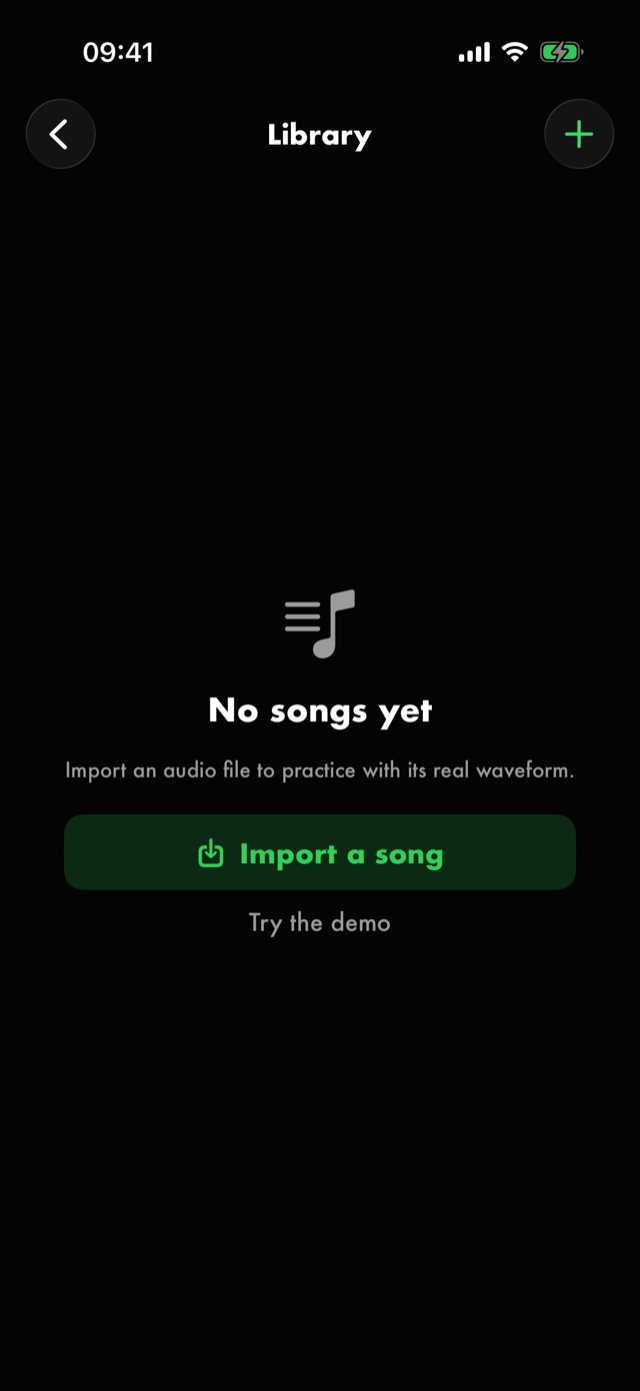
Before you have imported anything, the library offers Import a song and, under it, Try the demo — a short built-in track with loops and markers already on it, there to have something to poke at before committing your own music.
Finding a song again
A search field sits at the bottom of the library and matches songs and artists, which is the quickest route when you already know what you are after.
What a row tells you
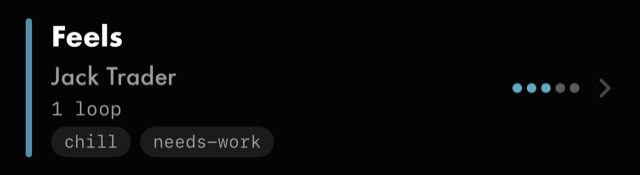
Each row carries the title and artist, a count of the loops and markers you have saved on it, its collections as chips, and a five-dot mastery reading. A song you have never rated shows no filled dots rather than a zero score.
Sections and sorting
The library groups songs into sections, and you choose what the sections are. The toolbar's sort control shows the current choice — ↑ Title by default — and opens a menu offering Mastery, Recently Added, Title, Artist, Album and Genre, each either Ascending or Descending.
Each section header carries a count and a chevron, and tapping it folds that section away — which is what makes a library of sixty songs navigable when you only care about one artist today.
Collections
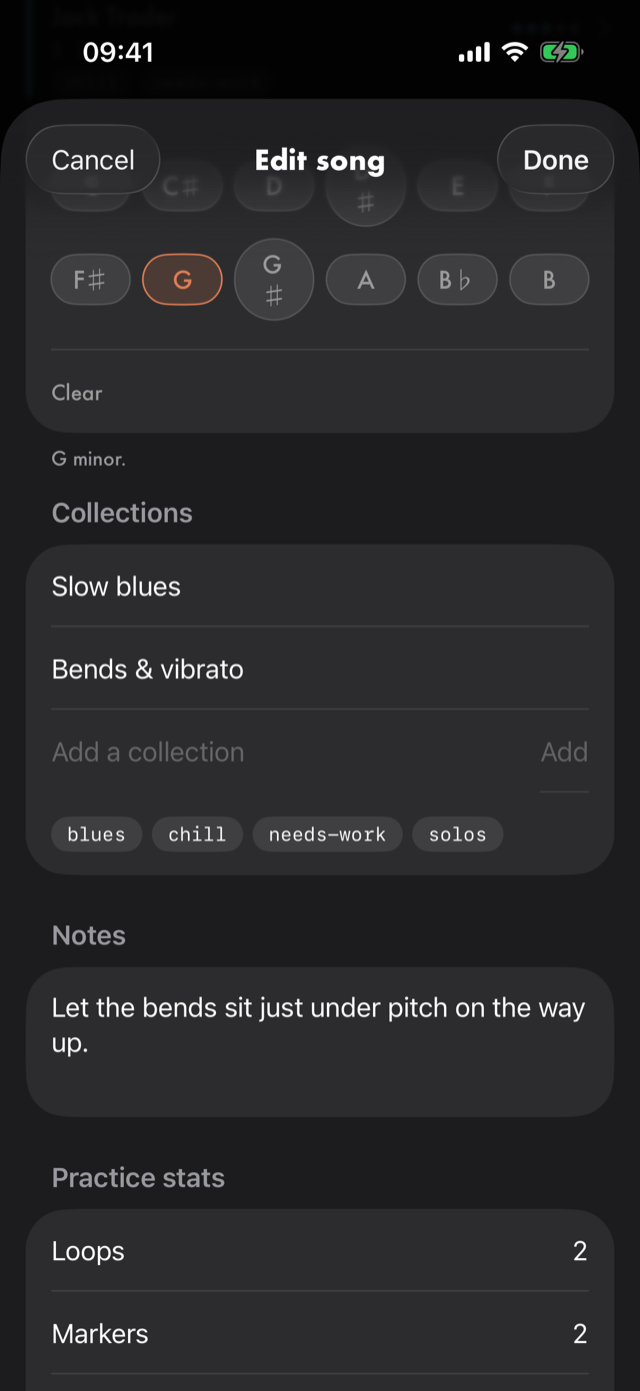
A collection is your own label — blues, needs-work, set list, whatever is useful. A song can be in as many as you like, and you add them when you edit a song.
The filter control then narrows the library to the collections you tick. Ticking two collections shows songs in either of them, not only songs in both — so the more you tick, the more you see.
If a filter leaves nothing on screen, the library says so and offers Clear filter rather than looking empty.
Describing a song
Hold a song's row for Details, Edit and Delete — or open the song and hold its title to reach the same details.
Songs have no favourite. Exercises, routines and saved loops do, and those you can pin; a song is found by searching, sorting or filtering instead.
Details also carries Where you learned it — the transcription, tab page or cover breakdown you worked from. See Where you learned it.
Edit song carries Title, Artist, Album and Genre, a Collections section where you add your own labels, a key picker, and a Notes field for anything you want to tell yourself later — a tuning, a capo position, what to listen for.
The song's details show what the app knows and what it has worked out: Tempo, Mastery, Slowest loop and Length, along with your practice stats for it. Mastery here is derived from the loops underneath it rather than set directly, and says how many of them are rated; Slowest loop names the loop with the lowest command tempo, which is as fast as you can play the whole song — see the app's own words.
Exercises for this song lists the drills you have linked to it, and each one is a way through: tap it to run it, and the back arrow brings you back to the song. Swipe a row to unlink it — unlinking never deletes the drill, which keeps its own place in the exercise library.
Deleting
Swipe a song left, or use Delete in its hold menu. A toast appears with an Undo, and the song is only really gone once the toast has passed. Deleting a song takes its loops and markers with it.
When a song loses its audio
A song can end up with no audio behind it — most often a library imported by an older version of the app and carried through a reinstall or a restore from a backup. The library row looks normal; you find out when you open the song, and the player says what happened rather than failing silently.
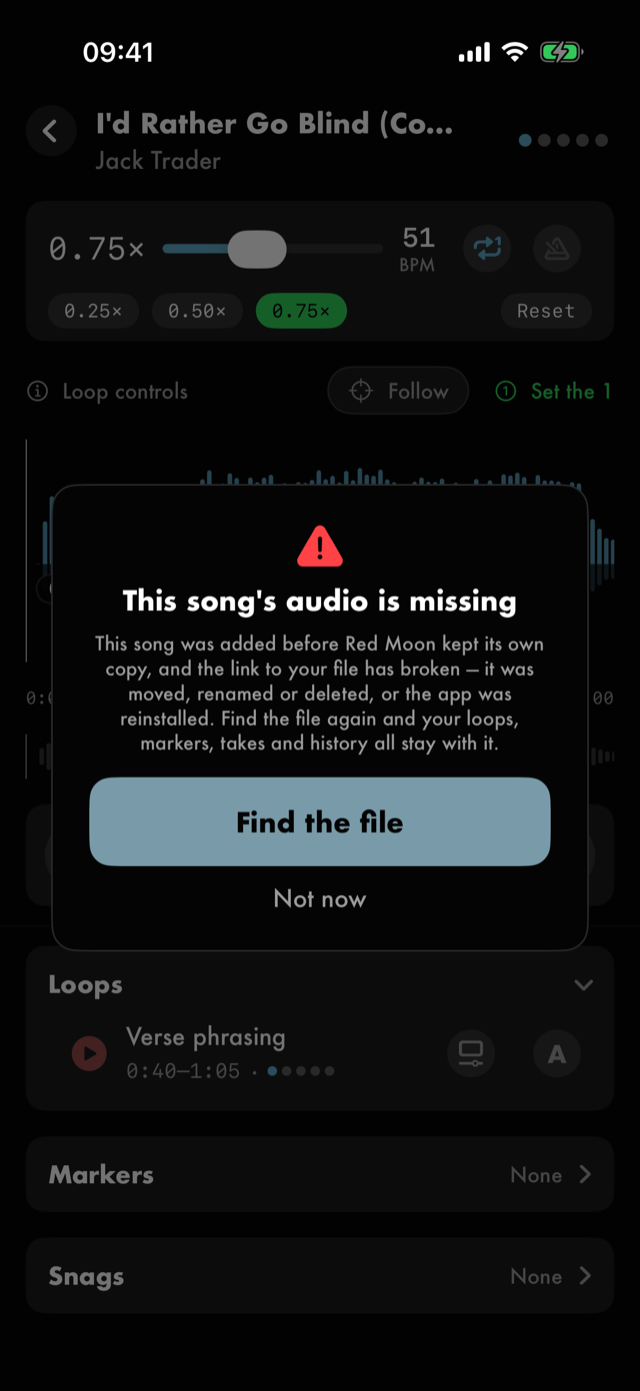
Find the file points the song at a file again; Not now leaves it as it is. Use it rather than re-importing: a re-import creates a new song, and your loops, markers, takes and practice history stay attached to the old one. Pointing the song at a file again keeps the row and replaces only the sound underneath it.
There is a second door that doesn't need the audio to be broken. Song details ▸ Audio ▸ Replace audio file… does the same job at any time, and its File row reads Missing for a song with nothing left to play. That is also how you fix a song pointed at the wrong file — worth knowing about, because pointing a song at the wrong file succeeds quietly: it plays, just not the song you expected. Check the audio is what you think it is afterwards.
See Help & FAQs: "My song stopped playing — what happened?"
Taking a song somewhere else
Song details ▸ Audio has two ways out. Both need Red Moon's own copy of the song, which an older song linked to a file elsewhere gets the first time it plays.
Send this song… is for someone else with Red Moon: a teacher, a bandmate, your other phone. It opens a screen that says what goes and what stays before anything is sent:
- Goes with it: the audio file, every loop with its speed, repeats and ramp, every marker and section, and the tempo and beat grid, so the bars line up the same.
- Stays with you: your pieces and the song's tab, your mastery and the speeds you've reached, takes and journal notes, your notes, collections and links, and when you last practised.
- Sent as shows your artist name from Settings ▸ You, which goes with the song. With no name set, none is sent.
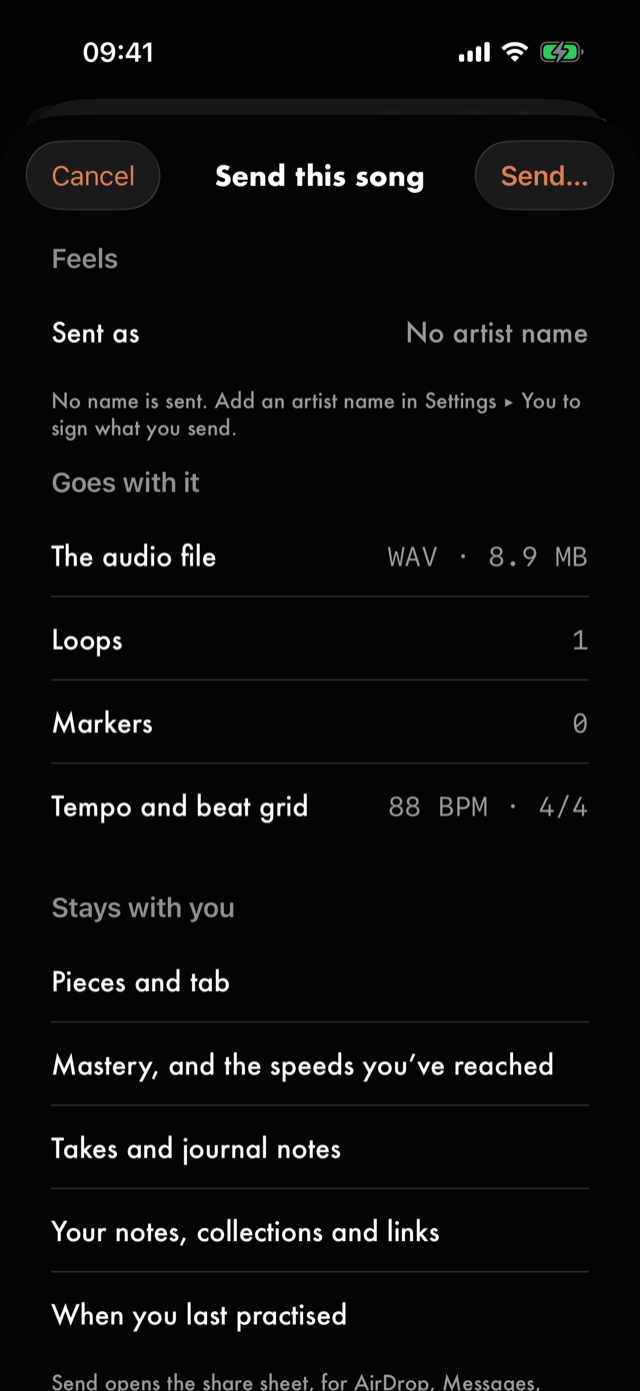
Send… in the top corner opens the share sheet on one file, a Red Moon practice pack.
Export audio file only… opens the share sheet on the song's audio file, as you imported it: into a DAW, to another device, or into Files. Only the audio goes. Your loops, markers, pieces and practice history stay in Red Moon.
Receiving a song
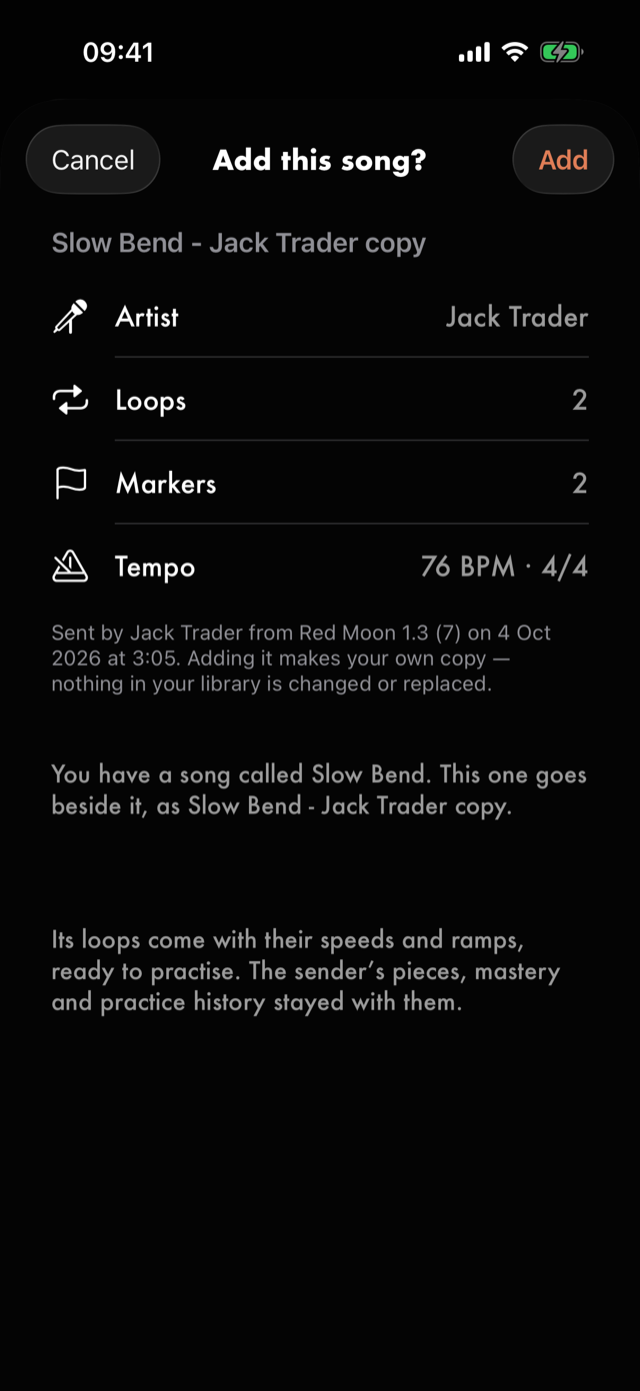
Tap a practice pack wherever it arrived, in Messages, Mail, Files or an AirDrop, and Red Moon opens it on Add this song?: who sent it and when, the artist, how many loops and markers, and the tempo. Add puts it in your library as a new song of your own, and Cancel leaves nothing behind.
Nothing you already have is changed. If you already have a song with the same title, the new one is named after whoever sent it, like Low Road - Tomisin copy, or Low Road - copy if they have no artist name, and the screen says so before you add it. Receive the same song again and it's numbered: Low Road - Tomisin copy 2.
Mapping the song
Song details ▸ Map the song lays the whole song out, left to right, with every loop you've made on it sitting where it plays. Chords go on one lane and notes on the lane under them, because a lick is played over the chords around it. When two loops overlap on the same lane, the second gets a lane of its own. Every song you've worked pieces out on has the same button in the Journal, under Pieces, beside the song's name.
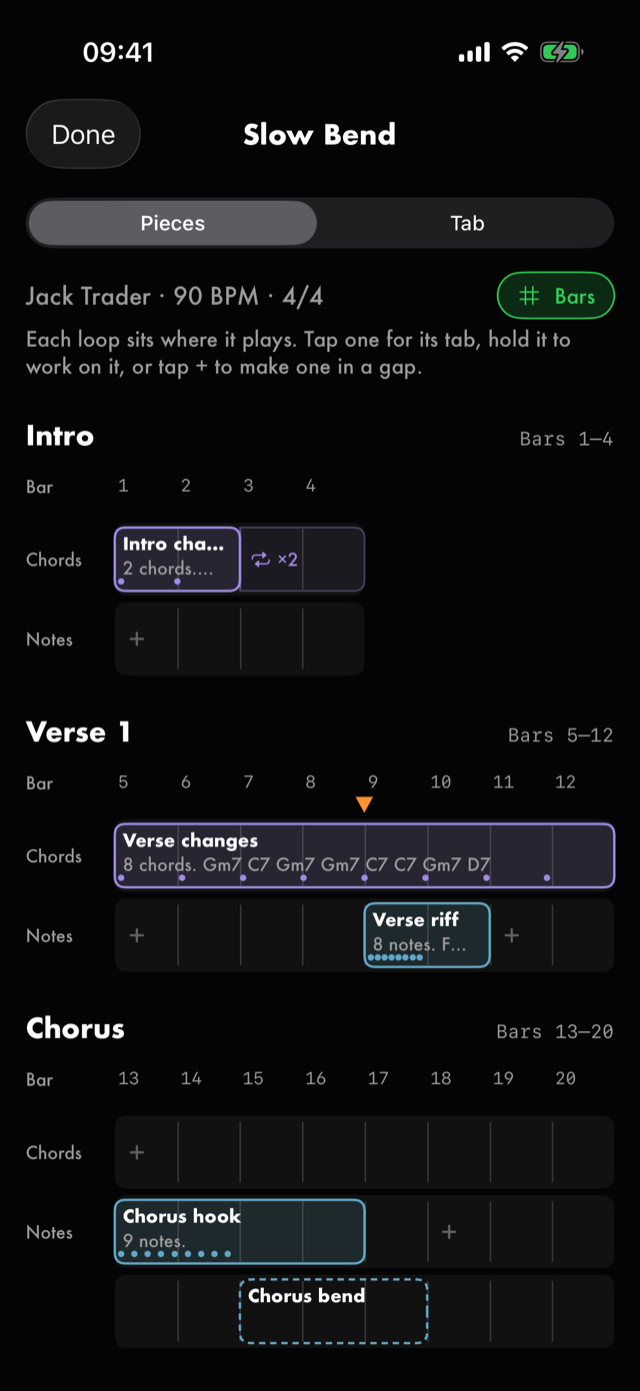
Each loop shows what it holds, and nothing else. A dashed outline is a loop you haven't worked out yet. Dots are the notes you counted in Count the notes, and the line under the loop's name is what you named them. There is no score and no percentage: it's your pieces, laid out.
Tap a loop to see its tab: the notes you placed on the neck, in the tuning you named them in, in rows that fit the screen, with any name you gave by ear above the strings where it falls. Hold the tab to copy it. From there, Train your ear is where you count it and name it; the map fills in as you go. Once a note is on the neck, Watch it on the neck plays the loop with the lick lit on the neck. Saving a new count over one keeps the one before, and Versions on the tab lists them all, the one in use first: Use this version swaps another in, and the map and its tab follow. The one it replaces is kept, so you can always go back. Hold a loop instead to skip the tab: the menu offers View tab, Train your ear, and Practice or Improvise when the loop can do them.
When the song has a tempo and a 1, the rows are bars, eight to a row; without them, the rows are seconds. Bars switches between the two, and it is the same switch as Grid on the waveform, so turning bars off here turns the gridlines off there.
To split the song into sections, open a marker and switch on Starts a section. Each section begins a new row with its name above it, and anything before the first one sits under Start. Markers without it stay on the map as pins. Tap a section's name or a pin to open its marker.
If the song has markers but no sections yet, the map asks once: Use your markers as sections? Choose sections lists your markers, with the ones named like a part of a song (Intro, Verse 2, Chorus…) already ticked, and Use makes the ticked ones sections. Nothing changes until you tap it.
When a section comes round again, open its marker and pick the earlier one under Same as. Verse 2 then reads as Verse 1; tap that to go to Verse 1. Anything you work out inside Verse 2 still shows, because a variation is worth seeing.
When a section is one progression played over and over, work it out once, then hold its loop and choose Repeats to the end of the section. A lighter band runs on to the end of the section, marked with how many times the loop plays. It's never copied, so when you change the loop, the repeats change with it. When the song has more sections after it, the hold menu has Repeats instead, where the loop can also run on Through a later section or To the end of the song, and Doesn't repeat switches it off.
Tap + in an empty stretch of a lane to make a loop that fills it exactly, from the loop before to the loop after, named after its section and lane (Chorus chords). Without sections, it fills the stretch in that row. If you've already counted a piece on that lane, you can start from it instead: Copy Verse changes here makes the loop with those notes or chords already written across it.
To put a piece you've counted somewhere else, hold it and choose Copy to…, also on its tab. Tick the sections it goes in (the rows, when the song has no sections), or Choose bars for a run of bars. Each gets a loop of its own with the piece written across it again and again, keeping to the bar. A copy is yours to change: changing it, or the piece it came from, leaves the other as it is. If you want them to stay the same, use Repeats or Same as instead.
After you make a loop or copy a piece, Undo at the bottom of the map takes back what was just made, and only that. It goes after a few seconds, or as soon as you do something else. The map never deletes a loop: to delete one, use the waveform.
To practise pieces together, hold one and choose Put it together…, then tap the others you want. A bar along the bottom says what they make, or why they can't be put together. Chords that follow one another, or notes that do, are practised in a row: each on its own, then joined to the ones before it. Two halves of a riff become the first half, the second half, then both. A line with chords under the whole of it is practised on its own, then played over the chords, which go round as a backing. That switches the chords' loop to a backing track.
Put it together asks how fast you can play any piece that has no command tempo yet, and how fast the backing should play if it has none. The backing starts with the line, so it's no faster than you've practised the line. Then it opens the routine for you to look over. Nothing lands in your routines until you tap Save. The joined stretches are loops of their own, drawn under the pieces they join. If you go back to the map without saving the routine, Undo takes them back.
The song's tab
Pieces | Tab at the top turns the map into the song's tab, drawn from the same pieces, four bars to a row. Chord symbols sit where you tapped them. Notes you placed on the neck are tab, on their strings, and notes you named by ear are their names. A tap you counted but haven't named is a slash, so you can see the rhythm before you know the notes. A bar with nothing in it is left empty.
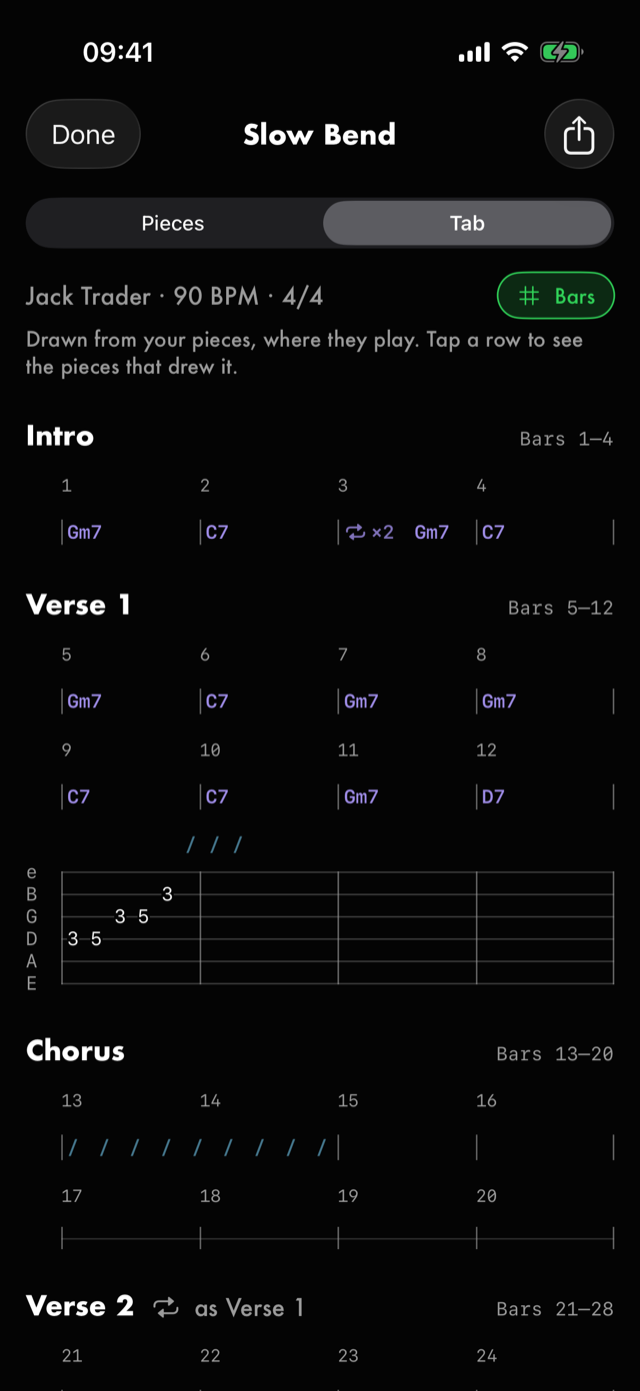
A section you marked as the same as an earlier one has the earlier one's bars written out under its heading, as Verse 1, so a second chorus reads its chords where it plays. They're drawn from the earlier section, so changing Verse 1 changes Verse 2 with it. Anything you've worked out inside Verse 2 is written as well, on its own line. Tapping a written bar takes you to Verse 1 on the map, where its loops are.
A loop that repeats is written out every time it plays, so you can read its chords or notes in every bar they're in, with ↻ ×4 where the repeats begin. Each time is drawn from the one loop, so when you change the loop, all of them change with it.
There's nothing to type into the tab: it's always drawn from your pieces, so it can't disagree with them. To change a bar, tap its row. The map goes back to Pieces at that row, with the loops that drew it picked out for a moment, and you can work on them from there.
Without a tempo and a 1, the tab is in seconds, and Set the tempo and the 1 to see bars takes you to the song's waveform to set them.
The share button at the top right exports the tab as Plain text or a PDF, headed with the song's title and artist, each section under its name and bars. It's in the same fixed-width layout as on screen, with the notes evenly spaced where the screen spaces them by time. A tab only knows which notes come in what order, not how long each lasts, so neither file writes lengths.
Next
All manual pages. Something not covered here? Get in touch — we read every message.