

Looping
A loop is a span of a song you have marked so you can play it again without hunting for it. It is the centre of the app: almost everything else either helps you make one, run one, or remember what happened while you did.
Open a song from the library and you land on the player, which is where all of this happens.
The player, band by band
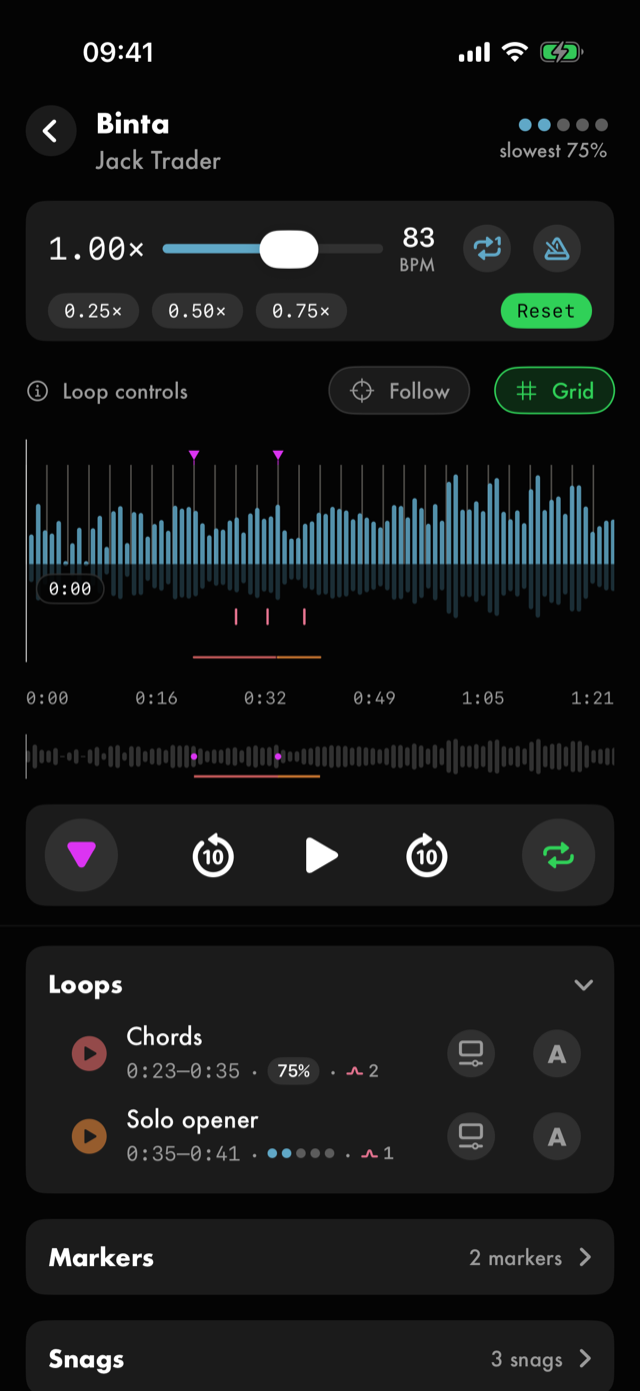
From the top:
- The song strip — title, artist and the song's mastery as dots. Hold it for the song's details.
- The speed bar — the current speed, a slider, the effective BPM, a repeat toggle and the metronome. Underneath sit 0.25×, 0.50× and 0.75× shortcuts and a Reset.
- The status line — Loop controls on the left, a Follow toggle, and Set the 1. It is replaced by the A/B strip while you are making a loop, and by the downbeat controls while you are placing the 1.
- The waveform — the song drawn out, with your loops and markers on it.
- The time ruler — where you are, in minutes and seconds.
- The minimap — the whole song at a glance while the waveform is zoomed in. You can turn it off.
- The transport — play and pause, skip, and the Loop and Marker controls.
Below the cockpit are the Loops and Markers panels, listing what you have saved on this song.
Making a loop
There are two ways, and they produce the same thing.
Tap twice. Play up to the start of the passage and tap Loop — that drops the A point. Keep playing to the end and tap Loop again to drop B. The span is now live.
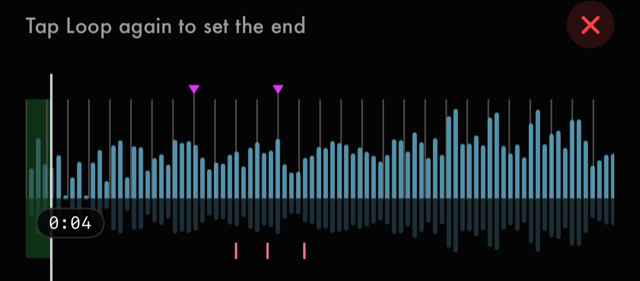
Or draw it. Hold anywhere on the waveform and drag across the passage. One gesture, both ends.
Either way the status line turns into the A/B strip, which offers a play button to audition the span, its start and end times, Save as loop, and an ✕ to throw it away and carry on playing. A span you do not save is temporary — it disappears when you clear it.
Getting the ends right
Drag the A or B handle to move either end. Pinch the waveform to zoom in first if you are working to a beat rather than a bar — the further in you are zoomed, the finer the drag.
Once a loop is saved you can still change its span: drag its edge on the waveform and save the change.
Running a loop
Tapping a saved loop in the Loops panel makes it the active one, and playback confines itself to that span, going round until you stop it. Each row carries the loop's name, its start and end times and its mastery, plus two controls: one to adjust its range, one to set up its automator.
While a loop is active the transport switches to its compact form and the loop's name reads above the centre controls. The skip buttons keep doing what they do on the full song — they move you back and forward by their own number of seconds — except that inside a loop they move you around inside the loop. A skip toward either end stops at that end and the loop keeps running, so nothing you tap here can turn the loop off. The ✕ on the colour strip is what does that.
To move to a different loop, tap its row in the Loops panel. To start the loop again from the top, tap where it starts on the waveform.

Slowing it down
The slider on the speed bar sets playback speed as a multiple of the original, and 0.25×, 0.50× and 0.75× are one tap away underneath it. Reset puts it back to full speed. The pitch does not follow the speed, so a slowed passage still sounds like the record — you are not retuning your guitar to practise.
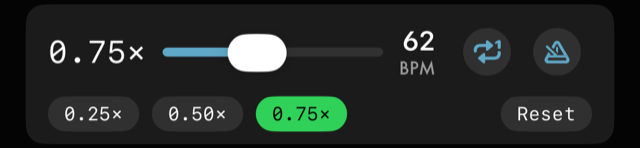
The BPM readout on the same bar shows the effective tempo — the song's tempo multiplied by the speed you have chosen — so you can see what you are actually playing at rather than what the record does.
Holding the metronome button beside it opens the tempo editor. Holding the BPM readout itself does something else: it carries that tempo out of the song, to the metronome or into a new exercise. What it carries is the number you can see — the effective tempo, not the record's.
See Help & FAQs: "Does slowing a song down change its pitch?"
Ramping the speed automatically
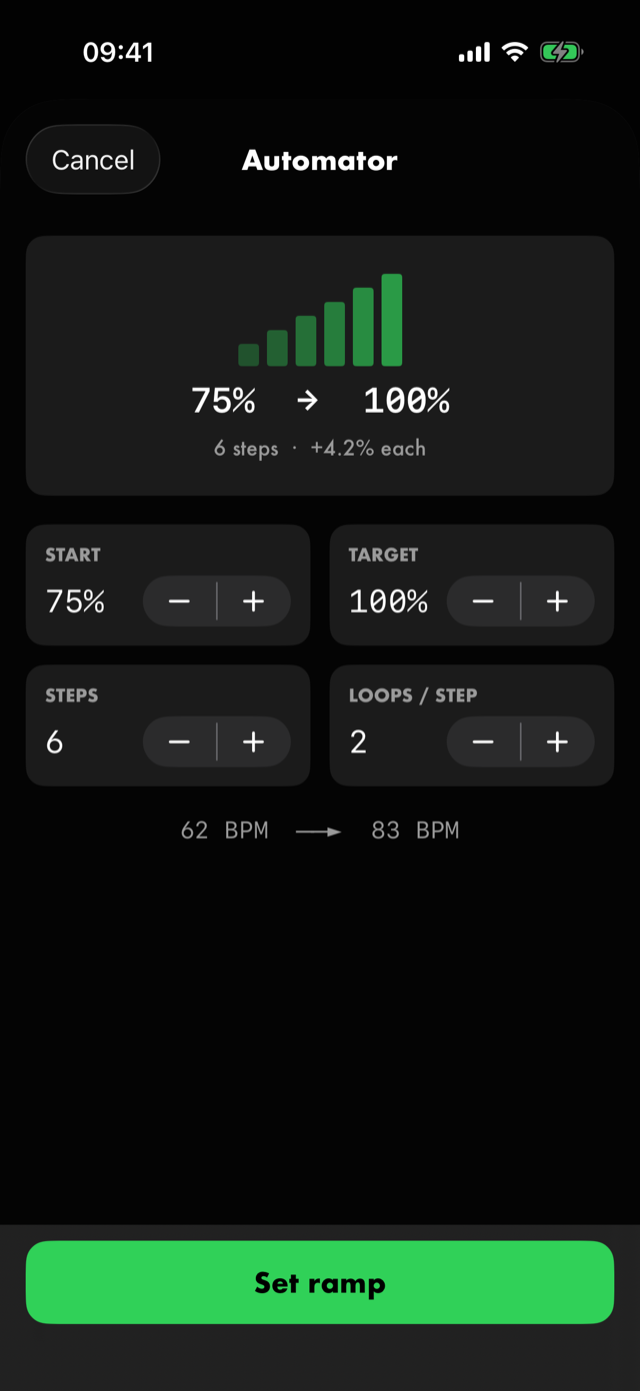
A loop can step its own speed up (or down) as it repeats. Open the automator with the A control on the loop's row and set where it starts, where it is heading, how many steps to take, and how many times round to stay on each one. The per-step change is worked out for you. Set ramp arms it; Turn off disarms it.
See Help & FAQs: "What is a ramp?"
The click
The metronome button on the speed bar turns a click on over the top of the song. For it to land in the right place the app needs two things: the song's tempo, and where beat one is.
The tempo. Hold the metronome button to open the tempo editor. You can tap it out, type a BPM, or let the app guess it from the audio. The editor also carries the time signature.
Tapping reads the playhead rather than your finger, so a loop or a slowed-down speed still reads the song's true tempo. The reading follows your last few taps rather than everything you have tapped, so on a song that drifts you can keep tapping through the section you actually care about and the number will settle on it.
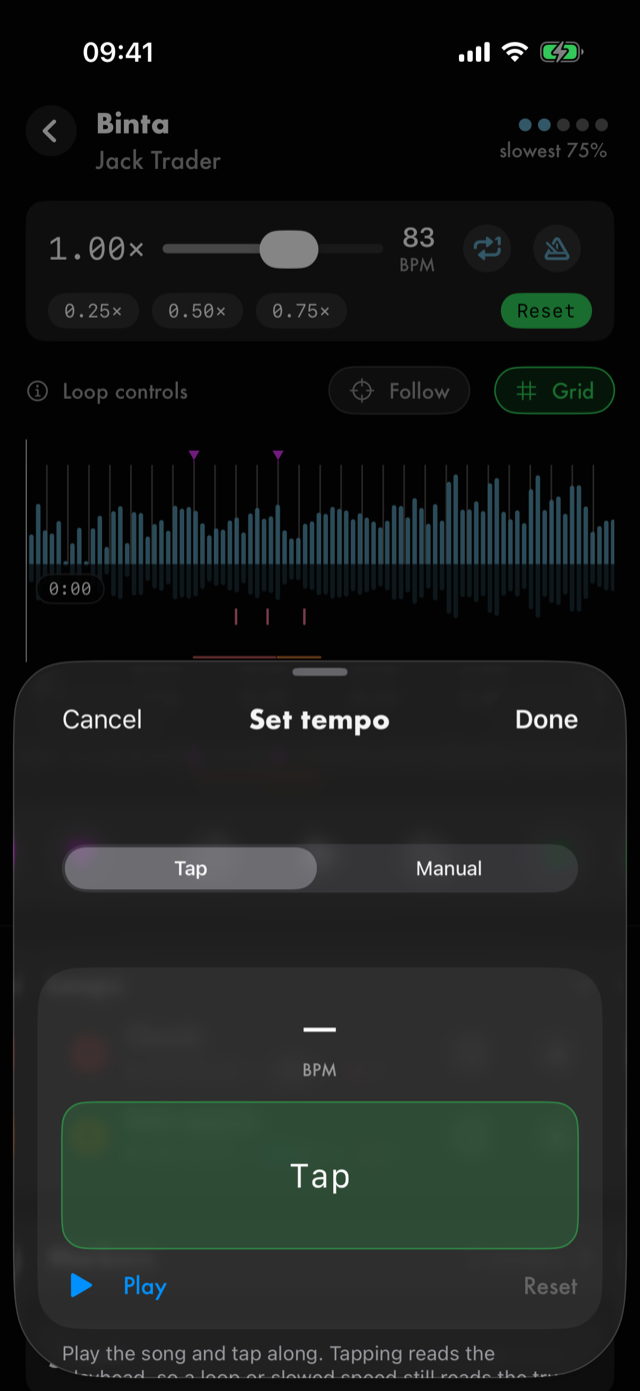
The 1. Set the 1 on the status line tells the app where the bar starts. Play along and tap the 1, or drag the handle onto a peak in the waveform, then commit with the tick. If a song's grid drifts later on, you can correct it from that point rather than starting again.
See Help & FAQs: "The click drifts out of time with my song. Why?"
Markers
A marker is a labelled point rather than a span — solo starts, key change, back to the head. Drop one with the Marker control on the transport; hold a marker's row to edit its label or time, and tap the row to jump there.
Marker labels can float over the timeline as the playhead approaches them; that is a switch in the player's settings.
The same sheet has Starts a section. Switch it on and the song's map begins a new section at that marker. With it on, Same as is for a section that plays like an earlier one, as Verse 2 often plays like Verse 1: the map heads it as Verse 1, so there's nothing to work out twice. See Mapping the song.
Describing a loop
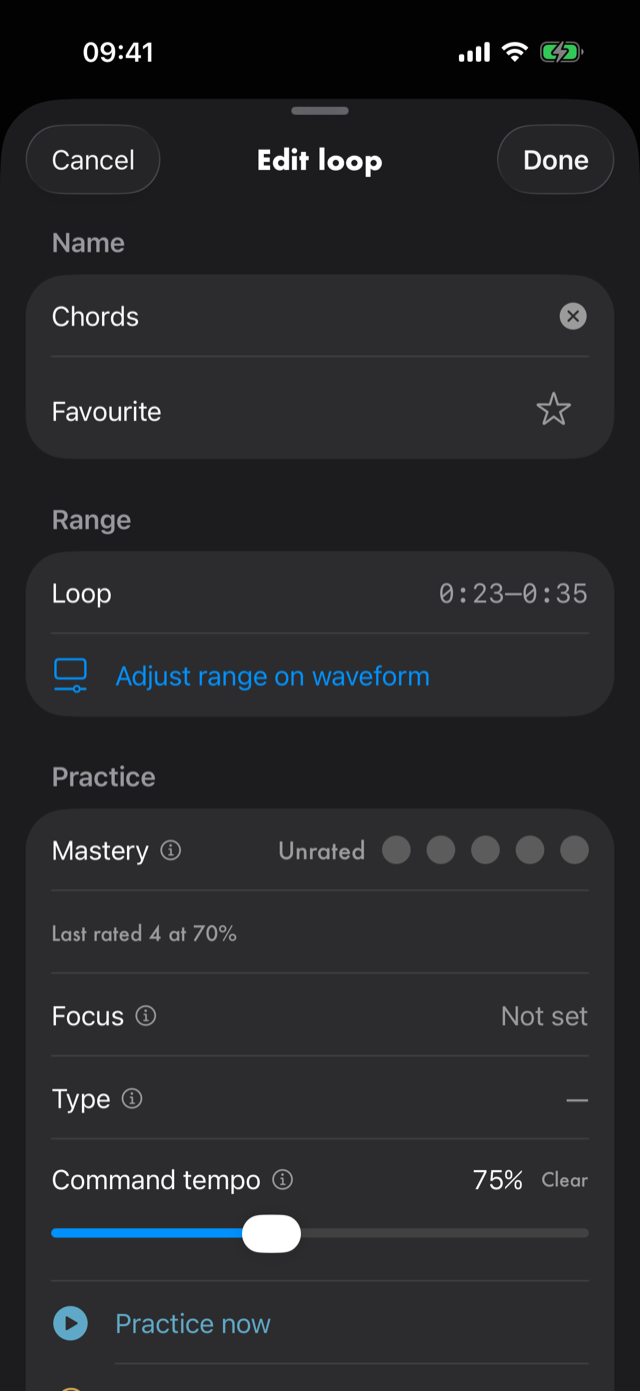
Hold a loop's row to open Edit loop. It carries:
- Name — what to call it, a colour, and a Favourite star.
- Range — its start and end as times, and Adjust range on waveform to go back and drag the ends.
- Practice — Type, Mastery, Focus and Command tempo. These four are the app's own vocabulary and are defined in the app's own words.
- Journal — a note about this loop.
- Where you learned it — links to whatever explains this passage. A loop is usually the most specific thing to hang one on: the video covers these eight bars. See Where you learned it.
- Backing track — mark the span as a bed to solo over, which files it under Backing tracks elsewhere in the app.
- Tags — your own labels, for finding loops across songs later.
Cancel discards your changes; Done keeps them.
Working on several loops at once
Hold the Loops panel header to start selecting. Tap the loops you want, and a bar appears with what you can do to all of them together — including a bulk edit sheet carrying Type and Focus.
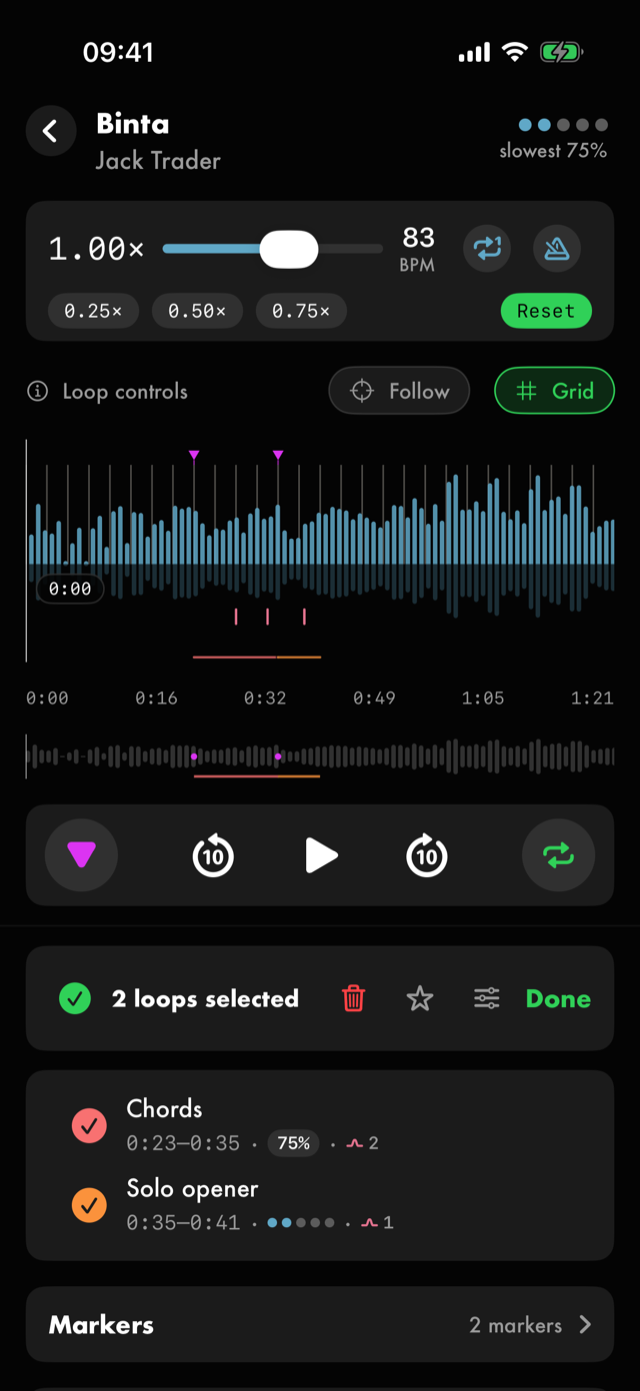
Deleting from here goes through the same undo toast as anywhere else — the loops are only really gone once it has passed.
Landscape
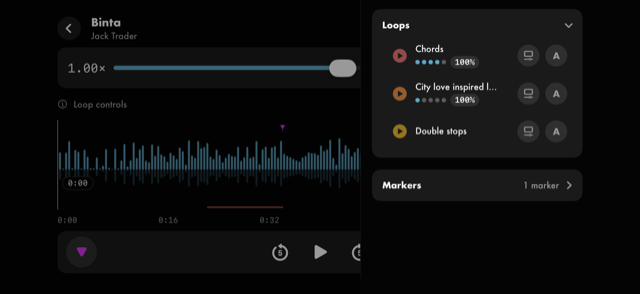
Turn the phone and the waveform takes the full width, with the loops and markers moving into a drawer at the side. The same gestures apply; there is simply more waveform to be precise on.
Next
All manual pages. Something not covered here? Get in touch — we read every message.