

Getting started
Red Moon Practice is a practice room for music you already own. You bring in an audio file, mark the few bars that keep falling apart, slow them down, and loop them against a click until they stop falling apart. That is the first move, and this page walks you through it.
It is not the whole app. The other half is what you do with those loops afterwards: a saved loop becomes a block in a routine, sitting next to drills you built and other songs you are working on, and the routine is what you press play on when you have twenty minutes and no plan. The tuner, the metronome, the chord tools and the journal fill in around both. Most people meet the looping first and the routines a week or two later, which is the order this manual is written in.
See Help & FAQs: "What is Red Moon Practice?"
What you need
Something to play, and audio files you own. Red Moon is built around the guitar and bass, but the looping, the slowing down and the metronome work for any instrument or voice. The audio is anything you can play in the Files app: files bought as downloads, ripped from your own discs, backing tracks, or bounces of your own recordings. iCloud Drive counts.
What will not work is streaming. Apple Music and Spotify audio is protected, and protected audio cannot be slowed down or drawn as a waveform by any app, including this one.
See Help & FAQs: "Why can't I use Apple Music or Spotify?"
The first run
The first time you open the app it asks A few quick things: what you play, your experience, what you want to play, what you are aiming at, what you are working toward, and how long you usually have. They shape the sessions the app suggests later.
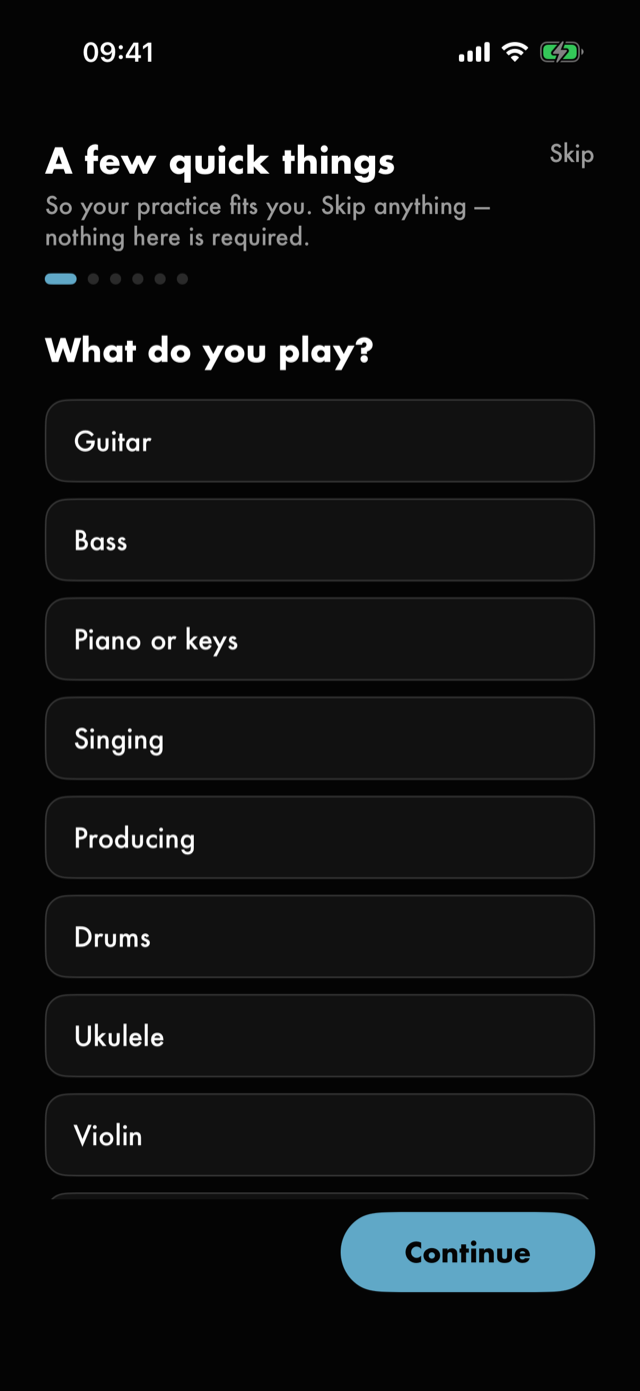
What do you play? comes first, and the next question asks where you are with it. Guitar and bass are what the drills and the Toolkit are built for, so either one starts you with seven drills and a Morning Routine in Practice. Anything else — piano, singing, producing, drums — starts you with an empty Practice library instead: you came for the looping and the metronome, and Practice fills up from the loops you save. The Toolkit is still there if you want it.
What are you working toward? lists goals, with the ones closest to your answer to the question before it at the top. Pick up to three, most important first, and each becomes a long-term goal that Today's session builds from. If you answered Just unwind, or you play something other than guitar or bass, this question is skipped.
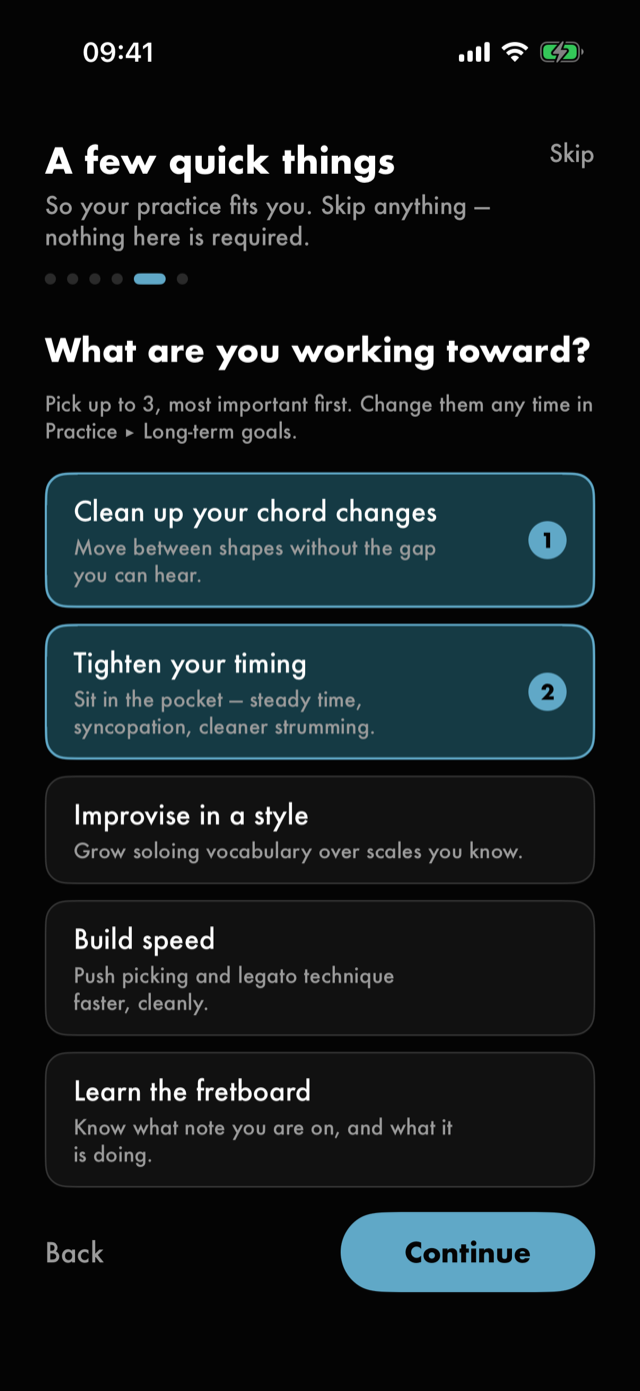
Every one of them is optional. Skip at the top leaves the whole thing; Continue moves on and Back returns. Answering nothing is a valid answer, and you can change any of it later under Settings ▸ You.
Nothing about your playing is recorded or sent anywhere.
See Help & FAQs: "Does Red Moon listen to or send my playing?"
Home
Home is the whole map. There is no tab bar — every screen in the app opens from here and comes back here.
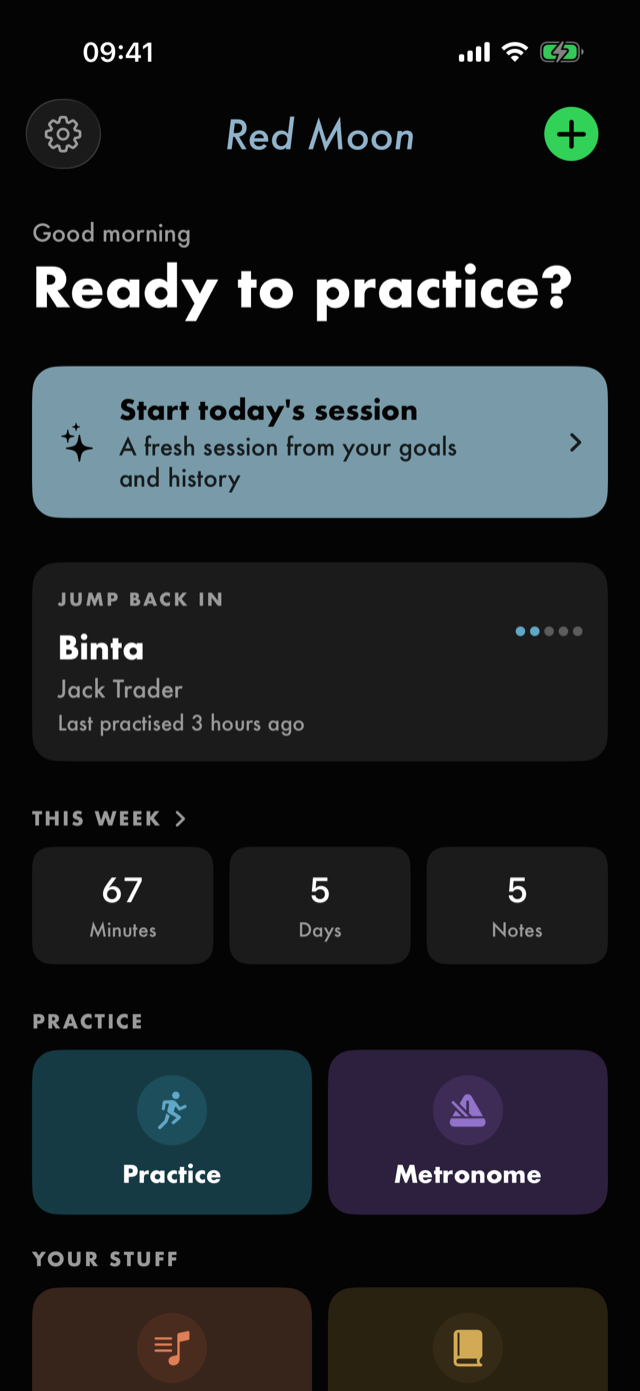
- A song to start on appears at the top while your library is empty, offering Binta — a track that comes with the app. Tapping it opens the practice screen straight away. It steps aside once you have imported a song of your own.
- Start today's session builds a session for you out of what you have been working on.
- Practice holds your exercises, routines and saved loops.
- Metronome is the click on its own.
- Song library is your imported songs.
- Journal is what you did and any takes you recorded.
- Toolkit is the tuner, your chords and the glossary. The tile beside it is yours: it opens My tabs, where you write tabs on the neck, until you hold it and pick another Toolkit tool.
- The gear at the top left opens Settings; the + at the top right imports a song.
Your first session, in three moves
1. Bring a song in
Tap + on Home — or open Song library and use Import a song — and pick an audio file. The app copies it into its own storage, reads the whole file once to draw its waveform, and adds it to your library.
The copy matters: because the song is Red Moon's own from then on, moving or deleting the original later does not silence it.
If you have nothing to hand, tap A song to start on at the top of Home instead. That brings in Binta — eighty-one seconds, written and recorded by us — and opens it. It arrives the same way an imported song does, so everything on the rest of this page works on it, and the next two moves are the two to try first.
Binta also arrives knowing a little about itself: its tempo is set, so the metronome works and the bar lines are drawn, and two markers, Chords start and Solo start, sit either side of the four bars most worth looping first. They are ordinary markers — rename or delete them as you would your own.
The first song shows you round. The first song you bring in — Binta, or one of your own — opens with a small card under the transport and three steps on it: Loop it, Slow it down and Keep it. Each one ticks when you do it. There is no Next button, because doing the thing is how it moves on, and each step carries one link into Help & FAQs for the why.
On Binta the first step is guided. The playhead starts two bars before the chords come in; press play and it stops by itself on Chords start, with the Loop button ringed. Tap Loop. It plays on and stops again on Solo start: tap Loop again, and the four bars between the two start going round. The stops are there so your taps land on the bar lines. On any other song the Loop button is ringed for the whole first step, and a loop starts wherever you tap.
Pointers come with the guide. They are not steps, and nothing waits on them. After you save the loop and close the card that marks it, its row is ringed, under Change it later: hold it to change its name, its range or how you practise it. Edit loop is where a saved loop is changed, and holding the row is the way in.
Binta has two of its own. Once the four bars are going round, the metronome in the speed bar is ringed: tap it to hear a click on every beat, and it slows down with the song. And the four bars you saved are a good bed to solo over, so its saved row says so instead: hold it and turn on Backing track, and the loop is kept with your backing tracks. Edit loop opens with that switch in view. Each pointer has its own ✕, and none comes back once taken or closed.
Saving your first loop is marked once, and never again. If you told the opening questions you are comfortable or have been playing a while, the card offers the steps rather than starting them. Either way ✕ closes it for good, and Help & FAQs ▸ Show the first-song guide again brings it back for the next song you open.
From the next time you open the app, the song player points out the holds it hides, one tip at a time: see Tips for the holds.
2. Loop the hard bit
Open the song. Play up to the start of the passage that keeps going wrong and tap Loop; play to the end of it and tap Loop again. That span now repeats.
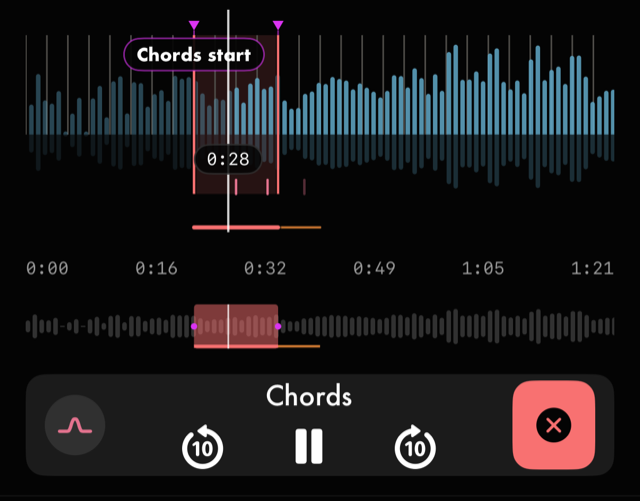
If you would rather draw it, hold anywhere on the waveform and drag across the passage instead.
3. Slow it down
Pull the speed down — further than feels sensible — and let the loop go round. The pitch does not change, so it still sounds like the record, just slower. When it comes out clean twice in a row, nudge the speed up and carry on.
See Help & FAQs: "Does slowing a song down change its pitch?"
That is the loop, and the loop is the app. Everything else is a way of doing more of it or keeping track of having done it.
Where to go next
- Get your songs in and find them again
- The loop workflow, end to end
- Every hold, swipe and pinch — the app hides a lot behind a hold
- The app's own words — what mastery and command tempo actually mean
All manual pages. Something not covered here? Get in touch — we read every message.