

The Toolkit
The reference shelf: a tuner, the chord shapes you have saved, the progressions and tabs you have written, a glossary of the words, and the help catalogue. Nothing here practises anything or keeps score — it is the stuff you reach for around playing.
Reach it from Toolkit on Home. Six sections:
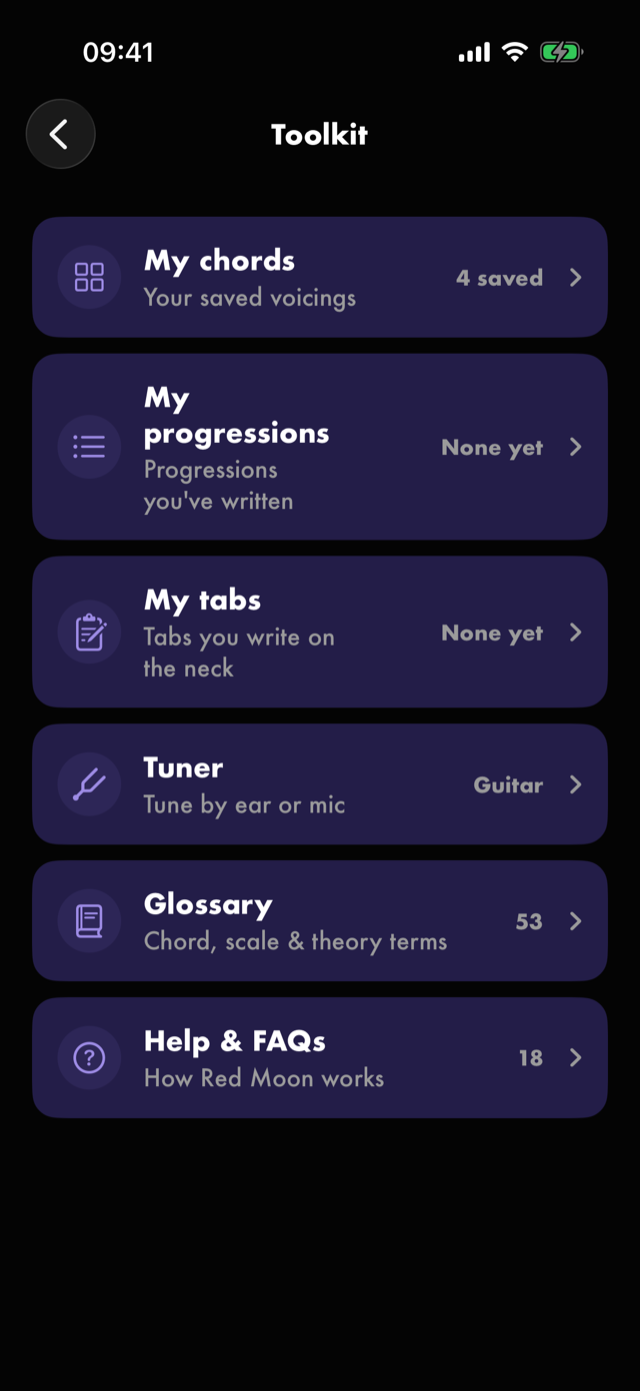
| Section | What it is |
|---|---|
| My chords | Your saved voicings |
| My progressions | Progressions you've written |
| My tabs | Tabs you write on the neck |
| Tuner | Tune by ear or mic |
| Glossary | Chord, scale & theory terms |
| Help & FAQs | How Red Moon works |
Each row carries its own count or state on the right — how many terms and answers there are, how many chords, progressions or tabs you have saved (None yet until you save one) — so the shelf tells you what is on it before you open anything. The tuner's says which instrument it is set for, Guitar or Bass.
Tuner
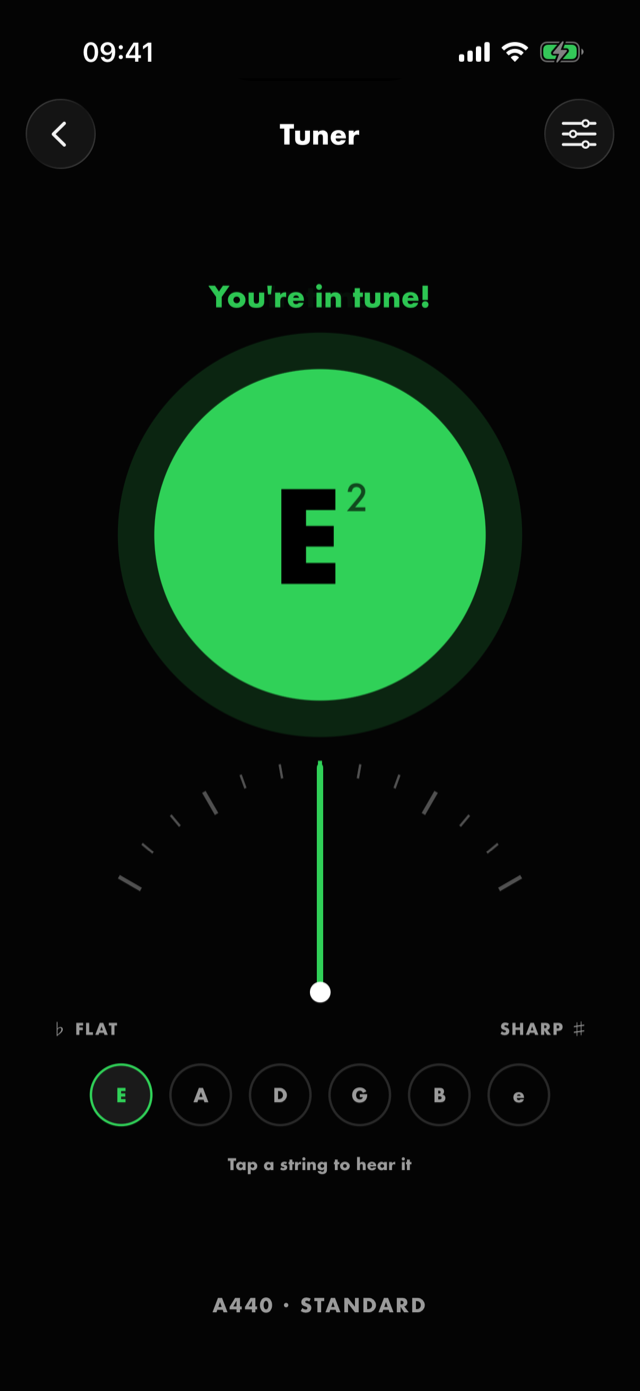
It listens through the microphone, so the first time you open it iOS asks for permission. Say no and the screen says so and offers a way to iOS Settings; there is no other way to use it. The mic is released the moment you leave the screen or the app goes to the background.
Play a string and the big disc names what it heard. It turns green when you are in tune and amber when you are not, the needle above shows how far off in cents, and the line at the top says which way to go — Too flat, tune up or Too sharp, tune down. Land it and you get You're in tune!, a haptic, and a short chime.
The row of circles underneath is the strings of your tuning, lowest first, with the highest written in lower case so the high e reads differently from the low E. The circle nearest what you are playing is highlighted as the target — and tapping any circle sounds that string as a reference tone, which is what makes the tuner usable by ear as well as by needle. Detection freezes while the tone plays so it does not hear itself.
The caption at the bottom always states what you are tuning against: A440 · Standard.
Tune Settings
The slider control in the toolbar opens everything the tuner can be changed to:
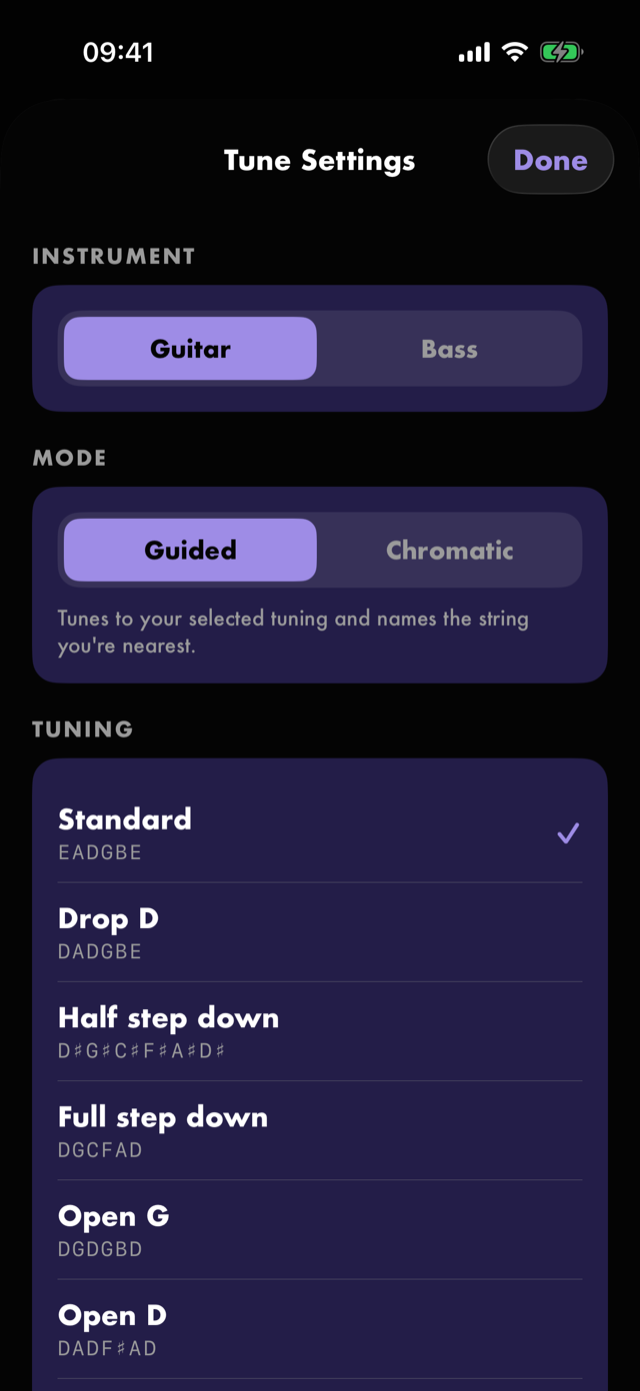
- Instrument — Guitar or Bass. Switching resets the tuning to that instrument's Standard, so a guitar tuning can never linger on a bass.
- Mode — Guided tunes to your selected tuning and names the string you're nearest; Chromatic names any note with no target — for odd or experimental tunings. Chromatic has no string circles, so it carries a single Hear button for the note it detected instead.
- Tuning — guitar offers Standard, Drop D, Half step down, Full step down, Open G, Open D, Open E, DADGAD and Drop C; bass offers Standard, Drop D and Half step down. The row shows each tuning's strings underneath its name. Chromatic mode hides this, having no target to tune to.
- Reference pitch — A440 by default, adjustable between 432 and 446 Hz for playing with an ensemble that sits somewhere else. It applies immediately.
- Success chime — the sound when a string lands. Turn it off and you keep the haptic.
The tuner reports pitch. It does not assess your playing, and nothing it hears is recorded or sent anywhere — see Privacy.
My chords
Every voicing you have saved, newest first, as a grid of diagrams.
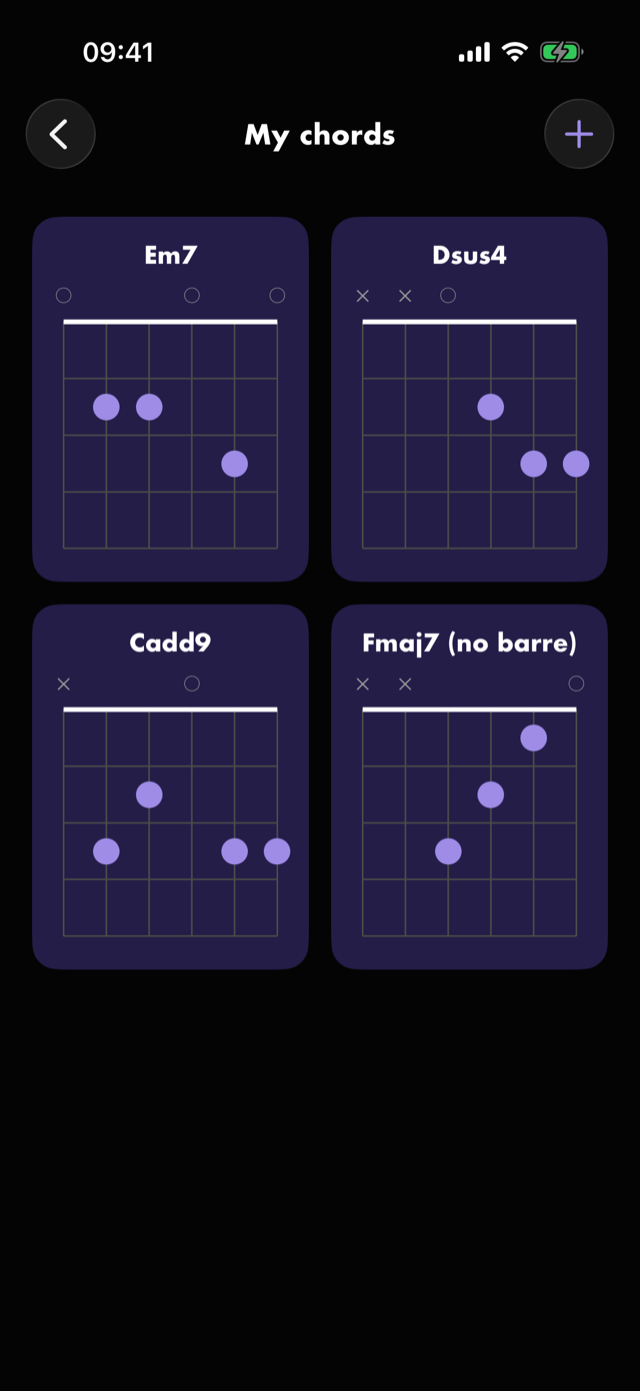
- + in the toolbar opens the chord placer to build one from scratch. Confirming with Save keeps it here rather than dropping it into a progression, and building the same shape twice does not stack a duplicate.
- Tap a chord for its detail: a large diagram, Hear to sound it as a block chord, Rename, and Delete.
- Empty, it says No saved chords yet and offers Build a chord.
This is the management home for saved chords. The chord picker inside an exercise can insert one, but renaming and deleting happen here.
Saved chords are one library across both instruments — a shape carries its own neck and draws correctly whichever it is. Your profile's instrument only decides which neck the placer opens on.
My progressions
The chord progressions you have written, newest first. Each row shows the name, the chords in the key you wrote it in, and its numerals underneath.
- + in the toolbar opens the progression builder to write a new one — the same builder New progression opens from inside a chord exercise (see Exercises).
- Tap a progression to change its name or its chords, or to Delete progression. Swipe a row to delete it from the list.
- Empty, it says No progressions yet and offers New progression.
A progression is saved as numerals — where each chord sits in its key — so it plays in any key you pick when you use it. Deleting one never touches a drill you already filled from it: those chords were copied in.
This is the management home for progressions, as My chords is for chords. The Use a progression sheet inside an exercise lists them under Your progressions to insert, but editing and deleting happen here.
My tabs
The tabs you have written on the neck, the one you changed last at the top. Each row shows the title, when it last changed, and how many notes and sections it has, on which instrument.
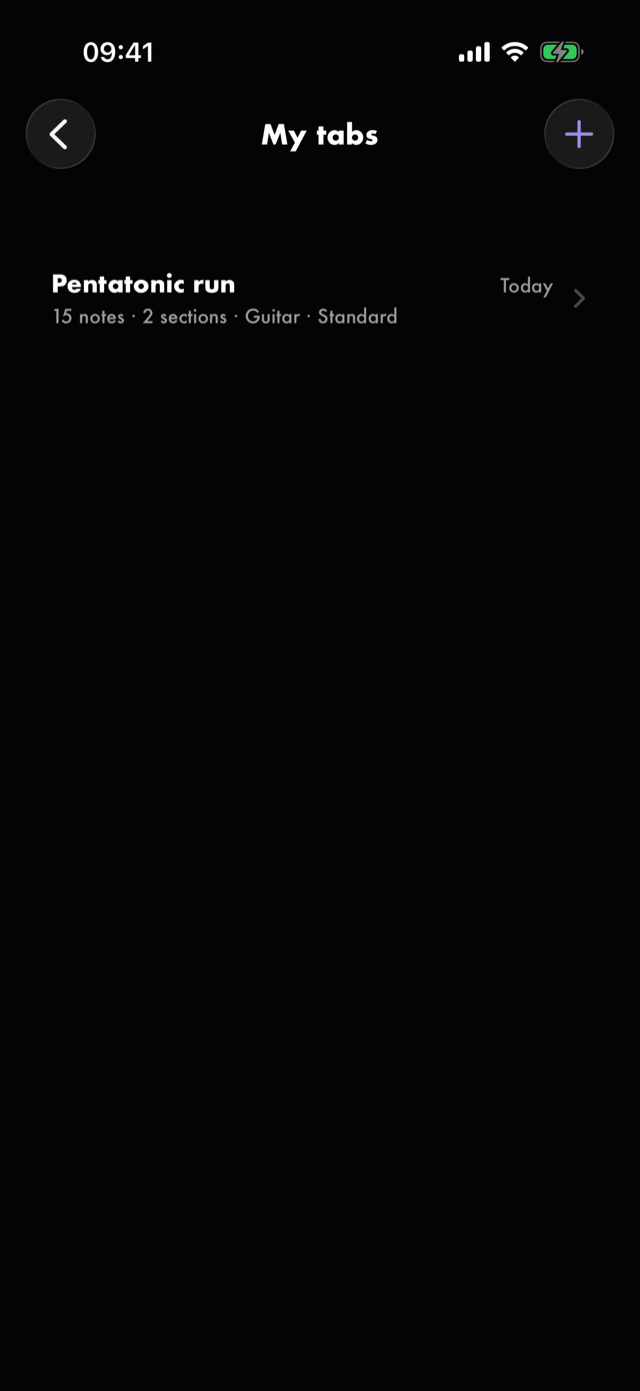
- + in the toolbar writes a new tab. Empty, the screen says No tabs yet and offers Write a tab.
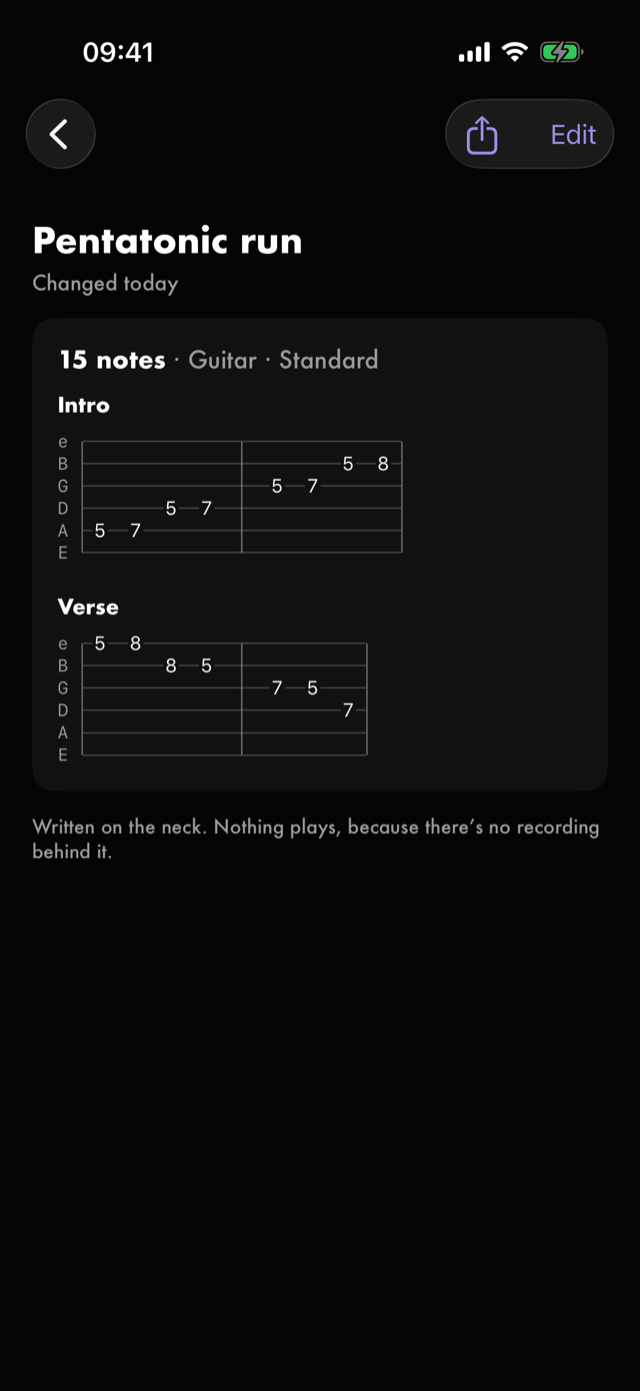
- Tap a tab to read it: the tab drawn section by section, with Edit to write more. The share button beside Edit exports it as Plain text or a PDF, to print, send to a teacher, or keep in Files.
- Hold a row, or swipe it, to Rename or Delete it. A delete can be undone from the toast.
A written tab belongs to no song, and nothing plays it: there is no recording behind it. It isn't in the Journal. It travels in the whole-library export and comes back with a restore. On its own it leaves only as text or a PDF: nothing reads a tab file back into Red Moon.
Writing a tab
The writer is the same neck as Name the notes, in the Toolkit's colour.
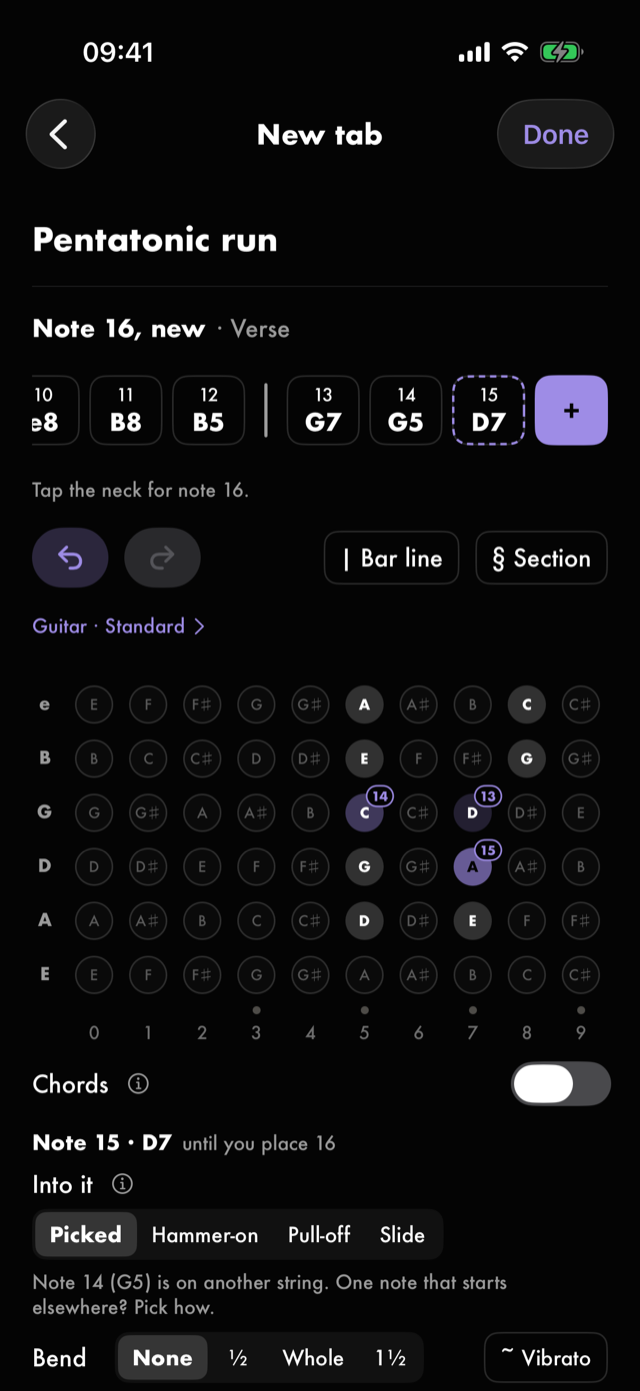
- Name it at the top, or leave it: an unnamed tab is called Untitled tab.
- The strip shows your notes as chips, with a + where the next one goes. Tap the neck and the note fills the +, which moves on. Nothing plays.
- Bend, vibrato, hammer-ons, pull-offs and slides go on the note you just placed, as they do in Name the notes. Turn on Chords to put a double-stop or a chord on one chip, a note per string.
- Tap a note to change it. The line under the strip then offers Insert before it, after which each tap adds a note there, and Take it out. Tap another note, or Back to the end, to go back to writing at the end.
- Bar line puts a bar line before the lit chip, or takes it away. Section starts a section there: pick Intro, Verse, Chorus or another, or type a name. Tap a heading in the strip to rename it, or Take the heading off; its bar line stays.
- ↶ and ↷ undo and redo everything since you opened it, bar lines and sections included.
- The tab so far draws it under the neck as you go. It saves as you go, and Done goes back.
- A new instrument asks first, since it clears the frets. ↶ brings them back.
A tab with sections is drawn a section at a time, each under its heading, with its bar lines, and rows that keep whole bars together.
Glossary
Every chord, scale, interval and technique word the app uses, defined in plain language and grouped into Chords, Scales & modes, Intervals & pitch, Technique and General.
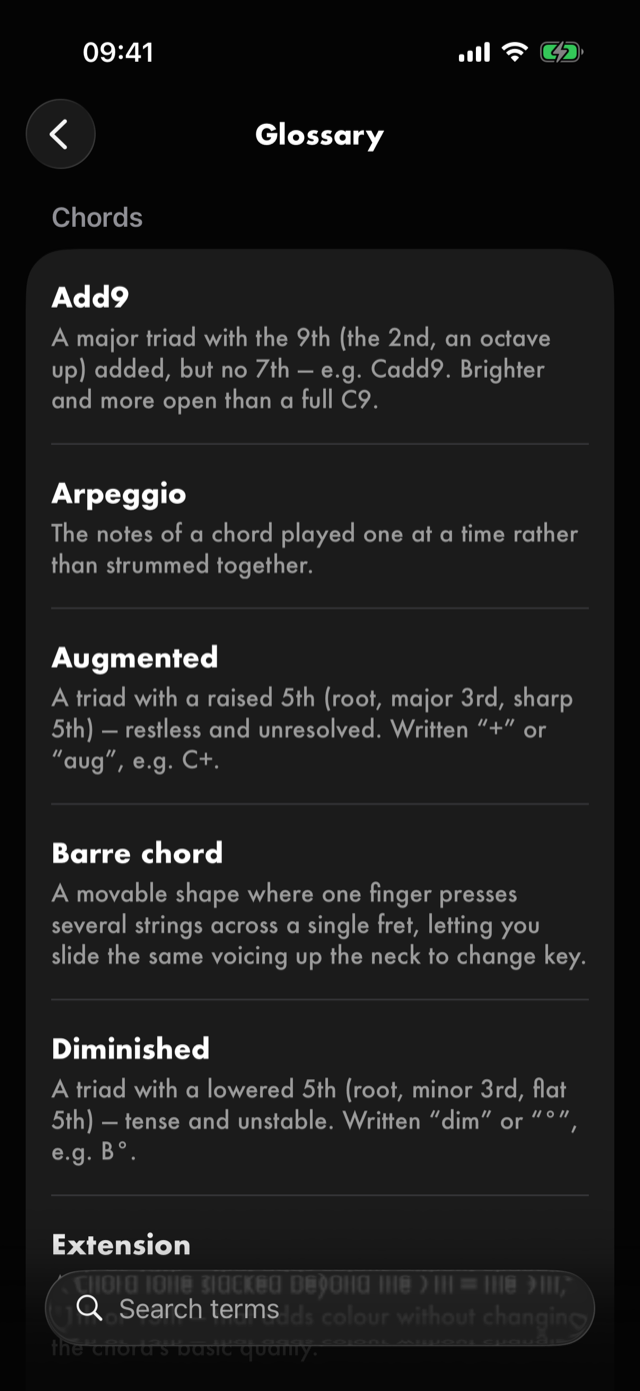
Search terms filters live, and empty sections drop out as you type, so a search only shows areas that actually have a hit.
This is where the musical vocabulary lives, and it is the only place it lives — this manual deliberately defines none of it. The words Red Moon coined for its own practice model are a different matter, and they are in the app's own words.
Help & FAQs
Eighteen questions with their answers, grouped by Getting started, Audio & files, How practice works and Your data.
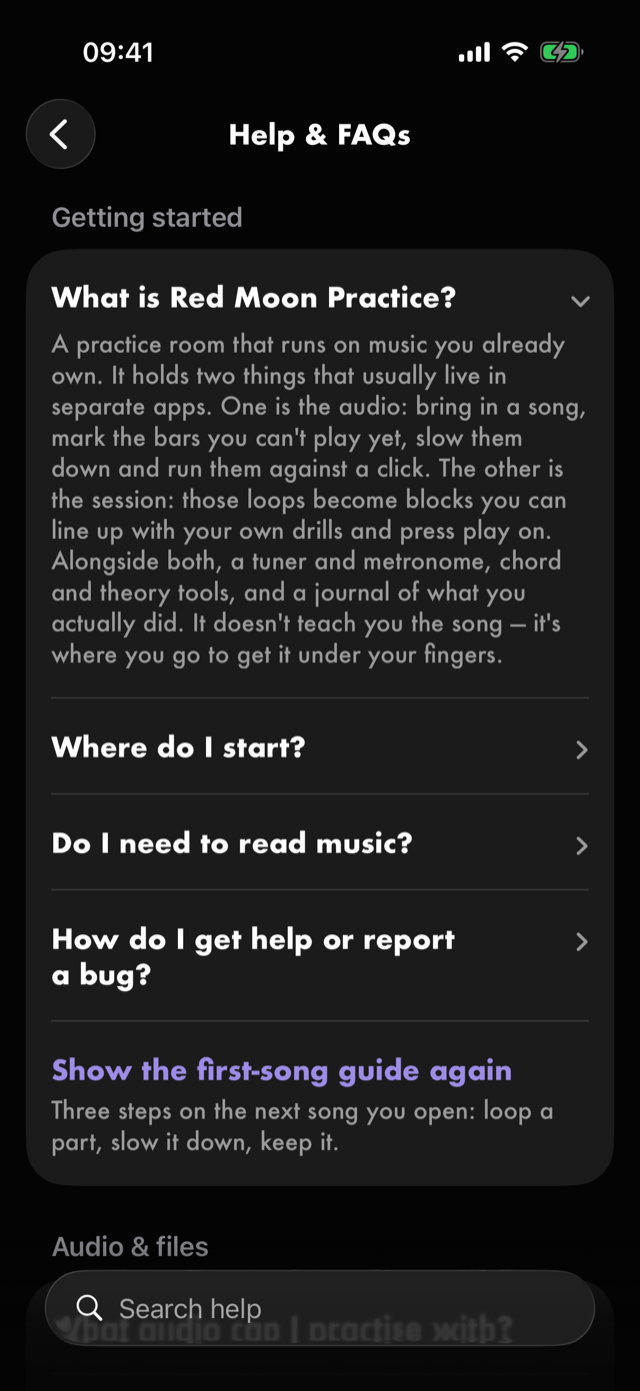
Tap a question to expand its answer, and again to close it. Search help matches inside the answers as well as the questions — so hunting iCloud finds the storage answer even though the question never says the word — and while you are searching every match opens itself, because tapping each hit open to find out whether it was the one you wanted is a waste of your time.
Answers open closed again next time. They are descriptions of what the app does, never coaching.
The last row of Getting started is not a question: Show the first-song guide again brings back the three steps your first song opened with — loop a part, slow it down, keep it. They run on the next song you open.
There are two doors to the same screen: here, and Settings ▸ Help & About ▸ Help & FAQs.
Getting in touch
Settings ▸ Help & About ▸ Contact Support opens a form inside the app that sends over the internet — it does not need Mail set up on your device. If it fails, it says so, and the support address is written out in the How do I get help or report a bug? answer so you can copy it.
The same screen carries the app's Version, and links to the Privacy Policy and the Terms of Use.
See Help & FAQs: "How do I get help or report a bug?"
Next
All manual pages. Something not covered here? Get in touch — we read every message.