

Metronome, Journal, Practice log and the Toolkit
Metronome
Reached from the Metronome card on Home, and it takes the whole screen. Procedure is in
the metronome.
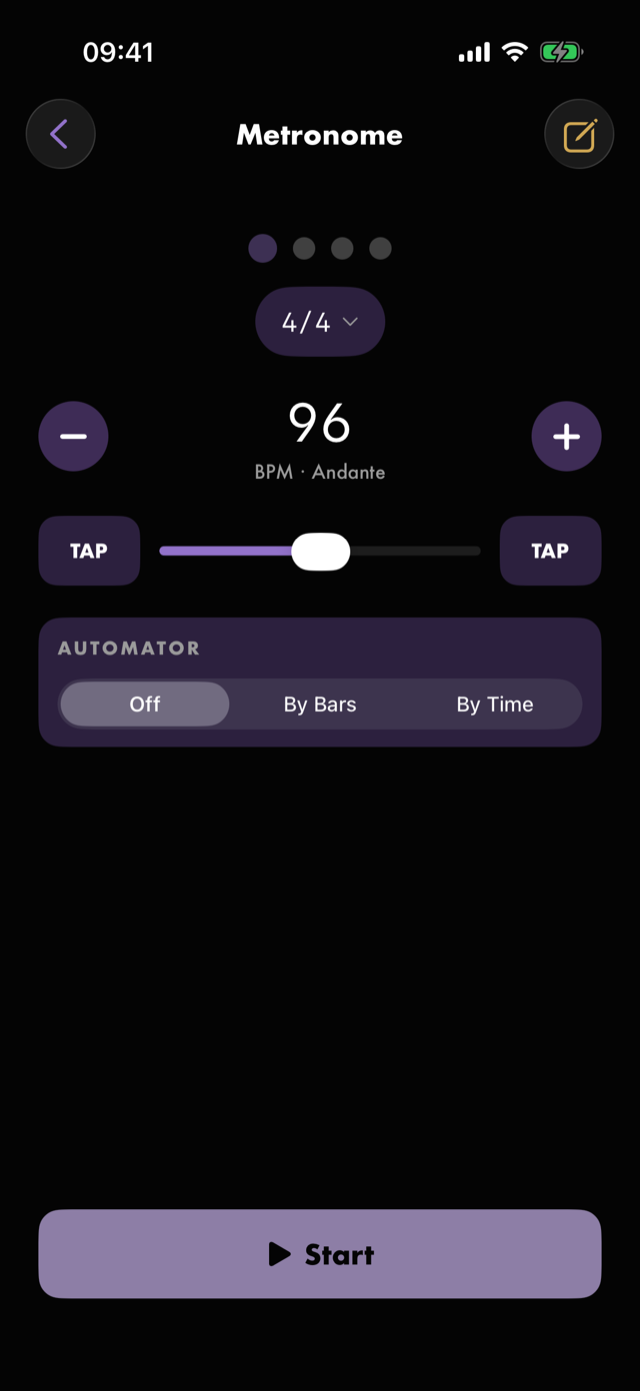
Top bar. A back chevron on the left. The title in the middle. On the right, the ✏️ that writes a journal note.
The beat dots run across the top, one per beat in the bar. Accented beats are larger, and the dots dim in step with a withdrawn bar rather than carrying on. The meter control sits under them, showing the time signature and a note glyph when a subdivision is on.
The tempo readout is the BPM number with its Italian marking under it. The caption changes to
Downbeats only or Click withdrawn while the click is thinning out.
The controls — Decrease tempo and Increase tempo flank the readout; below them the Tempo
slider sits between two Tap to set tempo buttons, one under each thumb.
AUTOMATOR — Off, By Bars or By Time. Armed, it shows Increase by, Every, Up to, a
No limit switch, the ramp staircase, and Start ramp. Its header carries the bookmark that saves
the current tempo into Practice as a drill.
The transport is pinned at the bottom: Start, becoming Pause and then Resume, with
Stop and reset appearing beside it once anything is running.
The metronome settings sheet
Opened from the meter control, and titled Metronome.
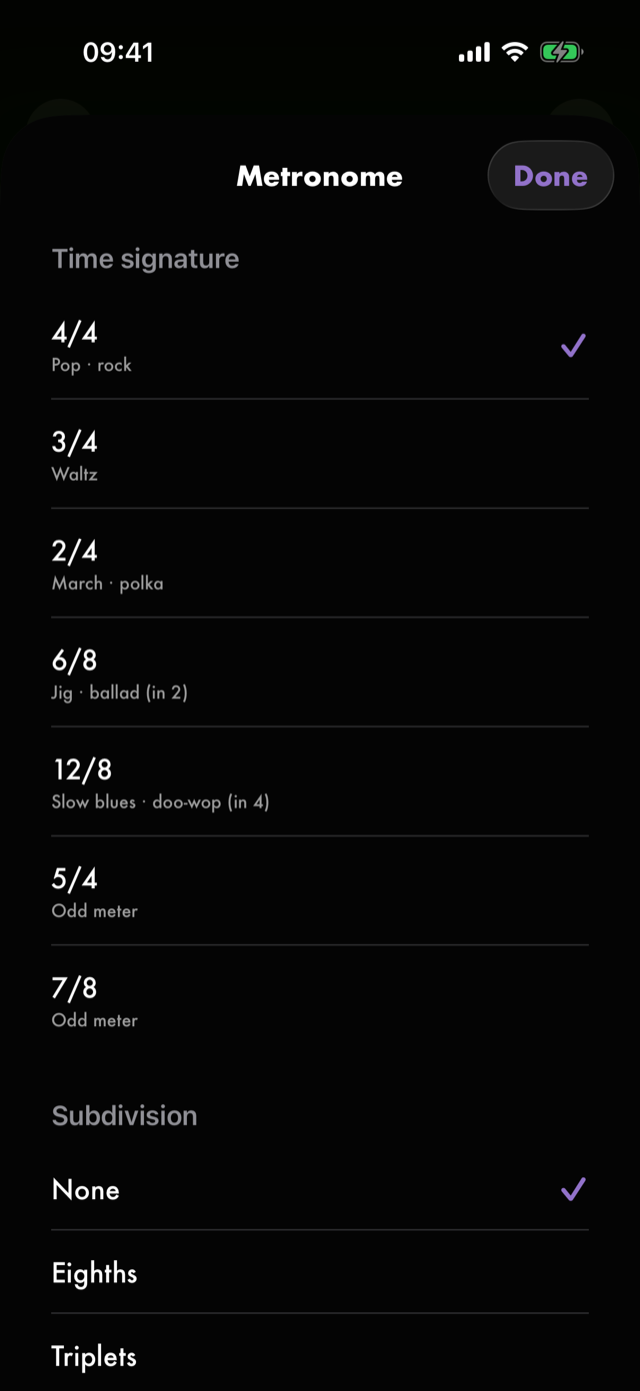
Time signature— seven presets, each captioned with the music it belongs to.Subdivision—None,Eighths,Triplets,Sixteenths, footnoted Extra clicks between the beats, quieter than the beat itself.Click withdrawal—Off,Gentle,Standard,Deep, each with a line saying what it does across the eight-bar cycle.
Edits apply live. There is no commit step.
Journal
Reached from Journal on Home.
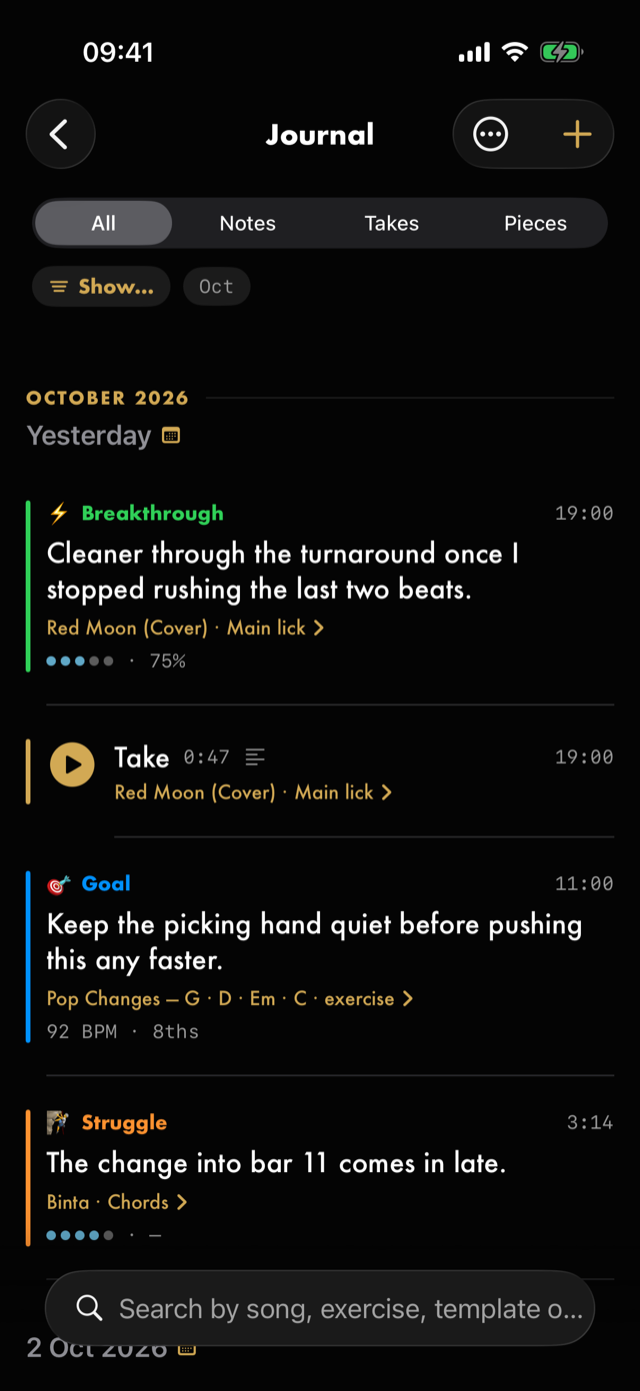
Top bar. Journal options — the ⋯ — then the +, Add to Journal, which holds Write a note
and Record a take. Underneath, a search field prompting
Search by song, exercise, template or date.
Journal options holds a Sort picker of Newest first / Oldest first.
The scope control — All, Notes, Takes, Pieces.
The feed groups by day under Today, Yesterday and then dated headers.
- A note shows its kind chip, the time, the text, an owner caption, and the snapshot it kept.
- A take shows a play control, its name, its length and the time, plus its owner caption.
- A piece is a loop's saved transcription from
Count the notes: 🧩 Piece, the time it last changed, one line saying how many notes it has and how many are unnamed, and the loop. See the notes opens its tab, or its names if it was named by ear, in place, and Hide the notes folds it again. There is one per loop, always the current version; saving again or editing its names moves it to that day. Tap the loop to open it inTrain your ear, whereName the notesis. It has no hold menu. - The owner caption is a link where the thing still exists and has a screen to open; plain text
otherwise. A loop opens where the note was written: an Ear or Transcribed note opens
Train your ear, an Improv note opensImprovise, and anything else opens the loop's ordinary practice once it has a command tempo. A line left on a snag inName the notesnames its note (Intro lick · note 23) and opensName the notesthere.
Deleting is hold-only, on every row. A take's hold menu leads with Name this take, or
Rename once it has one, then Export take…; renaming is also a right swipe.
Empty, the wording follows the scope you are in — Nothing here yet, No notes yet or
No takes yet — and a search with no hits says No matches.
Record a take
From Add to Journal. One round control — Start recording, then Stop and save this take while it
runs — with the timer and the headphone cue beneath it, and a line saying the take saves straight to
your Journal. Done closes it, and is unavailable while a take is recording; so is swiping the sheet
away. A kept take is confirmed in place, and the sheet stays open for another.
Quick note
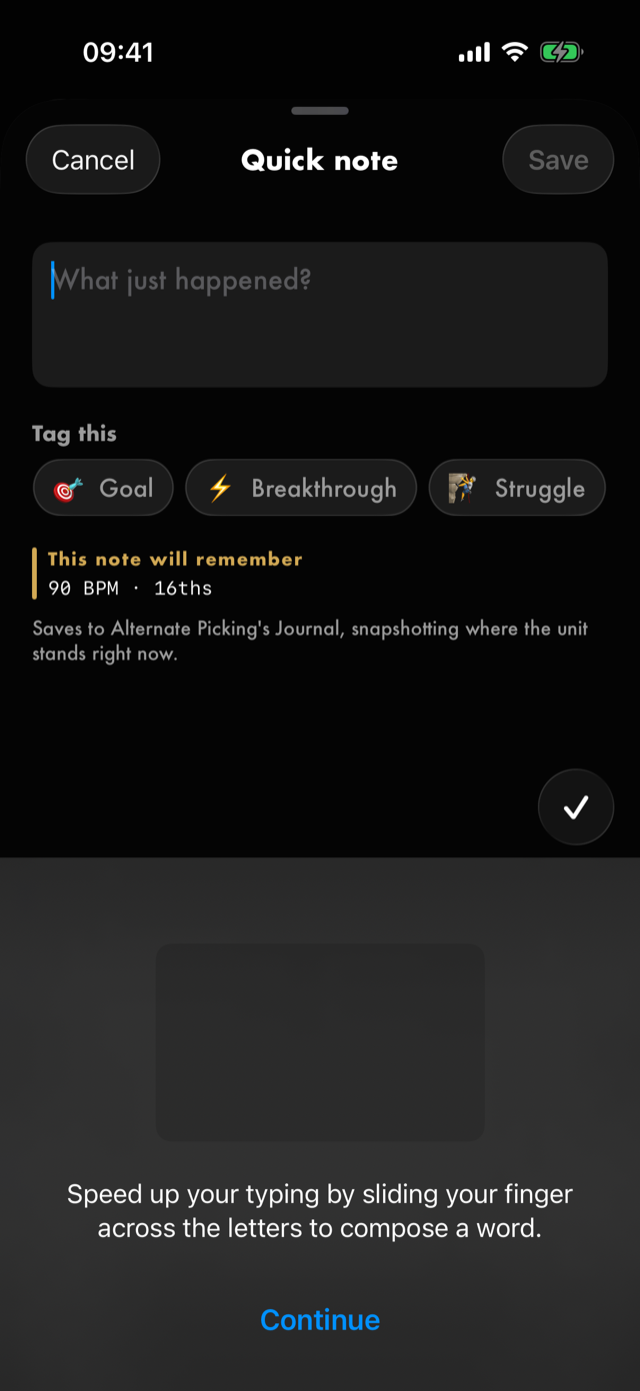
One field prompting What just happened?, the kind chips, and a line naming where the note lands.
Cancel discards; Save is unavailable until you have typed something. The sheet touches no
transport.
Which chips appear depends on where you opened it — a note with no unit behind it is offered four rather than seven. The full table is in the journal.
Practice log
Reached from the This week strip on Home. The strip is not drawn until something has
been practised, so neither is the way in.
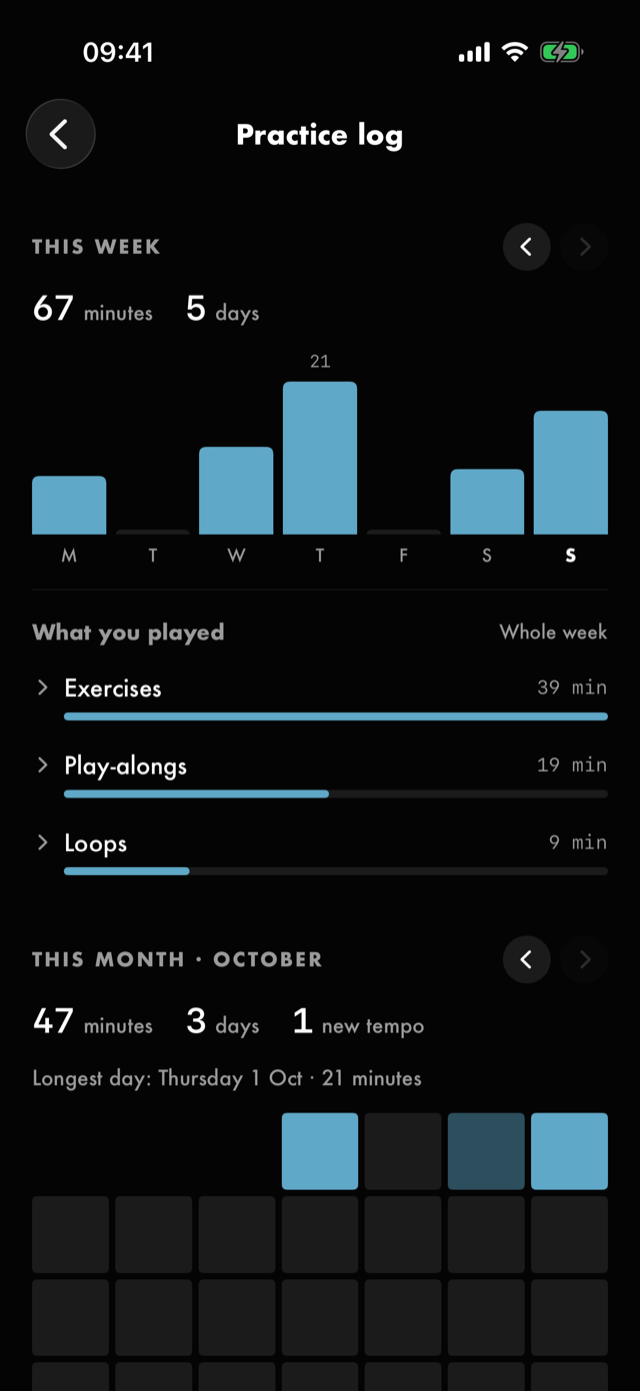
This week— minutes and days, over a bar per day. ‹ and › beside the title step back and forward a week, as does swiping the chart; once you have gone back,This weekin the header returns to now, and the title names the week instead.- The month section — its header names the month it is showing (This month · August), because
a calendar grid with no month on it is ambiguous once you have scrolled past the top. Minutes,
days, new tempos when there are any, the longest day once there are two days to compare, and a grid
shaded relative to that month's longest day, with a
Less→Morekey. It pages like the week, withThis monthto return. What you played— under both, the period's time by kind, largest first; tap a kind to open it onto the exercises, loops or songs. Tap a practised bar or day to narrow it to that day, and the date beside the title to widen it again.All-time— time played and sessions with the date you started, the hours wall, andWhat you've built: counts ofExercises,Loops,MasteredandNotes.
With no finished runs it says Nothing here yet and describes what will fill it.
Nothing on this screen is a grade, and there is no target anywhere on it.
Toolkit
Reached from Toolkit on Home. Six sections, each carrying a count or a state.
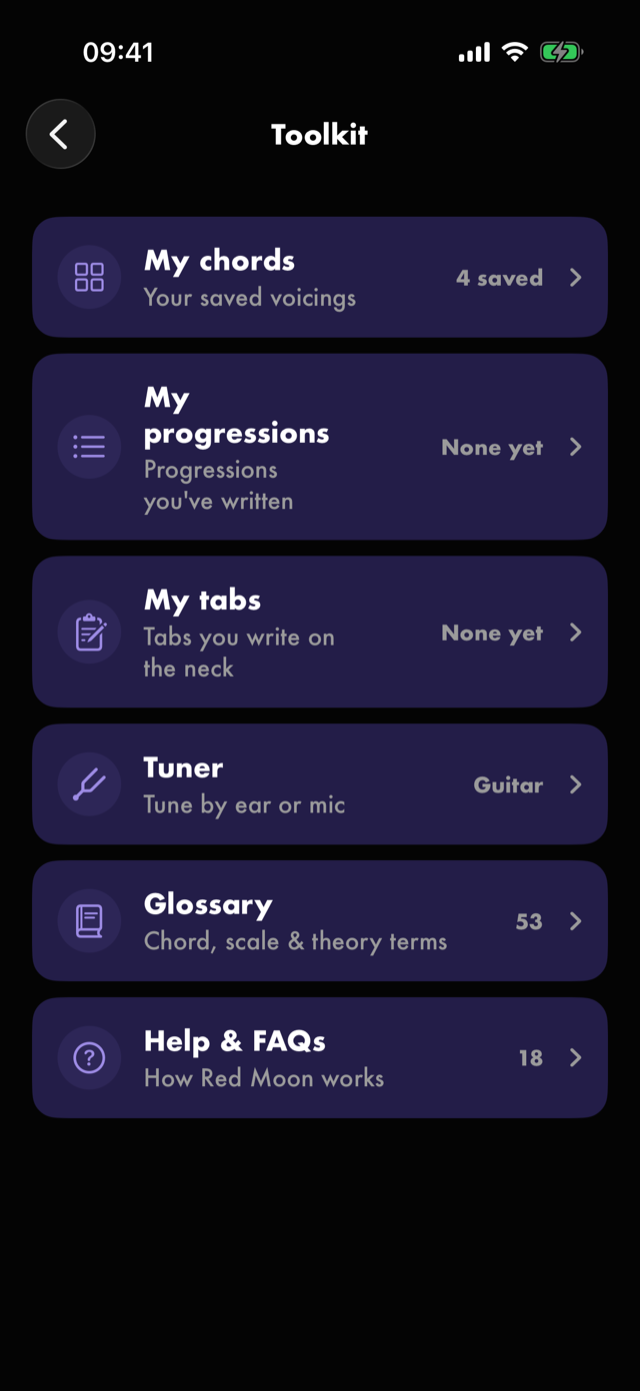
| Section | Subtitle | Trailing |
|---|---|---|
My chords |
Your saved voicings |
How many, or None yet |
My progressions |
Progressions you've written |
How many, or None yet |
My tabs |
Tabs you write on the neck |
How many, or None yet |
Tuner |
Tune by ear or mic |
Its instrument, Guitar or Bass |
Glossary |
Chord, scale & theory terms |
The term count |
Help & FAQs |
How Red Moon works |
The answer count |
Tuner
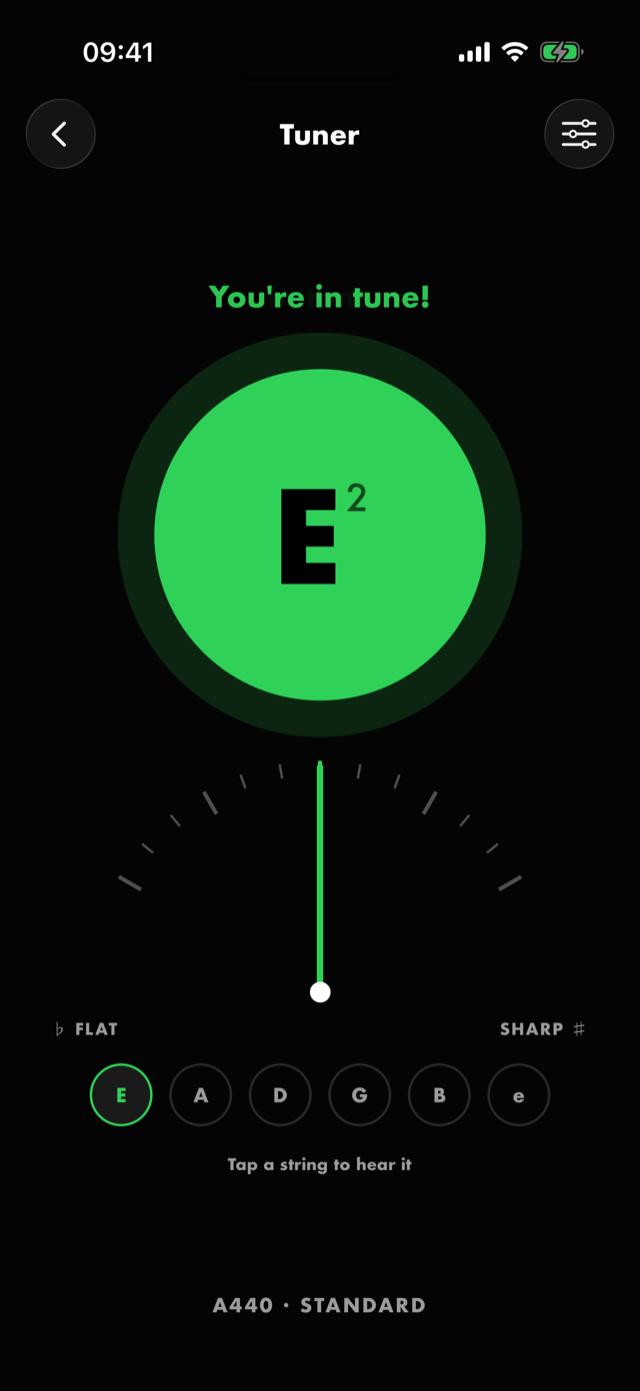
It needs the microphone; refused, it says Microphone access is off and offers Open Settings.
The note disc names what it heard and colours itself in or out of tune, over a needle gauge flanked
by ♭ Flat and Sharp ♯. The status line above reads Listening…, then Too flat, tune up or
Too sharp, tune down, then You're in tune!.
In guided mode a row of string circles sits underneath, captioned Tap a string to hear it; the one
nearest what you are playing is the target. Chromatic mode replaces the row with a single Hear
button. The bottom caption names the reference pitch and the tuning.
Tune settings in the toolbar opens Instrument, Mode, Tuning, Reference pitch and
Success chime.
My chords
A grid of saved voicings, newest first, with + (Build a chord) in the toolbar. Tap one for its
detail — a large diagram, Hear, Rename and Delete. Empty, it reads No saved chords yet.
My progressions
A list of written progressions, newest first — each row its name, its chords and its numerals — with
+ (New progression) in the toolbar. Tap one to open it in the builder: a name, Written in,
Chords, Chords in the key, Any chord with its Chord type, Save, and Delete progression.
Swipe a row to delete it. Empty, it reads No progressions yet.
My tabs
A list of written tabs, the one changed last first, each row its title, when it changed, and its notes,
sections and instrument, with + (New tab) in the toolbar. Tap one to read it, with Edit and
Export tab (Plain text or PDF) in the toolbar. Hold or
swipe a row for Rename and Delete; a delete has an undo toast. Empty, it reads No tabs yet and
offers Write a tab.
The writer: a title field (Name this tab); the strip, its + and the line under it, which offers
Back to the end while the + is in front of a note; ↶ ↷, Bar line and Section, which opens a
list of names, Or type a name and Take the heading off; the neck, under the instrument and tuning,
with Chords, Into it, Bend and vibrato; and The tab so far. Done goes back.
Glossary
Terms grouped into Chords, Scales & modes, Intervals & pitch, Technique and General,
filtered live by a field prompting Search terms. This is where every musical word is defined.
Help & FAQs
Questions grouped by area, each expanding its answer in place. Search help matches inside the
answers as well as the questions, and force-opens every match while you are searching.
The same screen is reachable from Settings ▸ Help & About, which also
carries Contact Support.
All manual pages. Something not covered here? Get in touch — we read every message.