

The metronome
A click, on its own, with somewhere to put a tempo you discover. No song, no drill, no plan — this is the screen for tuning up a pulse, working out how fast you can actually play something, and pushing it.
It is the one place in Red Moon where the click can deliberately stop clicking.
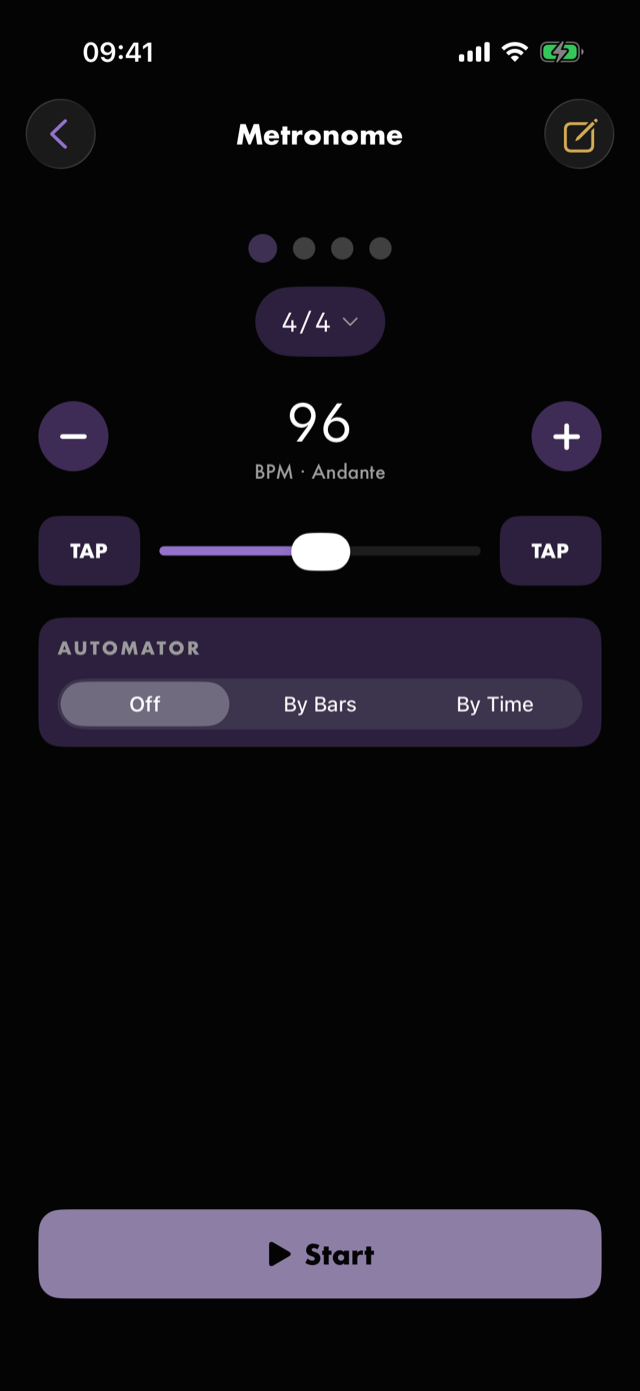
Reach it from the Metronome card on Home. It takes the whole screen; the ‹ at the top left brings you back.
Starting and stopping
Start at the bottom begins the click; it becomes Pause while it runs and Resume after. A ■ appears beside it once anything is running: pause keeps the sitting, stop ends it and zeroes it.
Time with the click counts as practice. When a sitting ends — with ■, or by leaving the screen — the time the click sounded goes into your practice log as Metronome, and the day counts as practised. Paused time is left out. So is a sitting under 30 seconds: hearing what a tempo sounds like isn't a practice session, and it shouldn't mark the day.
The click keeps going on the lock screen, and that time counts too — come back and stop it, or leave the screen, and it is logged. The one sitting that isn't is one ended by closing Red Moon from the app switcher while the click is still running.
Across the top, a dot per beat in the bar lights on the click you are hearing. Accented beats sit slightly larger and in the metronome's own colour, so you can see the shape of the bar as well as hear it.
The screen stays awake while the click runs, unless you have turned that off in Settings.
Setting the tempo
Four ways, all driving the same number:
- Tap the number itself and type the tempo on the keypad. This is the way to make a big jump — 96 to 138 without holding a stepper — and the one to reach for when you already know the number. The number greys out as you tap it, so what you type replaces it. It takes the tempo when you dismiss the keyboard with ✓, or scroll, or tap away — dismiss without typing and nothing changes — and anything outside 30–300 snaps back to the nearest end of that range.
- − and + either side of the readout nudge it by one. Hold either and it repeats, accelerating as you hold.
- The slider covers 30 to 300 BPM. It is deliberately not a linear scale — its middle sits around 95 BPM, so the tempos most practice actually happens at fill the centre of the travel rather than being crushed into the left third.
- TAP sits on both sides of the slider, so you can tap with either thumb. Tap the beat four or five times and the tempo follows. Leave it a couple of seconds and the next tap starts a fresh measurement rather than averaging against a stale one.
There is also a fifth way the number can be set, which is not a control on this screen: arrive already on it. Hold the BPM readout in the song player and choose To the metronome, and this screen opens on the tempo you were practising that song at. See Every hold, swipe and pinch.
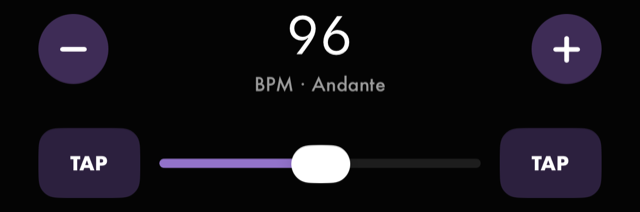
Under the number sits its Italian tempo marking — Andante, Allegro and the rest — which is there to name the tempo, not to grade it.
How the bar is filled
The control under the beat dots shows the current time signature, plus a note glyph when a subdivision is on — 4/4 ♫. Tap it and everything that shapes the bar is in one sheet.
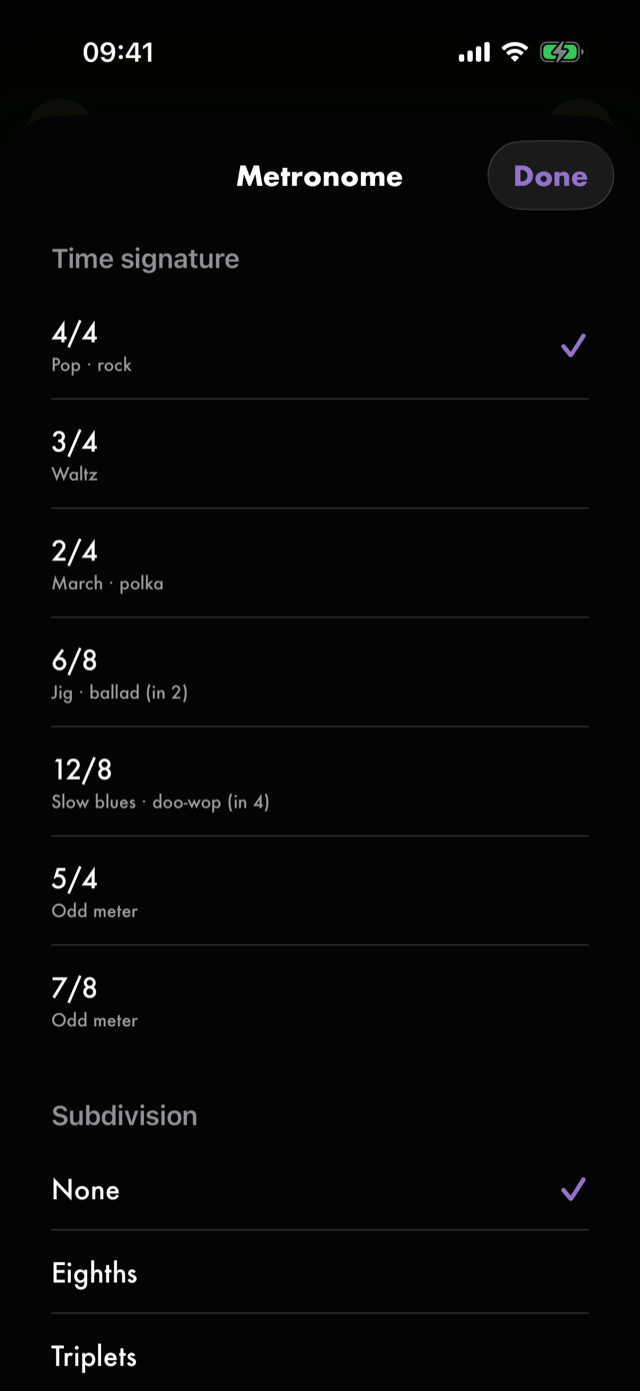
Time signature. Seven, each with the music it belongs to:
| 4/4 | Pop · rock |
| 3/4 | Waltz |
| 2/4 | March · polka |
| 6/8 | Jig · ballad (in 2) |
| 12/8 | Slow blues · doo-wop (in 4) |
| 5/4 | Odd meter |
| 7/8 | Odd meter |
Subdivision. None, Eighths, Triplets or Sixteenths — in the app's words, extra clicks between the beats, quieter than the beat itself.
Everything here is live. There is no commit step, and changing the meter while the click is running is a normal thing to do.
Click withdrawal
The click thins out on a fixed cycle and then comes back, so you carry the pulse yourself for a few bars and hear for yourself what happened when it returns. Off by default — a metronome that stops clicking is otherwise indistinguishable from one that has broken.
| Level | What it does |
|---|---|
| Off | The click sounds every bar. |
| Gentle | The last bar of each eight keeps only its downbeat. |
| Standard | Bars 5–6 keep only their downbeat; bars 7–8 fall silent. |
| Deep | Bars 3–4 keep only their downbeat; bars 5–8 fall silent. |
The cycle is always eight bars and always starts full, so the return lands in the same place every time and can be anticipated rather than ambushing you. While it is thinning, the caption under the BPM reads Downbeats only or Click withdrawn, and the beat dots dim to match what actually sounded — a visual metronome carrying on through a withdrawn bar would move the crutch from your ear to your eye and defeat the whole thing.
Nothing about this is measured or scored. It is a technique, not a test. It applies to this metronome only — no drill or song player inherits it — and it pauses while a tempo ramp is climbing.
Climbing — the automator
The panel in the middle of the screen ramps the tempo for you. Its job is discovery: start where you are comfortable, let it climb, and the tempo your hands fall apart at is worth knowing.
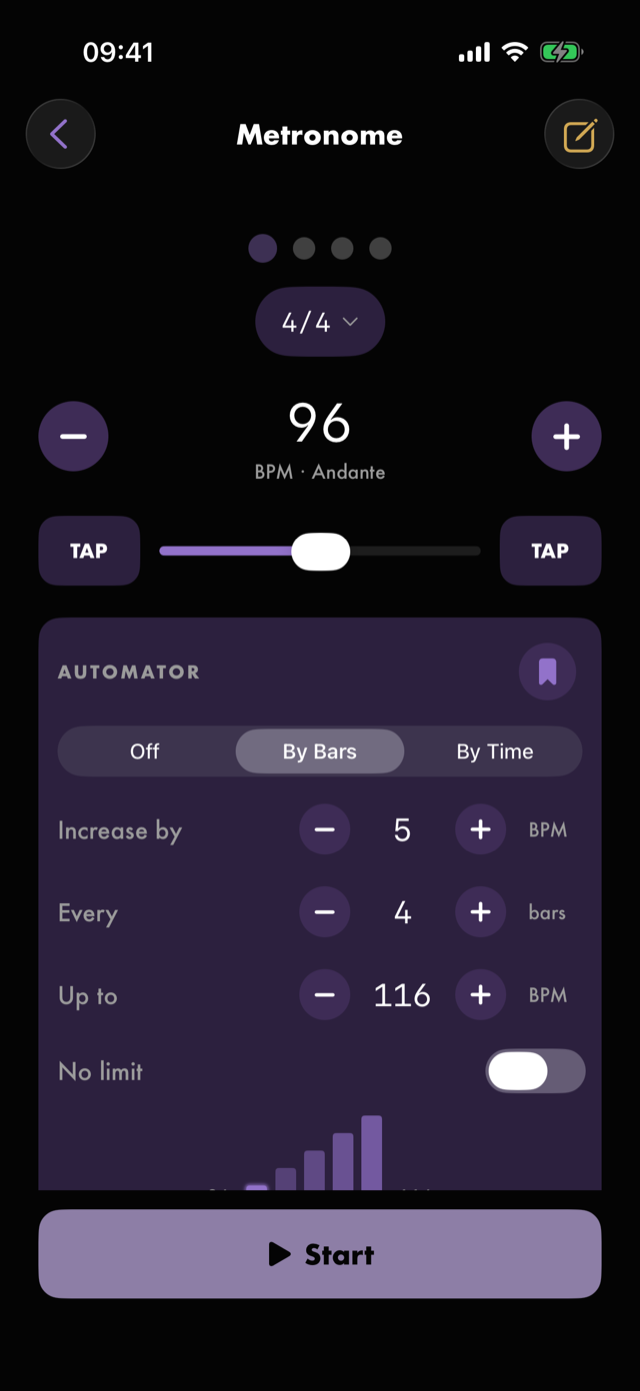
- Set the tempo you want to start from on the main controls. That is the ramp's floor — there is no separate field for it.
- Choose By Bars or By Time. Off puts the panel away.
- Fill in the three fields: Increase by so many BPM, Every so many bars or seconds, Up to a ceiling. Tap a number to type it, or nudge it with − / +.
- No limit drops the ceiling and climbs to the top of the range instead. The Up to field disappears, since there is nothing left to choose.
- Start ramp runs it. It is a separate control from the transport at the bottom — that one starts the plain click; this one starts the climb.
The staircase appears as soon as you arm it, before you start anything — one bar per plateau, with Step 1/5 underneath — so you can see the shape of the climb you have just described and adjust it. Once it runs, the current plateau lights up and the step count walks along. If you have a count-in turned on in Settings, it counts you in first so you can settle before the climb starts.
See Help & FAQs: "What is a ramp?"
Keeping the tempo you found
When the ramp has told you something, the 🔖 in the panel's header saves the current tempo straight into Practice as a new exercise, prefilled with that tempo and the meter you were in. It opens the same create sheet the Exercises library uses, so the drill you get is an ordinary one — see Exercises.
That is a one-way seam. The metronome hands a tempo to Practice; it never owns a drill.
Writing it down
The ✏️ in the toolbar writes a journal note without stopping the click. What it records is the click you were playing to at the moment you tapped the pencil — 96 BPM · 4/4 · ♫ · gentle withdrawal — pinned then, not when you save, so the tempo can move under you while you type.
Because a click is not a drill, the note belongs to no unit and offers the four general tags rather than all seven. It lands in the journal like any other.
Next
All manual pages. Something not covered here? Get in touch — we read every message.