

The journal, and looking back
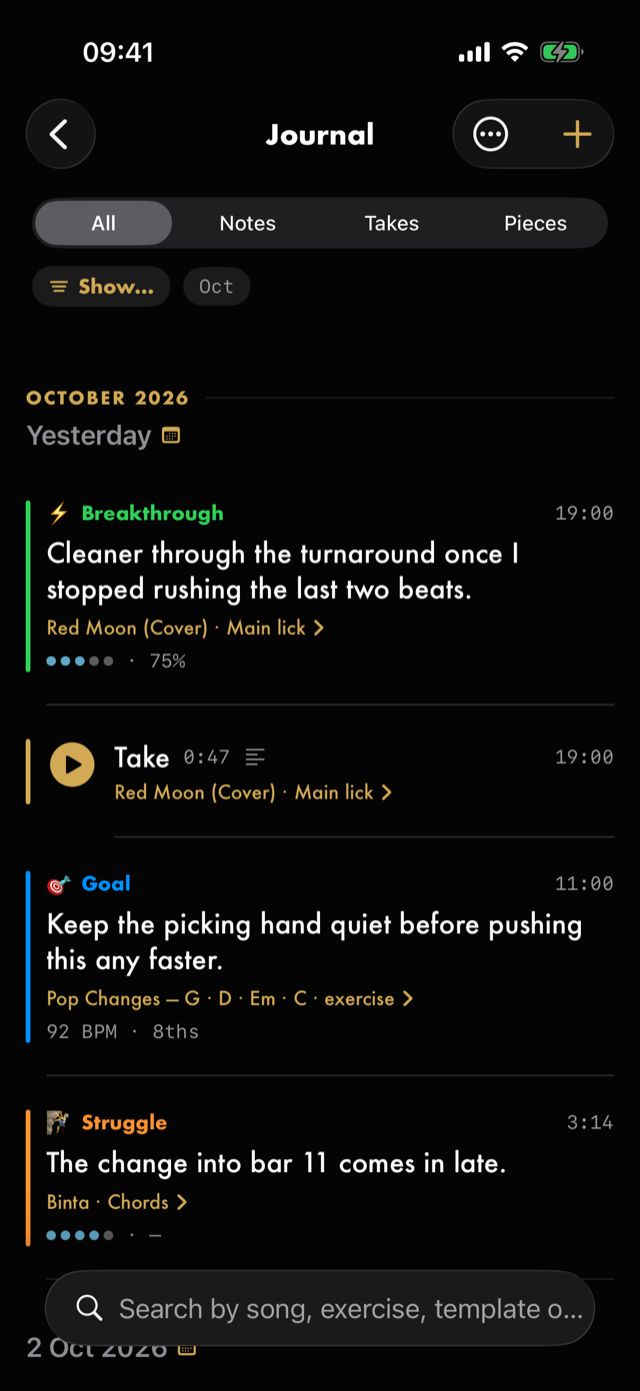
Practice disappears if you do not write it down. The Journal is where Red Moon keeps what you wrote and what you recorded — one timeline across everything you play, in the order it happened. The Practice log is the same history counted up: minutes, days, and the things you have made.
Reach the journal from Journal on Home. The practice log is on Home too — tap the This week strip, the three numbers under your last session.
Writing a note
The ✏️ in the toolbar

opens Quick note — one field, the kind chips, Save. It is on the metronome, and on an exercise or loop run screen while the run plays or inside a routine. A stopped run screen has its Journal bar instead, which writes notes too. On the journal itself it sits under the +, as Write a note. Opening it over a run touches nothing: the audio carries on, the click keeps time, and the note costs the run nothing.
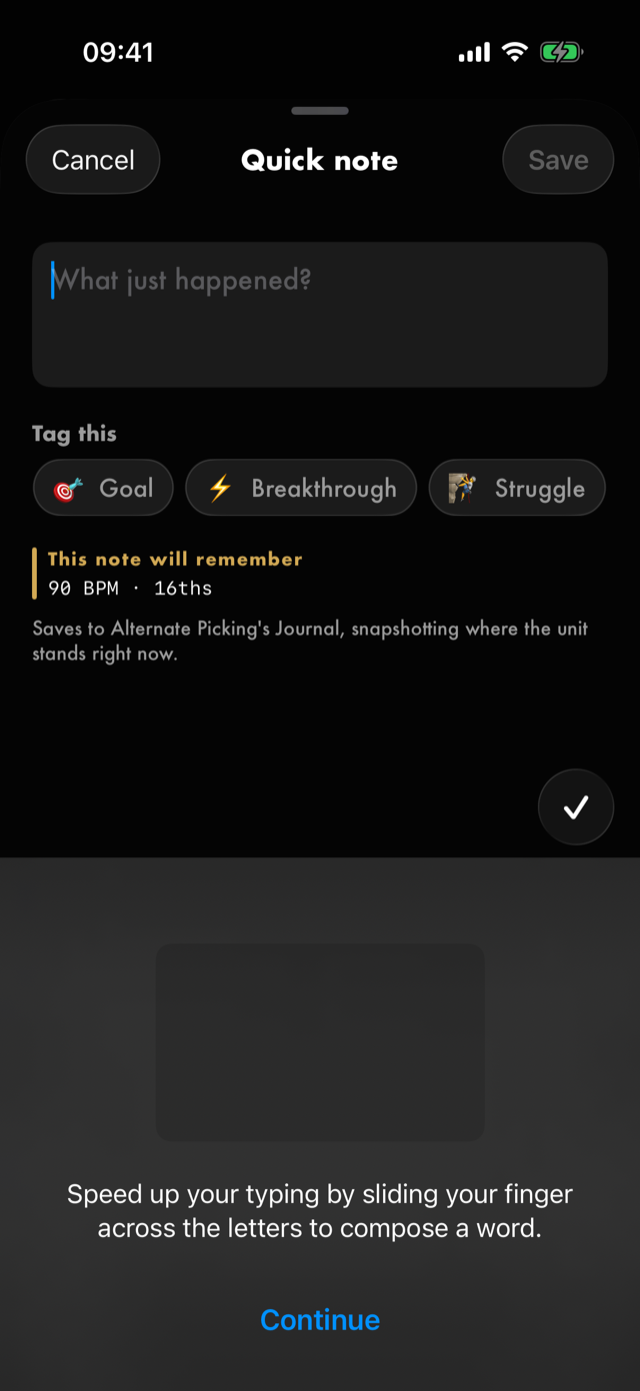
- What just happened? is the note itself. Save stays unavailable until you have typed something.
- The chips tag it. Which are offered depends on where you are writing — see below.
- The line at the bottom says where it lands and what it records. From the journal it reads Saves straight to your Journal — not attached to any loop or exercise.
Where you write from is not cosmetic. A note written on a drill is filed against that drill and keeps a copy of where it stood at that moment. Written from the journal, it belongs to nothing and keeps nothing, because there is nothing honest to keep. That is also why the journal's + offers no picker of things to attach a note to: filing it against a drill you are not currently playing would snapshot where that drill stands now, not where it stood when the thing you are describing happened.
The kinds
| Chip | For |
|---|---|
| 🎯 Goal | An intention you are setting. |
| ⚡️ Breakthrough | It clicked. |
| 🧗 Struggle | What is fighting back. |
| 💡 Idea | Something to try — a direction, not a result. |
| 📝 Note | A neutral observation — the default. |
| 🎬 Session | A log of a whole sitting. |
| 👂 Ear | What you heard, on an ear-training loop. |
| 🎸 Improv | What you played over a backing loop. |
The last three assert that the note was written during something, so they are offered only where that is true. A note written from the journal or at the metronome gets the first five.
The tag is worth picking, because you can filter by it later — see Finding something again.
What a note remembers
Each note carries a copy of its subject as it stood when you wrote it, and that copy never changes afterwards. What it copies depends on what you were doing:
| Written on | It keeps |
|---|---|
| A loop | Its mastery and its command tempo. |
| An exercise | Its command tempo and the rhythm you were playing — 90 BPM · 16ths. |
| A whole session | Which units you practised, as tappable pills. |
| The metronome | The click — tempo, time signature, subdivision, and the withdrawal setting if one was on. |
| The journal itself | Nothing. There is no subject to snapshot. |
That is the point of writing where you played. Six months later the note still says what the drill was like then, not what it is like now.
Takes
A take is a recording of you playing, captured through the microphone. Arm the record button
next to Start training on a run screen — it turns red once armed — and the take starts when the run does and ends when it does. Takes land in this same timeline alongside your notes.

- ▶ plays it. One plays at a time, and it stops when you leave the screen.
- Its row shows the take's name, how long it runs, and when it was made.
- Swipe right to name it. An unnamed take is just called Take, and a list of those is the problem naming solves — which is why the hold menu offers Name this take on one that has never been named, and Rename after.
- Hold it and choose Export take… to take the recording somewhere else: into a DAW, to your teacher, or into Files. It goes as the file it is, named for what it was recorded against and the day, like Slow Bend · Chorus · 1 Oct 2026.m4a. Nothing in Red Moon changes.
Takes are also reachable from the run screen they were made on, through its Takes bar.
A take that is not about a drill
Some playing belongs to nothing on your list — a riff you want to keep before it goes, how new strings sound, a first go at a song you have not imported. Record it from the journal: + ▸ Record a take.
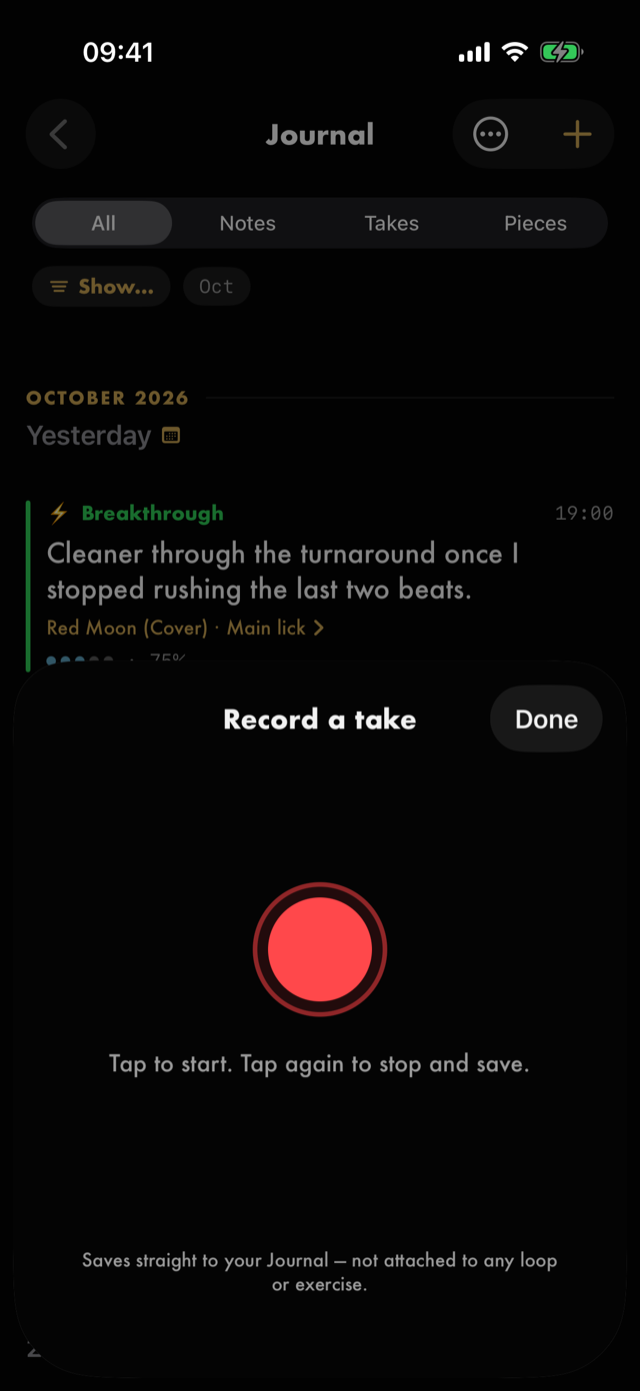
Tap the red button to start and tap it again to stop — stopping is what saves the take. While it is recording the sheet will not close, so a stray swipe cannot end it. The take then sits in the timeline with no caption, because it belongs to nothing — and for the same reason as a note written here, there is no picker to file it under a drill.
Inside a routine, a block records only if you set it to. Swipe the block right for Record, or open it and turn on Record this block; the take then starts and stops with the block, and the block's completion screen offers it back. See Recording a block. Ear training and improvise blocks can be marked the same way, and keep their own record button as well. Your own practice blocks are live-only — their start and stop button is the whole of it.
Opening a take
▶ plays a take where it sits. Tapping anywhere else on the row — the name, the duration, the time — opens the take on a screen of its own.
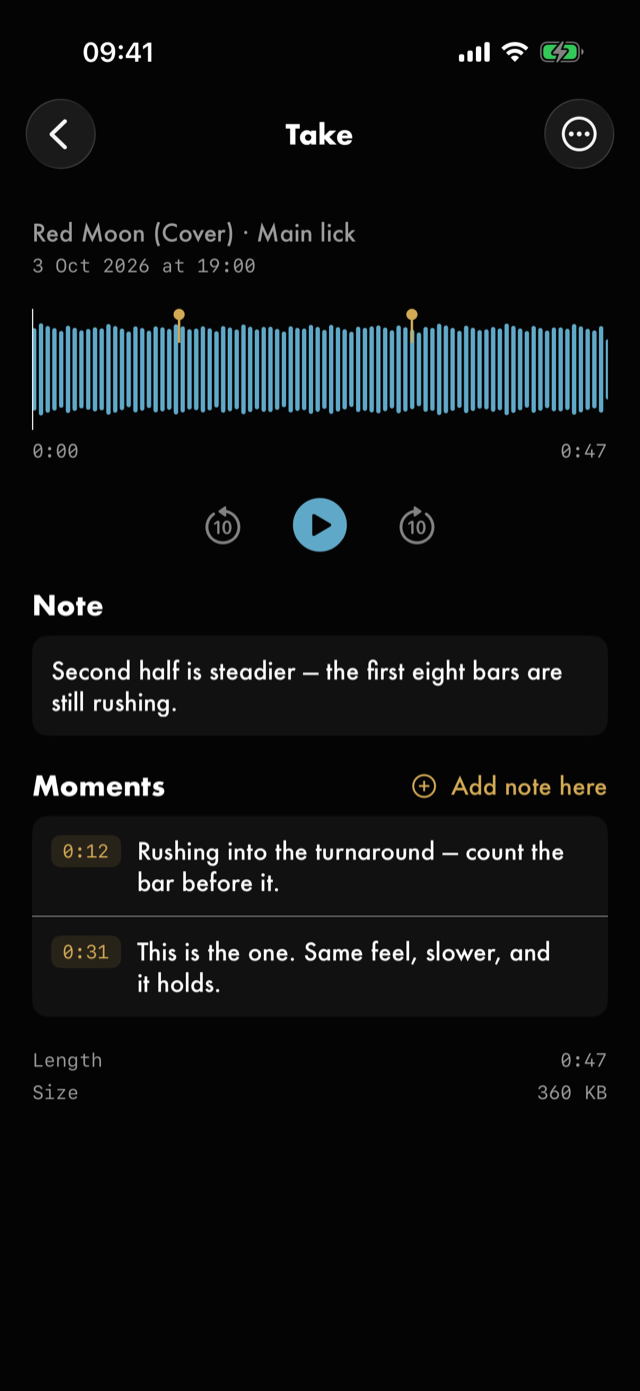
- The strip is the take drawn as a waveform. Drag it to move the playhead, or tap a point to go there. The two timecodes underneath say where you are and how long the take runs.
- ▶ plays and pauses. ⏪ and ⏩ jump ten seconds back and forward.
- Length and Size at the bottom say what the take runs to and what it is costing you.
- ⋯ holds the rest: Rename, the note, Trim…, Export take… and Delete.
A note on a take
⋯ ▸ Add a note — or tapping the note block itself — writes a line about the take. What the playing was like, what to change next time.
The note lives with the take and shows on this screen; a take that has one gets a small marker on its row so you can see which takes you wrote about. It is a note on the take, not a Journal entry: it does not appear in the timeline, and searching the Journal will not find its words.
Leaving the note empty removes it.
Notes pinned to a moment
The take's own note says what the whole thing was like. A moment says what happened here — the turnaround at 1:20, the bar where it finally sat right.
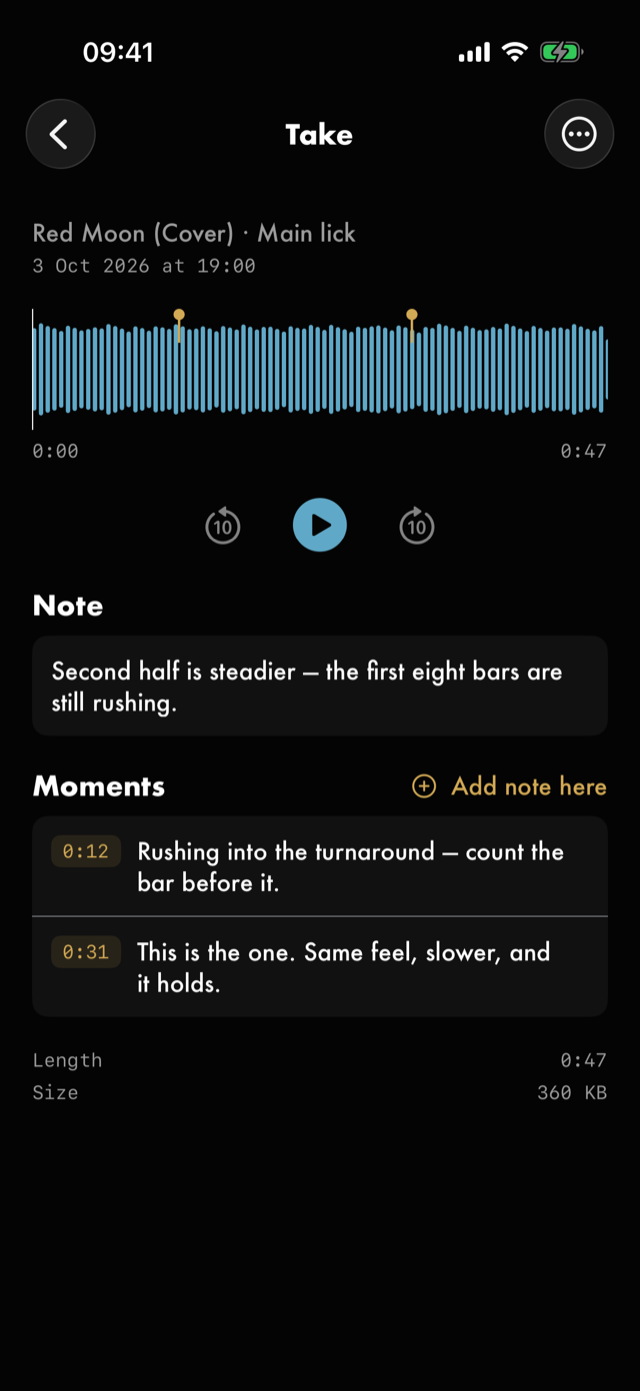
- Play to the bit you want to remember, then Add note here — in the Moments section, or in ⋯. Playback pauses and the note is pinned to where the playhead was.
- Each moment appears as a pin on the strip and a row underneath it.
- Tapping a row's timecode plays from that point. Tapping the rest of the row opens the note to edit it.
- Press and hold a row for Play from here, Edit and Delete.
A moment lives with the take, on the spot it points at. Like the take's own note, it stays on this screen: it does not appear in the Journal timeline and searching the Journal will not find its words.
A take with a note, a moment, or both gets the small marker on its row.
Trimming a take
⋯ ▸ Trim… turns the strip into a range with a handle at each end.
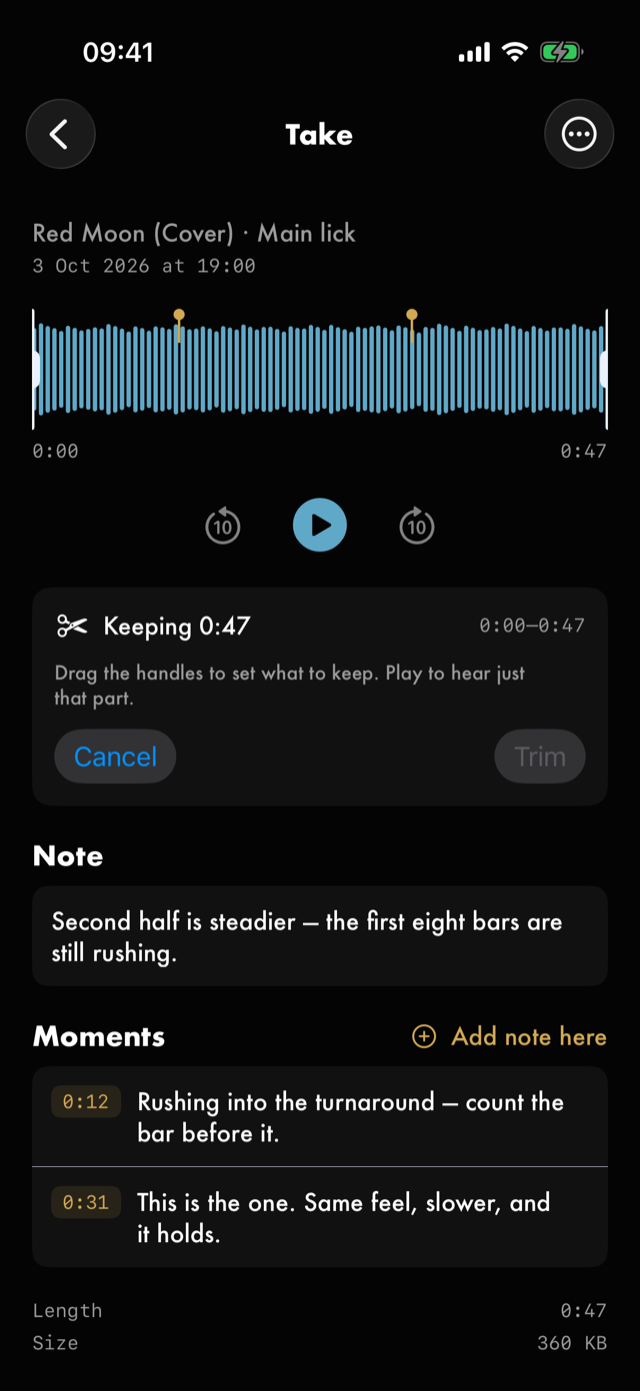
- Drag the handles to set what to keep. Everything outside them dims.
- Keeping says how much survives, and the timecodes beside it say which part.
- Press ▶ and you hear only the part you are keeping, so you can check the edges before you commit.
- Trim does it. Cancel leaves the take alone.
- Moments inside the range move with the audio and keep pointing at the same playing. Moments outside it are removed with the part you cut — their pins dim while you drag the handles, and the confirmation says how many are going.
A trim cannot be undone. It rewrites the recording and throws away what you cut — and any moments pinned inside it — which is how it gives you the space back, so it asks first and tells you how much is going. A take is the one thing in the app with no source to rebuild it from. If the trim fails for any reason, the take is left exactly as it was.
Trim stays dim until you actually move a handle: keeping the whole take is not a trim.
Keeping something to hand
After a year the two entries that changed how you play are somewhere under a few hundred ordinary ones. Pin them.
Hold any row — a note or a take — and choose Pin. A pinned row carries a small gold pin beside its time, and ⋯ ▸ Pinned only narrows the feed to what you have pinned. Hold and choose Unpin to take the mark off.
Pinning is yours alone. Red Moon never pins anything for you, and never decides which of your practice was worth keeping — a breakthrough is pinned because you pinned it, not because the app formed a view about it.
A pin filters the feed; it never reorders it. Pinned entries stay in the days they happened in, because the day is part of what the entry says.
Finding something again
- The All · Notes · Takes · Pieces control at the top narrows the feed to one of them. Pieces are the loops you've transcribed with Count the notes, one row per loop, showing the version in use. Saving a new count keeps the one before; Versions, under Saved on this loop in Train your ear, can use it again or delete it. Once a piece has a note on the neck, Watch it on the neck under the loop's name plays it back on the neck with the loop.
- Pieces is grouped by song rather than by day. Each song has a heading with Map the song beside it, which lays that song's pieces out where they play. Its pieces are listed in the order they play, each with the day it last changed, and the song you changed most recently comes first. Under All, a piece sits on the day it last changed, like everything else.
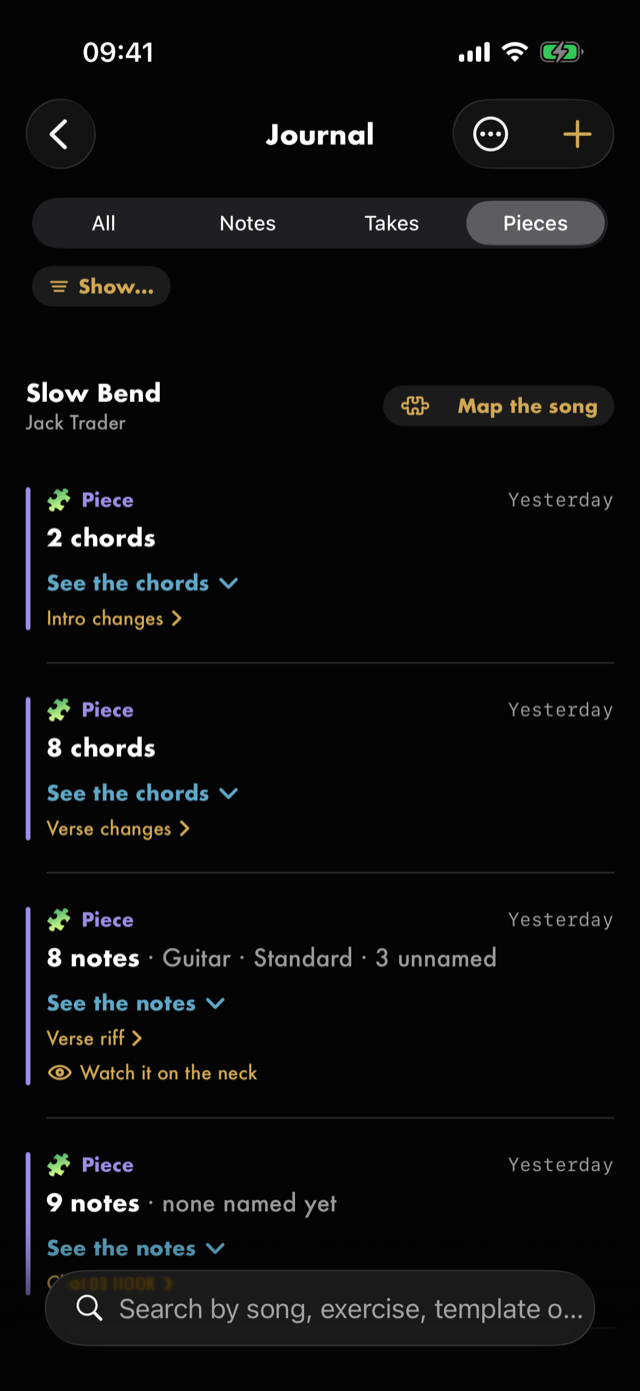
- Search matches song, exercise, template and date — so Slow Bend, Legato or a month name all work.
- ⋯ ▸ Sort flips the whole feed between Newest first and Oldest first, which is how you read forwards through a stretch of work rather than backwards.
- Show, the chip above the timeline, opens two lists. What it's about is the kinds of thing the journal holds: All, Exercise, Loop, Session, Metronome and Just me — that last one is the notes you wrote and the takes you recorded from the journal itself, about nothing in particular. Tagged is the chips you put on your notes: Any tag, then Goal, Breakthrough, Struggle, Idea, Note or untagged, Ear and Improv. Tick as many as you like in either — see below.
- ⋯ ▸ Pinned only shows just what you have pinned.
- The months beside that chip are the months your journal actually has something in — tap one to go there. A month with nothing in it is simply not listed. Pieces has no months, and no Jump to…, because it's grouped by song.
- Jump to… opens a month you can read: tap the day header at the top of the feed, or use ⋯ ▸ Jump to… — see below.
- Days are grouped under Today, Yesterday and then dated headers, under the month they fall in.
Ticking a second row in one list shows you more, not less. Tick Loop and you get loop work; tick Session as well and you get both, not the entries that are somehow both at once. Tap All and you are back to the whole journal. The chip says what is on, so Show: Loop or Session is readable without opening anything.
Ticking across the two lists shows you less. Loop in one and Idea in the other is the ideas you had on a loop — the chip reads Show: Loop · Idea. Within a list, more is more; between them, each one narrows the other.
Show takes takes with it. Filtering to Loop shows a loop's recordings beside its notes, because the journal is one feed and not two. The exception is an entry whose loop or exercise you have since deleted: it appears only under All. Red Moon keeps what such a note was called — Slow Bend · Verse riff — but not which kind of thing it had been, so it would rather show the note everywhere than guess. Ticking all six is not the same as ticking none, for exactly that reason.
Tagged does not. A recording has no chip on it — there was nothing to tag — so picking any tag leaves every take out. Tap Any tag to bring them back. The catch worth knowing: if the feed is set to Takes and a tag is ticked, nothing can appear at all, and the screen says so rather than letting you scroll for it.
Note or untagged is one row on purpose. 📝 Note is what a note is tagged with when you do not pick a chip, so Red Moon cannot tell a note you deliberately called neutral from one you never tagged. Rather than guess, the row says both.
🎬 Session is not in Tagged. Red Moon writes that tag itself when you finish a routine, so it is not a mark you made — and What it's about ▸ Session already finds the same entries.
While any of these is on, the Show chip fills in and says what it is holding, and the ⋯ fills in for Pinned only — so you can tell the feed is narrowed without opening anything. If a filter leaves nothing on screen, the screen says which filter did it and how to turn it off.
It stays how you left it
The All · Notes · Takes · Pieces control, the sort, Pinned only and Show all survive leaving the screen — come back tomorrow and the journal is set up the way you had it.
They persist because you can see them. That is the rule, and it is why the ⋯ fills in and why an empty screen names the filter that emptied it: a setting that quietly narrowed your journal with nothing on screen to say so would just look like a journal that had lost most of itself. Search is the one thing that does not persist — a search is a question you are asking now, so the field empties itself when you leave.
Jumping to a day
⋯ ▸ Jump to… opens a date picker over the span your journal covers. Pick a day and Jump, and the timeline scrolls to it.
Most days have nothing written on them, so the jump lands on the nearest day at or before the one you picked — pick the 14th and, if you last played on the 11th, that is where you arrive. Picking a date earlier than anything you have written takes you to the start of the journal.
Nothing is filtered by a jump: the days either side are still there to scroll through. That is the difference between jumping to a date and searching for one — searching for July 2026 throws away everything else, which is exactly the context you were reading toward.
There is no calendar grid of how often you wrote. The shaded grid in the practice log counts minutes played; one that counted entries written would look identical and mean something else, one tap away — and shading a month by how diligently you kept a journal would be Red Moon marking your homework, which it does not do.
The caption under a note or take names what it was about — Slow Bend · Verse riff, Spider · exercise — and where it has somewhere to go it is a link with a chevron. Tap it to open the thing itself. A caption with no chevron is a subject that no longer exists, or one with no screen to open, so the affordance is never a promise the tap cannot keep. The pills on a session note behave the same way, and a unit deleted since the session renders dimmed.
Changing and removing
The journal shows history; it does not edit it. To change a note, open it where it was written — its own loop's or exercise's journal — because that is the only screen where its snapshot means anything.
Deleting works everywhere here, and it is hold-only. Hold a row and the menu offers Delete (under Pin, and the naming verb on a take). There is no delete swipe in this list on purpose: a note about how a session went and a recording of someone playing have no source to regenerate them from, so the gesture is a deliberate one rather than the cheapest one in a list.
Deleting raises an Undo toast, and nothing is actually removed until it passes — including a take's audio file, which is what makes offering the delete safe at all.
The practice log
Tapping the This week strip on Home opens the counted-up version of the same history: three sections, at three scales. Where the timeline holds what you wrote, this holds what you did — and Red Moon fills it in by itself as you finish drills and play to the metronome, so there is nothing to keep up.
The strip is the promise and this screen is the payoff, which is why they sit together: the three numbers are a summary of what is here in full. Neither appears until you have finished something — there is no counting to read before there is anything to count.
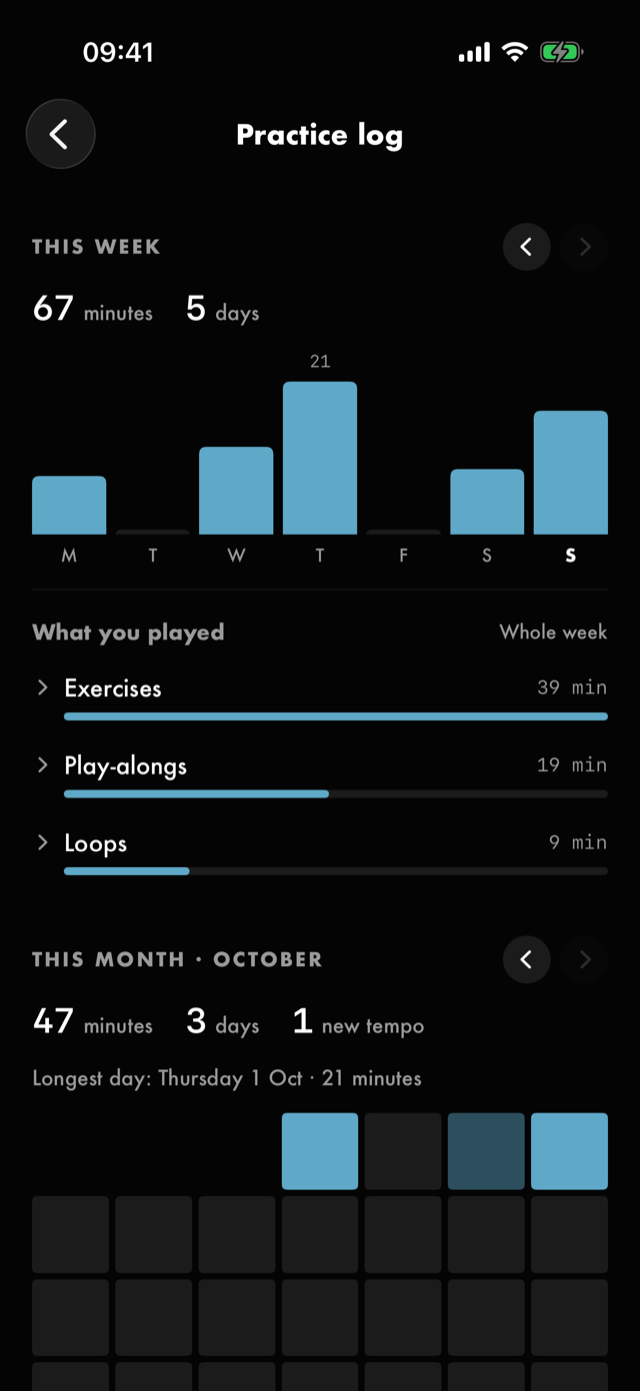
Before you have finished anything it says Nothing here yet and describes what will fill it — one statement rather than three empty sections.
This week
Minutes and days practised, over a bar per day. The seven bars are drawn even in a week with nothing in them, because the shape of a quiet week is the honest answer and a section that appeared and vanished week to week would be worse. A day with less than half a minute on it reads <1 minute, not 0.
It opens on the current week, and you can go back through every week since you started: swipe right across the chart, or tap ‹ beside the title. › comes forward again, and once you have gone back, This week in the header brings you straight to now. The title names the week you are looking at.
This month
Minutes, days, and — when there are any — new tempos, meaning tempos you reached that you had not reached before. Under them, your longest day once the month has two days to compare, and a calendar grid with one cell per day, shaded by how long you played. It pages back through every month since you started, the same way the week does.
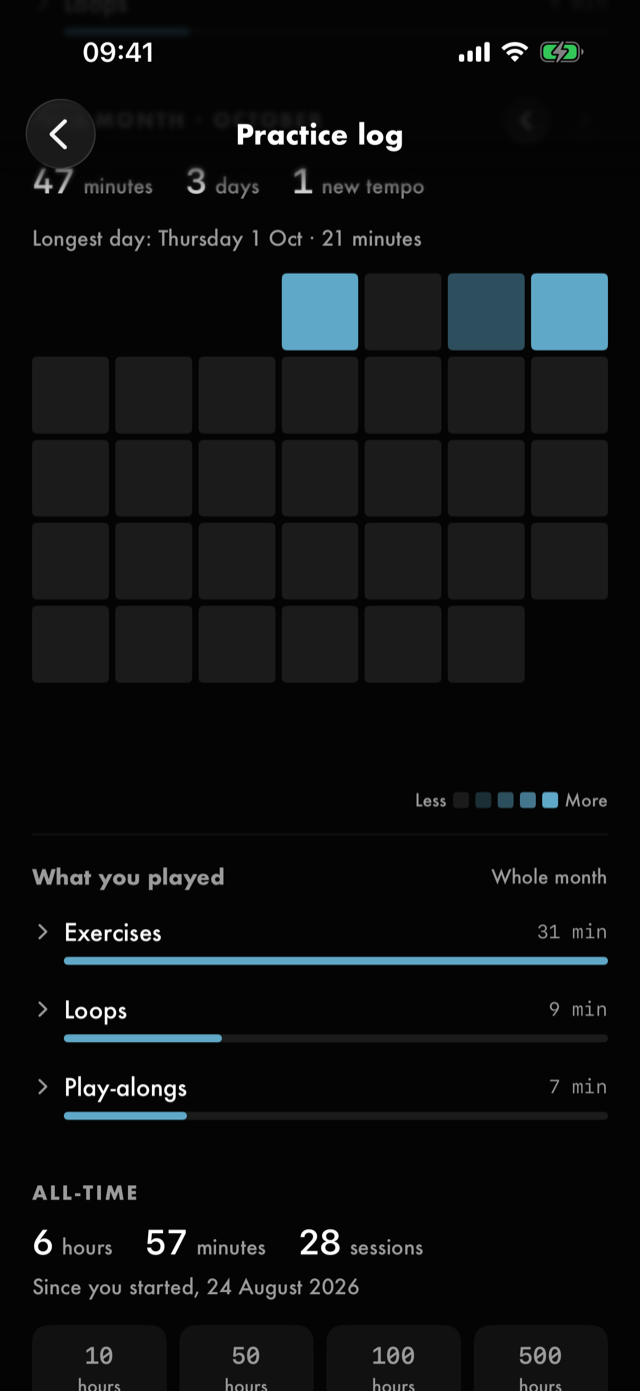
The shading is relative to that month's own longest day — that is what the Less → More key under it means, and the Longest day line above the grid is the darkest cell. There is no fixed number it is shaded against, because choosing one would be setting a daily target by the back door, so as you page back, the same shade can mean more in a busy month than in a quiet one. Days with nothing on them are a distinct neutral rather than the palest step, so "nothing" never reads as "a little".
What you played
Under both the week and the month, What you played shows where the time went: by kind — exercises, loops, ear training, improvising, play-alongs, the metronome — largest first. Tap a kind to open it and see the exercise, loop or song itself, with each loop's song underneath it. Metronome is the one kind with nothing inside it, so it doesn't open: the click isn't an exercise or a song, and its row is the whole of what there is to say.
Tap a day — a bar in the week, a cell in the month — and the list narrows to that day. Tap the day again, or the date that appears beside What you played, to see the whole week or month.
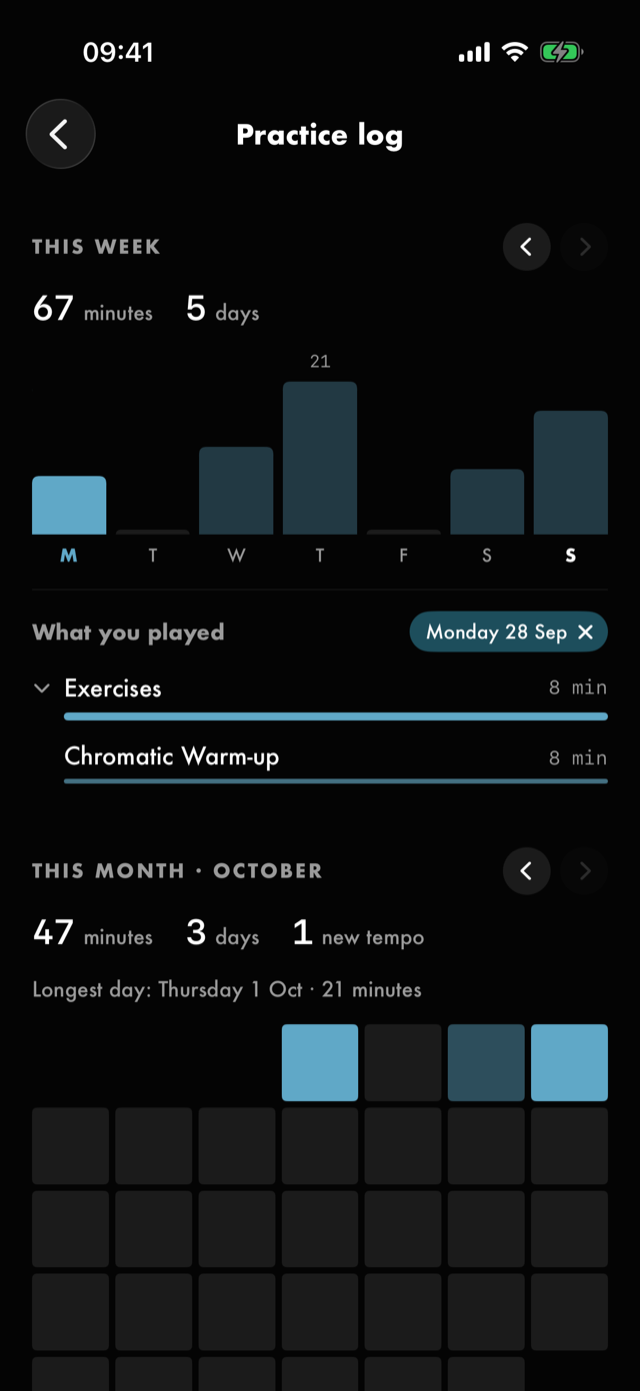
It lists what you played, not where you were in the app: time spent browsing the song library or tuning isn't practice, so it isn't here. Time with the metronome is — the time the click sounded, once it has sounded for 30 seconds. An exercise or loop you have deleted keeps its minutes and is marked Deleted. Play-alongs from before Red Moon started noting which song they were are listed together as Song not recorded.
All-time
- Time played and sessions, with the date you started. Under an hour it reads in minutes; past that, hours and the minutes past the hour.
- The hours wall — marks at 10, 50, 100 and 500 hours. Every mark is always drawn, reached or not, so the wall does not rearrange as you pass them. Nothing here says by when: an unreached mark is neutral, not outstanding.
- What you've built — how many exercises, loops, mastered loops and notes you have. A loop counts as mastered when it is rated 5 at full speed: a 5 at a slower tempo is the cue to raise it. Deliberately at the bottom: it measures the size of your library rather than the work, and it can go down when you delete a drill.
What the practice log does not do
It does not grade you. That is why it is called a log and not progress: every measure on it is effort — minutes, days, sessions, things made — and tempo appears only as a record of what you played. Nothing compares you to another player.
There is also no count of consecutive days, no weekly target, no percentage of days active, and no week-on-week comparison. You can page back and look at last week yourself; the screen never sets one week beside another for you. All of those turn a record into a debt, and this screen is a record.
See Help & FAQs: "Does Red Moon score my playing?"
Next
- The click on its own, which can be journalled too
- Running a drill, where most notes get written
- Where your data lives
All manual pages. Something not covered here? Get in touch — we read every message.